Compare commits
16 Commits
| Author | SHA1 | Date | |
|---|---|---|---|

|
3b510b7581 | ||

|
0c7d101a97 | ||
|
|
4c192714e4 | ||
|
|
d01cf16dea | ||
|
|
9f0b6f5aca | ||
|
|
46c1f72c03 | ||
|
|
ec033840bc | ||
|
|
f09c114019 | ||

|
225bf094b2 | ||
|
|
98b648dabe | ||
|
|
da7f1f29de | ||
|
|
0719a66d47 | ||
|
|
65ac0bc68b | ||
|
|
8862ee1ae6 | ||

|
3205d1e754 | ||

|
eac75ec303 |
@@ -3,7 +3,7 @@ root = true
|
||||
|
||||
[*.go]
|
||||
indent_style = tab
|
||||
indent_size = 4
|
||||
indent_size = 2
|
||||
charset = utf-8
|
||||
trim_trailing_whitespace = true
|
||||
insert_final_newline = true
|
||||
|
||||
20
.github/ISSUE_TEMPLATE.md
vendored
20
.github/ISSUE_TEMPLATE.md
vendored
@@ -1,10 +1,5 @@
|
||||
Read before posting:
|
||||
|
||||
- Questions should be posted to https://community.grafana.com. Please search there and here on GitHub for similar issues before creating a new issue.
|
||||
- Checkout FAQ: https://community.grafana.com/c/howto/faq
|
||||
- Checkout How to troubleshoot metric query issues: https://community.grafana.com/t/how-to-troubleshoot-metric-query-issues/50
|
||||
|
||||
Please prefix your title with [Bug] or [Feature request].
|
||||
Please prefix your title with [Bug] or [Feature request]
|
||||
For question please check [Support Options](http://grafana.org/support/). **Do not** open a github issue
|
||||
|
||||
Please include this information:
|
||||
- What Grafana version are you using?
|
||||
@@ -13,6 +8,11 @@ Please include this information:
|
||||
- What did you do?
|
||||
- What was the expected result?
|
||||
- What happened instead?
|
||||
- If related to metric query / data viz:
|
||||
- Include raw network request & response: get by opening Chrome Dev Tools (F12, Ctrl+Shift+I on windows, Cmd+Opt+I on Mac), go the network tab.
|
||||
|
||||
|
||||
**IMPORTANT**
|
||||
If it relates to *metric data viz*:
|
||||
- An image or text representation of your metric query
|
||||
- The raw query and response for the network request (check this in chrome dev tools network tab, here you can see metric requests and other request, please include the request body and request response)
|
||||
|
||||
If it relates to *alerting*
|
||||
- An image of the test execution data fully expanded.
|
||||
|
||||
1
.gitignore
vendored
1
.gitignore
vendored
@@ -25,7 +25,6 @@ public/css/*.min.css
|
||||
*.swp
|
||||
.idea/
|
||||
*.iml
|
||||
*.tmp
|
||||
.vscode/
|
||||
|
||||
/data/*
|
||||
|
||||
185
CHANGELOG.md
185
CHANGELOG.md
@@ -1,186 +1,12 @@
|
||||
# 4.3.0-stable (unreleased)
|
||||
# 4.2.0 (unreleased)
|
||||
|
||||
## Bug fixes
|
||||
|
||||
* **Gzip**: Fixed crash when gzip was enabled [#8380](https://github.com/grafana/grafana/issues/8380)
|
||||
* **Graphite**: Fixed issue with Toggle edit mode did in query editor [#8377](https://github.com/grafana/grafana/issues/8377)
|
||||
* **Alerting**: Fixed issue with state history not showing query execution errors [#8412](https://github.com/grafana/grafana/issues/8412)
|
||||
* **Alerting**: Fixed issue with missing state history events/annotations when using sqlite3 database [#7992](https://github.com/grafana/grafana/issues/7992)
|
||||
* **Sqlite**: Fixed with database table locked and using sqlite3 database [#7992](https://github.com/grafana/grafana/issues/7992)
|
||||
* **Alerting**: Fixed issue with annotations showing up in unsaved dashboards, new graph & alert panel. [#8361](https://github.com/grafana/grafana/issues/8361)
|
||||
* **webdav**: Fixed http proxy env variable support for webdav image upload [#7922](https://github.com/grafana/grafana/issues/79222), thx [@berghauz](https://github.com/berghauz)
|
||||
* **Prometheus**: Fixed issue with hiding query [#8413](https://github.com/grafana/grafana/issues/8413)
|
||||
|
||||
## Enhancements
|
||||
|
||||
* **VictorOps**: Now supports panel image & auto resolve [#8431](https://github.com/grafana/grafana/pull/8431), thx [@davidmscott](https://github.com/davidmscott)
|
||||
* **Alerting**: Alert annotations now provide more info [#8421](https://github.com/grafana/grafana/pull/8421)
|
||||
|
||||
# 4.3.0-beta1 (2017-05-12)
|
||||
|
||||
## Enhancements
|
||||
|
||||
* **InfluxDB**: influxdb query builder support for ORDER BY and LIMIT (allows TOPN queries) [#6065](https://github.com/grafana/grafana/issues/6065) Support influxdb's SLIMIT Feature [#7232](https://github.com/grafana/grafana/issues/7232) thx [@thuck](https://github.com/thuck)
|
||||
* **Panels**: Delay loading & Lazy load panels as they become visible (scrolled into view) [#5216](https://github.com/grafana/grafana/issues/5216) thx [@jifwin](https://github.com/jifwin)
|
||||
* **Graph**: Support auto grid min/max when using log scale [#3090](https://github.com/grafana/grafana/issues/3090), thx [@bigbenhur](https://github.com/bigbenhur)
|
||||
* **Graph**: Support for histograms [#600](https://github.com/grafana/grafana/issues/600)
|
||||
* **Prometheus**: Support table response formats (column per label) [#6140](https://github.com/grafana/grafana/issues/6140), thx [@mtanda](https://github.com/mtanda)
|
||||
* **Single Stat Panel**: support for non time series data [#6564](https://github.com/grafana/grafana/issues/6564)
|
||||
* **Server**: Monitoring Grafana (health check endpoint) [#3302](https://github.com/grafana/grafana/issues/3302)
|
||||
* **Heatmap**: Heatmap Panel [#7934](https://github.com/grafana/grafana/pull/7934)
|
||||
* **Elasticsearch**: histogram aggregation [#3164](https://github.com/grafana/grafana/issues/3164)
|
||||
|
||||
## Minor Enchancements
|
||||
|
||||
* **InfluxDB**: Small fix for the "glow" when focus the field for LIMIT and SLIMIT [#7799](https://github.com/grafana/grafana/pull/7799) thx [@thuck](https://github.com/thuck)
|
||||
* **Prometheus**: Make Prometheus query field a textarea [#7663](https://github.com/grafana/grafana/issues/7663), thx [@hagen1778](https://github.com/hagen1778)
|
||||
* **Prometheus**: Step parameter changed semantics to min step to reduce the load on Prometheus and rendering in browser [#8073](https://github.com/grafana/grafana/pull/8073), thx [@bobrik](https://github.com/bobrik)
|
||||
* **Templating**: Should not be possible to create self-referencing (recursive) template variable definitions [#7614](https://github.com/grafana/grafana/issues/7614) thx [@thuck](https://github.com/thuck)
|
||||
* **Cloudwatch**: Correctly obtain IAM roles within ECS container tasks [#7892](https://github.com/grafana/grafana/issues/7892) thx [@gomlgs](https://github.com/gomlgs)
|
||||
* **Units**: New number format: Scientific notation [#7781](https://github.com/grafana/grafana/issues/7781) thx [@cadnce](https://github.com/cadnce)
|
||||
* **Oauth**: Add common type for oauth authorization errors [#6428](https://github.com/grafana/grafana/issues/6428) thx [@amenzhinsky](https://github.com/amenzhinsky)
|
||||
* **Templating**: Data source variable now supports multi value and panel repeats [#7030](https://github.com/grafana/grafana/issues/7030) thx [@mtanda](https://github.com/mtanda)
|
||||
* **Telegram**: Telegram alert is not sending metric and legend. [#8110](https://github.com/grafana/grafana/issues/8110), thx [@bashgeek](https://github.com/bashgeek)
|
||||
* **Graph**: Support dashed lines [#514](https://github.com/grafana/grafana/issues/514), thx [@smalik03](https://github.com/smalik03)
|
||||
* **Table**: Support to change column header text [#3551](https://github.com/grafana/grafana/issues/3551)
|
||||
* **Alerting**: Better error when SMTP is not configured [#8093](https://github.com/grafana/grafana/issues/8093)
|
||||
* **Pushover**: Add an option to attach graph image link in Pushover notification [#8043](https://github.com/grafana/grafana/issues/8043) thx [@devkid](https://github.com/devkid)
|
||||
* **WebDAV**: Allow to set different ImageBaseUrl for WebDAV upload and image link [#7914](https://github.com/grafana/grafana/issues/7914)
|
||||
* **Panels**: type-ahead mixed datasource selection [#7697](https://github.com/grafana/grafana/issues/7697) thx [@mtanda](https://github.com/mtanda)
|
||||
* **Security**:User enumeration problem [#7619](https://github.com/grafana/grafana/issues/7619)
|
||||
* **InfluxDB**: Register new queries available in InfluxDB - Holt Winters [#5619](https://github.com/grafana/grafana/issues/5619) thx [@rikkuness](https://github.com/rikkuness)
|
||||
* **Server**: Support listening on a UNIX socket [#4030](https://github.com/grafana/grafana/issues/4030), thx [@mitjaziv](https://github.com/mitjaziv)
|
||||
* **Graph**: Support log scaling for values smaller 1 [#5278](https://github.com/grafana/grafana/issues/5278)
|
||||
* **InfluxDB**: Slow 'select measurement' rendering for InfluxDB [#2524](https://github.com/grafana/grafana/issues/2524), thx [@sbhenderson](https://github.com/sbhenderson)
|
||||
* **Config**: Configurable signout menu activation [#7968](https://github.com/grafana/grafana/pull/7968), thx [@seuf](https://github.com/seuf)
|
||||
|
||||
## Fixes
|
||||
* **Table Panel**: Fixed annotation display in table panel, [#8023](https://github.com/grafana/grafana/issues/8023)
|
||||
* **Dashboard**: If refresh is blocked due to tab not visible, then refresh when it becomes visible [#8076](https://github.com/grafana/grafana/issues/8076) thanks [@SimenB](https://github.com/SimenB)
|
||||
* **Snapshots**: Fixed problem with annotations & snapshots [#7659](https://github.com/grafana/grafana/issues/7659)
|
||||
* **Graph**: MetricSegment loses type when value is an asterisk [#8277](https://github.com/grafana/grafana/issues/8277), thx [@Gordiychuk](https://github.com/Gordiychuk)
|
||||
* **Alerting**: Alert notifications do not show charts when using a non public S3 bucket [#8250](https://github.com/grafana/grafana/issues/8250) thx [@rogerswingle](https://github.com/rogerswingle)
|
||||
* **Graph**: 100% client CPU usage on red alert glow animation [#8222](https://github.com/grafana/grafana/issues/8222)
|
||||
* **InfluxDB**: Templating: "All" query does match too much [#8165](https://github.com/grafana/grafana/issues/8165)
|
||||
* **Dashboard**: Description tooltip is not fully displayed [#7970](https://github.com/grafana/grafana/issues/7970)
|
||||
* **Proxy**: Redirect after switching Org does not obey sub path in root_url (using reverse proxy) [#8089](https://github.com/grafana/grafana/issues/8089)
|
||||
* **Templating**: Restoration of ad-hoc variable from URL does not work correctly [#8056](https://github.com/grafana/grafana/issues/8056) thx [@tamayika](https://github.com/tamayika)
|
||||
* **InfluxDB**: timeFilter cannot be used twice in alerts [#7969](https://github.com/grafana/grafana/issues/7969)
|
||||
* **MySQL**: 4-byte UTF8 not supported when using MySQL database (allows Emojis) [#7958](https://github.com/grafana/grafana/issues/7958)
|
||||
* **Alerting**: api/alerts and api/alert/:id hold previous data for "message" and "Message" field when field value is changed from "some string" to empty string. [#7927](https://github.com/grafana/grafana/issues/7927)
|
||||
* **Graph**: Cannot add fill below to series override [#7916](https://github.com/grafana/grafana/issues/7916)
|
||||
* **InfluxDB**: Influxb Datasource test passes even if the Database doesn't exist [#7864](https://github.com/grafana/grafana/issues/7864)
|
||||
* **Prometheus**: Displaying Prometheus annotations is incredibly slow [#7750](https://github.com/grafana/grafana/issues/7750), thx [@mtanda](https://github.com/mtanda)
|
||||
* **Graphite**: grafana generates empty find query to graphite -> 422 Unprocessable Entity [#7740](https://github.com/grafana/grafana/issues/7740)
|
||||
* **Admin**: make organisation filter case insensitive [#8194](https://github.com/grafana/grafana/issues/8194), thx [@Alexander-N](https://github.com/Alexander-N)
|
||||
|
||||
## Changes
|
||||
* **Elasticsearch**: Changed elasticsearch Terms aggregation to default to Min Doc Count to 1, and sort order to Top [#8321](https://github.com/grafana/grafana/issues/8321)
|
||||
|
||||
## Tech
|
||||
|
||||
* **Library Upgrade**: inconshreveable/log15 outdated - no support for solaris [#8262](https://github.com/grafana/grafana/issues/8262)
|
||||
* **Library Upgrade**: Upgrade Macaron [#7600](https://github.com/grafana/grafana/issues/7600)
|
||||
|
||||
# 4.2.0 (2017-03-22)
|
||||
## Minor Enhancements
|
||||
* **Templates**: Prevent use of the prefix `__` for templates in web UI [#7678](https://github.com/grafana/grafana/issues/7678)
|
||||
* **Threema**: Add emoji to Threema alert notifications [#7676](https://github.com/grafana/grafana/pull/7676) thx [@dbrgn](https://github.com/dbrgn)
|
||||
* **Panels**: Support dm3 unit [#7695](https://github.com/grafana/grafana/issues/7695) thx [@mitjaziv](https://github.com/mitjaziv)
|
||||
* **Docs**: Added some details about Sessions in Postgres [#7694](https://github.com/grafana/grafana/pull/7694) thx [@rickard-von-essen](https://github.com/rickard-von-essen)
|
||||
* **Influxdb**: Allow commas in template variables [#7681](https://github.com/grafana/grafana/issues/7681) thx [@thuck](https://github.com/thuck)
|
||||
* **Cloudwatch**: stop using deprecated session.New() [#7736](https://github.com/grafana/grafana/issues/7736) thx [@mtanda](https://github.com/mtanda)
|
||||
* **OpenTSDB**: Pass dropcounter rate option if no max counter and no reset value or reset value as 0 is specified [#7743](https://github.com/grafana/grafana/pull/7743) thx [@r4um](https://github.com/r4um)
|
||||
* **Templating**: support full resolution for $interval variable [#7696](https://github.com/grafana/grafana/pull/7696) thx [@mtanda](https://github.com/mtanda)
|
||||
* **Elasticsearch**: Unique Count on string fields in ElasticSearch [#3536](https://github.com/grafana/grafana/issues/3536), thx [@pyro2927](https://github.com/pyro2927)
|
||||
* **Templating**: Data source template variable that refers to other variable in regex filter [#6365](https://github.com/grafana/grafana/issues/6365) thx [@rlodge](https://github.com/rlodge)
|
||||
* **Admin**: Global User List: add search and pagination [#7469](https://github.com/grafana/grafana/issues/7469)
|
||||
* **User Management**: Invite UI is now disabled when login form is disabled [#7875](https://github.com/grafana/grafana/issues/7875)
|
||||
|
||||
## Bugfixes
|
||||
* **Webhook**: Use proxy settings from environment variables [#7710](https://github.com/grafana/grafana/issues/7710)
|
||||
* **Panels**: Deleting a dashboard with unsaved changes raises an error message [#7591](https://github.com/grafana/grafana/issues/7591) thx [@thuck](https://github.com/thuck)
|
||||
* **Influxdb**: Query builder detects regex to easily for measurement [#7276](https://github.com/grafana/grafana/issues/7276) thx [@thuck](https://github.com/thuck)
|
||||
* **Docs**: router_logging not documented [#7723](https://github.com/grafana/grafana/issues/7723)
|
||||
* **Alerting**: Spelling mistake [#7739](https://github.com/grafana/grafana/pull/7739) thx [@woutersmit](https://github.com/woutersmit)
|
||||
* **Alerting**: Graph legend scrolls to top when an alias is toggled/clicked [#7680](https://github.com/grafana/grafana/issues/7680) thx [@p4ddy1](https://github.com/p4ddy1)
|
||||
* **Panels**: Fixed panel tooltip description after scrolling down [#7708](https://github.com/grafana/grafana/issues/7708) thx [@askomorokhov](https://github.com/askomorokhov)
|
||||
|
||||
# 4.2.0-beta1 (2017-02-27)
|
||||
|
||||
## Enhancements
|
||||
* **Telegram**: Added Telegram alert notifier [#7098](https://github.com/grafana/grafana/pull/7098), thx [@leonoff](https://github.com/leonoff)
|
||||
* **Templating**: Make $__interval and $__interval_ms global built in variables that can be used in by any datasource (in panel queries), closes [#7190](https://github.com/grafana/grafana/issues/7190), closes [#6582](https://github.com/grafana/grafana/issues/6582)
|
||||
* **S3 Image Store**: External s3 image store (used in alert notifications) now support AWS IAM Roles, closes [#6985](https://github.com/grafana/grafana/issues/6985), [#7058](https://github.com/grafana/grafana/issues/7058) thx [@mtanda](https://github.com/mtanda)
|
||||
* **SingleStat**: Implements diff aggregation method for singlestat [#7234](https://github.com/grafana/grafana/issues/7234), thx [@oliverpool](https://github.com/oliverpool)
|
||||
* **Dataproxy**: Added setting to enable more verbose logging in dataproxy [#7209](https://github.com/grafana/grafana/pull/7209), thx [@Ricky-N](https://github.com/Ricky-N)
|
||||
* **Alerting**: Better information about why an alert triggered [#7035](https://github.com/grafana/grafana/issues/7035)
|
||||
* **LINE**: Add LINE as alerting notification channel [#7301](https://github.com/grafana/grafana/pull/7301), thx [@huydx](https://github.com/huydx)
|
||||
* **LINE**: Adds image to notification message [#7417](https://github.com/grafana/grafana/pull/7417), thx [@Erliz](https://github.com/Erliz)
|
||||
* **Hipchat**: Adds support for sending alert notifications to hipchat [#6451](https://github.com/grafana/grafana/issues/6451), thx [@jregovic](https://github.com/jregovic)
|
||||
* **Alerting**: Uploading images for alert notifications is now optional [#7419](https://github.com/grafana/grafana/issues/7419)
|
||||
* **Dashboard**: Adds shortcut for collapsing/expanding all rows [#552](https://github.com/grafana/grafana/issues/552), thx [@mtanda](https://github.com/mtanda)
|
||||
* **Alerting**: Adds de duping of alert notifications [#7632](https://github.com/grafana/grafana/pull/7632)
|
||||
* **Orgs**: Sharing dashboards using Grafana share feature will now redirect to correct org. [#1613](https://github.com/grafana/grafana/issues/1613)
|
||||
* **Pushover**: Add Pushover alert notifications [#7526](https://github.com/grafana/grafana/pull/7526) thx [@devkid](https://github.com/devkid)
|
||||
* **Threema**: Add Threema Gateway alert notification integration [#7482](https://github.com/grafana/grafana/pull/7482) thx [@dbrgn](https://github.com/dbrgn)
|
||||
|
||||
## Minor Enhancements
|
||||
* **Optimzation**: Never issue refresh event when Grafana tab is not visible [#7218](https://github.com/grafana/grafana/issues/7218), thx [@mtanda](https://github.com/mtanda)
|
||||
* **Browser History**: Browser back/forward now works time ranges / zoom, [#7259](https://github.com/grafana/grafana/issues/7259)
|
||||
* **Elasticsearch**: Support for Min Doc Count options in Terms aggregation [#7324](https://github.com/grafana/grafana/pull/7324), thx [@lpic10](https://github.com/lpic10)
|
||||
* **Elasticsearch**: Term aggregation limit can now be changed in template queries [#7112](https://github.com/grafana/grafana/issues/7112), thx [@FFalcon](https://github.com/FFalcon)
|
||||
* **Elasticsearch**: Ad-hoc filters now support all operators [#7612](https://github.com/grafana/grafana/issues/7612), thx [@tamayika](https://github.com/tamayika)
|
||||
* **Graph**: Add full series name as title for legends. [#7493](https://github.com/grafana/grafana/pull/7493), thx [@kolobaev](https://github.com/kolobaev)
|
||||
* **Table**: Add a message when queries returns no data. [#6109](https://github.com/grafana/grafana/issues/6109), thx [@xginn8](https://github.com/xginn8)
|
||||
* **Graph**: Set max width for series names in legend tables. [#2385](https://github.com/grafana/grafana/issues/2385), thx [@kolobaev](https://github.com/kolobaev)
|
||||
* **Database**: Allow max db connection pool configuration [#7427](https://github.com/grafana/grafana/issues/7427), thx [@huydx](https://github.com/huydx)
|
||||
* **Datasources** Delete datsource by name [#7476](https://github.com/grafana/grafana/issues/7476), thx [@huydx](https://github.com/huydx)
|
||||
* **Dataproxy**: Only allow get that begins with api/ to access Prometheus [#7459](https://github.com/grafana/grafana/pull/7459), thx [@mtanda](https://github.com/mtanda)
|
||||
* **Snapshot**: Make timeout for snapshot creation configurable [#7449](https://github.com/grafana/grafana/pull/7449) thx [@ryu1-sakai](https://github.com/ryu1-sakai)
|
||||
* **Panels**: Add more physics units [#7554](https://github.com/grafana/grafana/pull/7554) thx [@ryantxu](https://github.com/ryantxu)
|
||||
* **Email**: Add sender's name on email [#2131](https://github.com/grafana/grafana/issues/2131) thx [@jacobbednarz](https://github.com/jacobbednarz)
|
||||
* **HTTPS**: Set tls 1.2 as lowest tls version. [#7347](https://github.com/grafana/grafana/pull/7347) thx [@roman-vynar](https://github.com/roman-vynar)
|
||||
* **Table**: Added suppressing of empty results to table plugin. [#7602](https://github.com/grafana/grafana/pull/7602) thx [@LLIyRiK](https://github.com/LLIyRiK)
|
||||
|
||||
## Tech
|
||||
|
||||
* **Library Upgrade**: Upgraded angularjs from 1.5.8 to 1.6.1 [#7274](https://github.com/grafana/grafana/issues/7274)
|
||||
* **Backend**: Grafana is now built using golang 1.8
|
||||
|
||||
## Bugfixes
|
||||
* **Alerting**: Fixes missing support for no_data and execution error when testing alerts [#7149](https://github.com/grafana/grafana/issues/7149)
|
||||
* **Dashboard**: Avoid duplicate data in dashboard json for panels with alerts [#7256](https://github.com/grafana/grafana/pull/7256)
|
||||
* **Alertlist**: Only show scrollbar when required [#7269](https://github.com/grafana/grafana/issues/7269)
|
||||
* **SMTP**: Set LocalName to hostname [#7223](https://github.com/grafana/grafana/issues/7223)
|
||||
* **Sidemenu**: Disable sign out in sidemenu for AuthProxyEnabled [#7377](https://github.com/grafana/grafana/pull/7377), thx [@solugebefola](https://github.com/solugebefola)
|
||||
* **Prometheus**: Add support for basic auth in Prometheus tsdb package [#6799](https://github.com/grafana/grafana/issues/6799), thx [@hagen1778](https://github.com/hagen1778)
|
||||
* **OAuth**: Redirect to original page when logging in with OAuth [#7513](https://github.com/grafana/grafana/issues/7513)
|
||||
* **Annotations**: Wrap text in annotations tooltip [#7542](https://github.com/grafana/grafana/pull/7542), thx [@xginn8](https://github.com/xginn8)
|
||||
* **Templating**: Fixes error when using numeric sort on empty strings [#7382](https://github.com/grafana/grafana/issues/7382)
|
||||
* **Templating**: Fixed issue detecting template variable dependency [#7354](https://github.com/grafana/grafana/issues/7354)
|
||||
|
||||
# 4.1.2 (2017-02-13)
|
||||
|
||||
### Bugfixes
|
||||
* **Table**: Fixes broken annotation rendering mode in the table panel [#7268](https://github.com/grafana/grafana/issues/7268)
|
||||
* **Data Sources**: Sorting for lists of data sources in UI is now case insensitive [#7491](https://github.com/grafana/grafana/issues/7491)
|
||||
* **Admin**: Support more then 1000 users in global users list [#7469](https://github.com/grafana/grafana/issues/7469)
|
||||
|
||||
# 4.1.1 (2017-01-11)
|
||||
|
||||
### Bugfixes
|
||||
* **Graph Panel**: Fixed issue with legend height in table mode [#7221](https://github.com/grafana/grafana/issues/7221)
|
||||
|
||||
# 4.1.0 (2017-01-11)
|
||||
# 4.0.0 (unreleased)
|
||||
|
||||
### Bugfixes
|
||||
* **Server side PNG rendering**: Fixed issue with y-axis label rotation in phantomjs rendered images [#6924](https://github.com/grafana/grafana/issues/6924)
|
||||
* **Graph**: Fixed centering of y-axis label [#7099](https://github.com/grafana/grafana/issues/7099)
|
||||
* **Graph**: Fixed graph legend table mode and always visible scrollbar [#6828](https://github.com/grafana/grafana/issues/6828)
|
||||
* **Templating**: Fixed template variable value groups/tags feature [#6752](https://github.com/grafana/grafana/issues/6752)
|
||||
* **Webhook**: Fixed webhook username mismatch [#7195](https://github.com/grafana/grafana/pull/7195), thx [@theisenmark](https://github.com/theisenmark)
|
||||
* **Influxdb**: Handles time(auto) the same way as time($interval) [#6997](https://github.com/grafana/grafana/issues/6997)
|
||||
|
||||
## Enhancements
|
||||
* **Elasticsearch**: Added support for all moving average options [#7154](https://github.com/grafana/grafana/pull/7154), thx [@vaibhavinbayarea](https://github.com/vaibhavinbayarea)
|
||||
@@ -213,6 +39,11 @@
|
||||
* **Notifications**: Remove html escaping the email subject. [#6905](https://github.com/grafana/grafana/issues/6905)
|
||||
* **Influxdb**: Fixes broken field dropdown when using template vars as measurement. [#6473](https://github.com/grafana/grafana/issues/6473)
|
||||
|
||||
# 4.0.3 (unreleased)
|
||||
|
||||
### Bugfixes
|
||||
* **Influxdb**: Handles time(auto) the same way as time($interval) [#6997](https://github.com/grafana/grafana/issues/6997)
|
||||
|
||||
# 4.0.2 (2016-12-08)
|
||||
|
||||
### Enhancements
|
||||
@@ -868,7 +699,7 @@ Grafana 2.x is fundamentally different from 1.x; it now ships with an integrated
|
||||
|
||||
# 1.8.0 (2014-09-22)
|
||||
|
||||
Read this [blog post](https://grafana.com/blog/2014/09/11/grafana-1.8.0-rc1-released) for an overview of all improvements.
|
||||
Read this [blog post](http://grafana.org/blog/2014/09/11/grafana-1-8-0-rc1-released.html) for an overview of all improvements.
|
||||
|
||||
**Fixes**
|
||||
- [Issue #802](https://github.com/grafana/grafana/issues/802). Annotations: Fix when using InfluxDB datasource
|
||||
|
||||
@@ -1,4 +1,4 @@
|
||||
Copyright 2014-2017 Torkel Ödegaard, Raintank Inc.
|
||||
Copyright 2014-2016 Torkel Ödegaard, Raintank Inc.
|
||||
|
||||
Licensed under the Apache License, Version 2.0 (the "License"); you
|
||||
may not use this file except in compliance with the License. You may
|
||||
|
||||
4
Makefile
4
Makefile
@@ -4,9 +4,9 @@ deps-go:
|
||||
go run build.go setup
|
||||
|
||||
deps-js:
|
||||
yarn install --pure-lockfile --no-progress
|
||||
yarn install
|
||||
|
||||
deps: deps-js
|
||||
deps: deps-go deps-js
|
||||
|
||||
build-go:
|
||||
go run build.go build
|
||||
|
||||
59
README.md
59
README.md
@@ -1,13 +1,16 @@
|
||||
[Grafana](https://grafana.com) [](https://circleci.com/gh/grafana/grafana)
|
||||
[Grafana](http://grafana.org) [](https://circleci.com/gh/grafana/grafana) [](https://coveralls.io/r/grafana/grafana)
|
||||
================
|
||||
[Website](https://grafana.com) |
|
||||
[Website](http://grafana.org) |
|
||||
[Twitter](https://twitter.com/grafana) |
|
||||
[Community & Forum](https://community.grafana.com)
|
||||
[IRC](https://webchat.freenode.net/?channels=grafana) |
|
||||
[](http://slack.raintank.io)
|
||||
[Slack](http://slack.raintank.io) |
|
||||
[Email](mailto:contact@grafana.org)
|
||||
|
||||
Grafana is an open source, feature rich metrics dashboard and graph editor for
|
||||
Graphite, Elasticsearch, OpenTSDB, Prometheus and InfluxDB.
|
||||
|
||||

|
||||
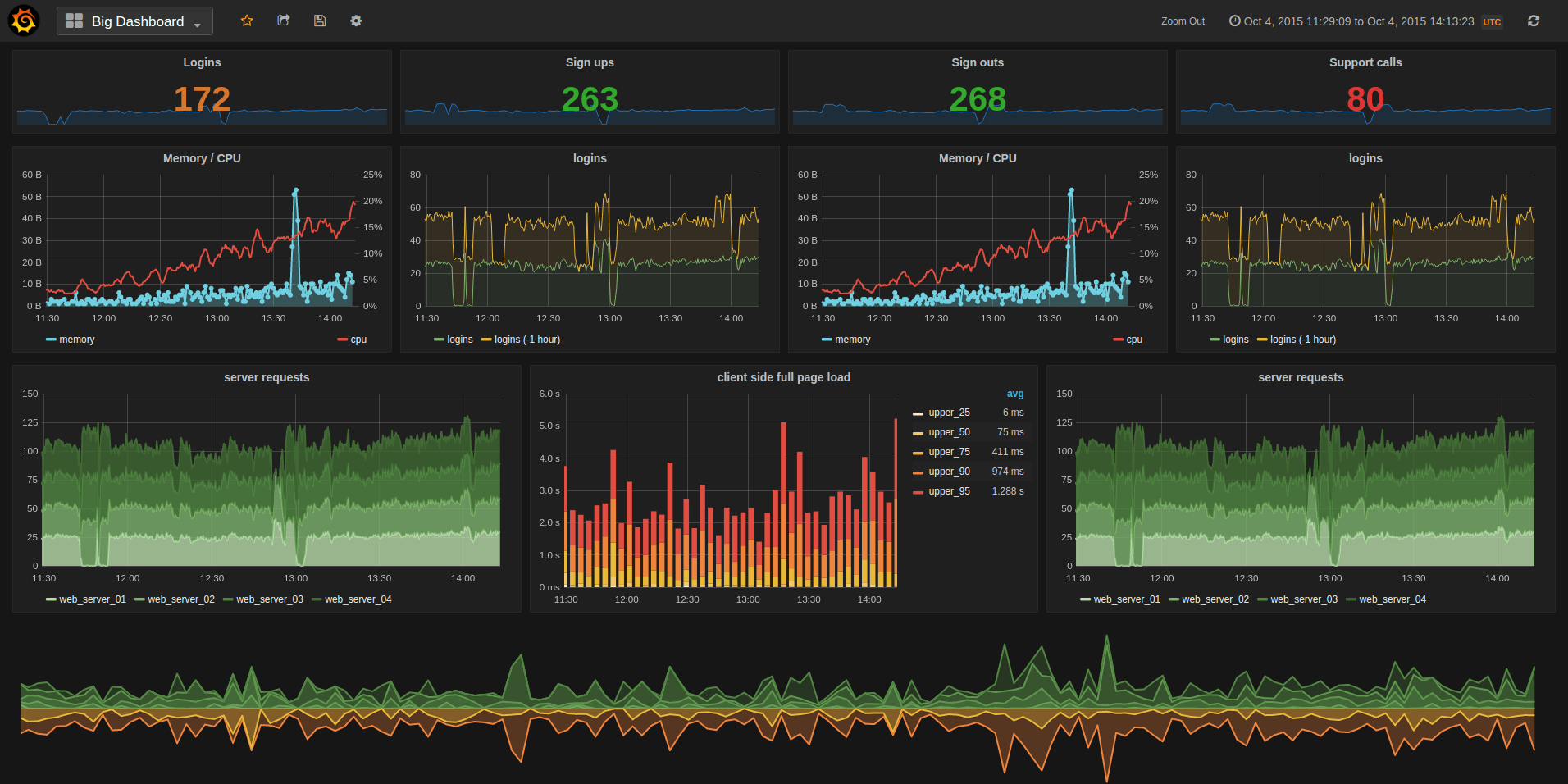
|
||||
|
||||
- [Install instructions](http://docs.grafana.org/installation/)
|
||||
- [What's New in Grafana 2.0](http://docs.grafana.org/guides/whats-new-in-v2/)
|
||||
@@ -15,11 +18,15 @@ Graphite, Elasticsearch, OpenTSDB, Prometheus and InfluxDB.
|
||||
- [What's New in Grafana 2.5](http://docs.grafana.org/guides/whats-new-in-v2-5/)
|
||||
- [What's New in Grafana 3.0](http://docs.grafana.org/guides/whats-new-in-v3/)
|
||||
- [What's New in Grafana 4.0](http://docs.grafana.org/guides/whats-new-in-v4/)
|
||||
- [What's New in Grafana 4.1](http://docs.grafana.org/guides/whats-new-in-v4-1/)
|
||||
- [What's New in Grafana 4.2](http://docs.grafana.org/guides/whats-new-in-v4-2/)
|
||||
- [What's New in Grafana 4.3](http://docs.grafana.org/guides/whats-new-in-v4-3/)
|
||||
- [What's New in Grafana 4.1 beta](http://docs.grafana.org/guides/whats-new-in-v4-1/)
|
||||
|
||||
## Features
|
||||
### Graphite Target Editor
|
||||
- Graphite target expression parser
|
||||
- Feature rich query composer
|
||||
- Quickly add and edit functions & parameters
|
||||
- Templated queries
|
||||
- [See it in action](http://docs.grafana.org/datasources/graphite/)
|
||||
|
||||
### Graphing
|
||||
- Fast rendering, even over large timespans
|
||||
@@ -43,30 +50,23 @@ Graphite, Elasticsearch, OpenTSDB, Prometheus and InfluxDB.
|
||||
- [Time range controls](http://docs.grafana.org/reference/timerange/)
|
||||
- [Share snapshots publicly](http://docs.grafana.org/v2.0/reference/sharing/)
|
||||
|
||||
### InfluxDB
|
||||
- Use InfluxDB as a metric data source, annotation source
|
||||
- Query editor with field and tag typeahead, easy group by and function selection
|
||||
|
||||
### Graphite
|
||||
- Graphite target expression parser
|
||||
- Feature rich query composer
|
||||
- Quickly add and edit functions & parameters
|
||||
- Templated queries
|
||||
- [See it in action](http://docs.grafana.org/datasources/graphite/)
|
||||
|
||||
### Elasticsearch, Prometheus & OpenTSDB
|
||||
### Elasticsearch
|
||||
- Feature rich query editor UI
|
||||
|
||||
### Alerting
|
||||
- Define alert rules using graphs & query conditions
|
||||
- Schedule & evalute alert rules, send notifications to Slack, Hipchat, Email, PagerDuty, etc.
|
||||
### InfluxDB
|
||||
- Use InfluxDB as a metric data source, annotation source
|
||||
- Query editor with series and column typeahead, easy group by and function selection
|
||||
|
||||
### OpenTSDB
|
||||
- Use as metric data source
|
||||
- Query editor with metric name typeahead and tag filtering
|
||||
|
||||
## Requirements
|
||||
There are no dependencies except an external time series data store. For dashboards and user accounts Grafana can use an embedded
|
||||
database (sqlite3) or you can use an external SQL data base like MySQL or Postgres.
|
||||
|
||||
## Installation
|
||||
Head to [grafana.org](http://docs.grafana.org/installation/) and [download](https://grafana.com/get)
|
||||
Head to [grafana.org](http://docs.grafana.org/installation/) and [download](http://grafana.org/download/)
|
||||
the latest release.
|
||||
|
||||
If you have any problems please read the [troubleshooting guide](http://docs.grafana.org/installation/troubleshooting/).
|
||||
@@ -76,12 +76,12 @@ Be sure to read the [getting started guide](http://docs.grafana.org/guides/getti
|
||||
|
||||
## Run from master
|
||||
If you want to build a package yourself, or contribute. Here is a guide for how to do that. You can always find
|
||||
the latest master builds [here](https://grafana.com/grafana/download)
|
||||
the latest master builds [here](http://grafana.org/builds)
|
||||
|
||||
### Dependencies
|
||||
|
||||
- Go 1.8.1
|
||||
- NodeJS LTS
|
||||
- Go 1.7.3
|
||||
- NodeJS v4+
|
||||
|
||||
### Get Code
|
||||
|
||||
@@ -110,12 +110,12 @@ go run build.go build
|
||||
|
||||
### Building frontend assets
|
||||
|
||||
To build less to css for the frontend you will need a recent version of **node (v6+)**,
|
||||
To build less to css for the frontend you will need a recent version of **node (v4+)**,
|
||||
npm (v2.5.0) and grunt (v0.4.5). Run the following:
|
||||
|
||||
```bash
|
||||
npm install -g yarn
|
||||
yarn install --pure-lockfile
|
||||
yarn install
|
||||
npm run build
|
||||
```
|
||||
|
||||
@@ -146,7 +146,8 @@ Create a custom.ini in the conf directory to override default configuration opti
|
||||
You only need to add the options you want to override. Config files are applied in the order of:
|
||||
|
||||
1. grafana.ini
|
||||
1. custom.ini
|
||||
2. dev.ini (if found)
|
||||
3. custom.ini
|
||||
|
||||
## Create a pull request
|
||||
Before or after you create a pull request, sign the [contributor license agreement](http://docs.grafana.org/project/cla/).
|
||||
|
||||
31
ROADMAP.md
31
ROADMAP.md
@@ -1,31 +0,0 @@
|
||||
# Roadmap (2017-04-23)
|
||||
|
||||
This roadmap is a tentative plan for the core development team. Things change constantly as PRs come in and priorities change.
|
||||
But it will give you an idea of our current vision and plan.
|
||||
|
||||
### Short term (1-4 months)
|
||||
|
||||
- New Heatmap Panel (Implemented and available in master)
|
||||
- Support for MySQL & Postgres as data sources (Work started and a alpha version for MySQL is available in master)
|
||||
- User Groups & Dashboard folders with ACLs (work started, not yet completed, https://github.com/grafana/grafana/issues/1611#issuecomment-287742633)
|
||||
- Improve new user UX
|
||||
- Improve docs
|
||||
- Support for alerting for Elasticsearch (can be tested in [branch](https://github.com/grafana/grafana/tree/alerting-elasticsearch) but needs more work)
|
||||
- Graph annotations (create from grafana, region annotations, better annotation viz)
|
||||
- Improve alerting (clustering, silence rules)
|
||||
|
||||
### Long term
|
||||
|
||||
- Improved dashboard panel layout engine (to make it easier and enable more flexible layouts)
|
||||
- Backend plugins to support more Auth options, Alerting data sources & notifications
|
||||
- Universial time series transformations for any data source (meta queries)
|
||||
- Reporting
|
||||
- Web socket & live data streams
|
||||
- Migrate to Angular2
|
||||
|
||||
|
||||
### Outside contributions
|
||||
We know this is being worked on right now by contributors (and we hope to merge it when it's ready).
|
||||
|
||||
- Dashboard revisions (be able to revert dashboard changes)
|
||||
- Clustering for alert engine (load distribution)
|
||||
24
appveyor.yml
24
appveyor.yml
@@ -7,17 +7,13 @@ clone_folder: c:\gopath\src\github.com\grafana\grafana
|
||||
environment:
|
||||
nodejs_version: "6"
|
||||
GOPATH: c:\gopath
|
||||
GOVERSION: 1.8
|
||||
|
||||
install:
|
||||
- rmdir c:\go /s /q
|
||||
# install nodejs and npm
|
||||
- ps: Install-Product node $env:nodejs_version
|
||||
- npm install -g yarn --silent
|
||||
- yarn install --pure-lockfile --no-progress
|
||||
- npm install -g yarn
|
||||
- yarn install
|
||||
- npm install -g grunt-cli
|
||||
- appveyor DownloadFile https://storage.googleapis.com/golang/go%GOVERSION%.windows-amd64.zip
|
||||
- 7z x go%GOVERSION%.windows-amd64.zip -y -oC:\ > NUL
|
||||
# install gcc (needed for sqlite3)
|
||||
- choco install -y --limit-output mingw
|
||||
- set PATH=C:\tools\mingw64\bin;%PATH%
|
||||
@@ -25,28 +21,18 @@ install:
|
||||
- echo %GOPATH%
|
||||
- go version
|
||||
- go env
|
||||
# - go run build.go setup
|
||||
- go run build.go setup
|
||||
|
||||
build_script:
|
||||
- go run build.go build
|
||||
- grunt release
|
||||
- go run build.go sha-dist
|
||||
- go run build.go sha1-dist
|
||||
- cp dist/* .
|
||||
|
||||
artifacts:
|
||||
- path: grafana-*windows-*.*
|
||||
name: binzip
|
||||
type: zip
|
||||
|
||||
deploy:
|
||||
- provider: Environment
|
||||
name: GrafanaReleaseMaster
|
||||
on:
|
||||
buildType: master
|
||||
|
||||
- provider: Environment
|
||||
name: GrafanaReleaseRelease
|
||||
on:
|
||||
buildType: release
|
||||
|
||||
|
||||
name: GrafanaBuildsS3
|
||||
|
||||
11
bower.json
11
bower.json
@@ -15,12 +15,11 @@
|
||||
"dependencies": {
|
||||
"jquery": "3.1.0",
|
||||
"lodash": "4.15.0",
|
||||
"angular": "1.6.1",
|
||||
"angular-route": "1.6.1",
|
||||
"angular-mocks": "1.6.1",
|
||||
"angular-sanitize": "1.6.1",
|
||||
"angular": "1.5.8",
|
||||
"angular-route": "1.5.8",
|
||||
"angular-mocks": "1.5.8",
|
||||
"angular-sanitize": "1.5.8",
|
||||
"angular-native-dragdrop": "1.2.2",
|
||||
"angular-bindonce": "0.3.3",
|
||||
"clipboard": "^1.5.16"
|
||||
"angular-bindonce": "0.3.3"
|
||||
}
|
||||
}
|
||||
|
||||
117
build.go
117
build.go
@@ -5,7 +5,7 @@ package main
|
||||
import (
|
||||
"bytes"
|
||||
"crypto/md5"
|
||||
"crypto/sha256"
|
||||
"crypto/sha1"
|
||||
"encoding/json"
|
||||
"flag"
|
||||
"fmt"
|
||||
@@ -14,7 +14,6 @@ import (
|
||||
"log"
|
||||
"os"
|
||||
"os/exec"
|
||||
"path"
|
||||
"path/filepath"
|
||||
"regexp"
|
||||
"runtime"
|
||||
@@ -38,18 +37,19 @@ var (
|
||||
race bool
|
||||
phjsToRelease string
|
||||
workingDir string
|
||||
includeBuildNumber bool = true
|
||||
buildNumber int = 0
|
||||
binaries []string = []string{"grafana-server", "grafana-cli"}
|
||||
)
|
||||
|
||||
const minGoVersion = 1.8
|
||||
const minGoVersion = 1.7
|
||||
|
||||
func main() {
|
||||
log.SetOutput(os.Stdout)
|
||||
log.SetFlags(0)
|
||||
|
||||
ensureGoPath()
|
||||
readVersionFromPackageJson()
|
||||
|
||||
log.Printf("Version: %s, Linux Version: %s, Package Iteration: %s\n", version, linuxPackageVersion, linuxPackageIteration)
|
||||
|
||||
flag.StringVar(&goarch, "goarch", runtime.GOARCH, "GOARCH")
|
||||
flag.StringVar(&goos, "goos", runtime.GOOS, "GOOS")
|
||||
@@ -59,14 +59,8 @@ func main() {
|
||||
flag.StringVar(&pkgArch, "pkg-arch", "", "PKG ARCH")
|
||||
flag.StringVar(&phjsToRelease, "phjs", "", "PhantomJS binary")
|
||||
flag.BoolVar(&race, "race", race, "Use race detector")
|
||||
flag.BoolVar(&includeBuildNumber, "includeBuildNumber", includeBuildNumber, "IncludeBuildNumber in package name")
|
||||
flag.IntVar(&buildNumber, "buildNumber", 0, "Build number from CI system")
|
||||
flag.Parse()
|
||||
|
||||
readVersionFromPackageJson()
|
||||
|
||||
log.Printf("Version: %s, Linux Version: %s, Package Iteration: %s\n", version, linuxPackageVersion, linuxPackageIteration)
|
||||
|
||||
if flag.NArg() == 0 {
|
||||
log.Println("Usage: go run build.go build")
|
||||
return
|
||||
@@ -79,9 +73,9 @@ func main() {
|
||||
case "setup":
|
||||
setup()
|
||||
|
||||
case "build-cli":
|
||||
clean()
|
||||
build("grafana-cli", "./pkg/cmd/grafana-cli", []string{})
|
||||
case "build-cli":
|
||||
clean()
|
||||
build("grafana-cli", "./pkg/cmd/grafana-cli", []string{})
|
||||
|
||||
case "build":
|
||||
clean()
|
||||
@@ -96,20 +90,24 @@ func main() {
|
||||
case "package":
|
||||
grunt(gruntBuildArg("release")...)
|
||||
createLinuxPackages()
|
||||
sha1FilesInDist()
|
||||
|
||||
case "pkg-rpm":
|
||||
grunt(gruntBuildArg("release")...)
|
||||
createRpmPackages()
|
||||
sha1FilesInDist()
|
||||
|
||||
case "pkg-deb":
|
||||
grunt(gruntBuildArg("release")...)
|
||||
createDebPackages()
|
||||
sha1FilesInDist()
|
||||
|
||||
case "sha-dist":
|
||||
shaFilesInDist()
|
||||
case "sha1-dist":
|
||||
sha1FilesInDist()
|
||||
|
||||
case "latest":
|
||||
makeLatestDistCopies()
|
||||
sha1FilesInDist()
|
||||
|
||||
case "clean":
|
||||
clean()
|
||||
@@ -121,24 +119,14 @@ func main() {
|
||||
}
|
||||
|
||||
func makeLatestDistCopies() {
|
||||
files, err := ioutil.ReadDir("dist")
|
||||
if err != nil {
|
||||
log.Fatalf("failed to create latest copies. Cannot read from /dist")
|
||||
rpmIteration := "-1"
|
||||
if linuxPackageIteration != "" {
|
||||
rpmIteration = linuxPackageIteration
|
||||
}
|
||||
|
||||
latestMapping := map[string]string{
|
||||
".deb": "dist/grafana_latest_amd64.deb",
|
||||
".rpm": "dist/grafana-latest-1.x86_64.rpm",
|
||||
".tar.gz": "dist/grafana-latest.linux-x64.tar.gz",
|
||||
}
|
||||
|
||||
for _, file := range files {
|
||||
for extension, fullName := range latestMapping {
|
||||
if strings.HasSuffix(file.Name(), extension) {
|
||||
runError("cp", path.Join("dist", file.Name()), fullName)
|
||||
}
|
||||
}
|
||||
}
|
||||
runError("cp", fmt.Sprintf("dist/grafana_%v-%v_amd64.deb", linuxPackageVersion, linuxPackageIteration), "dist/grafana_latest_amd64.deb")
|
||||
runError("cp", fmt.Sprintf("dist/grafana-%v-%v.x86_64.rpm", linuxPackageVersion, rpmIteration), "dist/grafana-latest-1.x86_64.rpm")
|
||||
runError("cp", fmt.Sprintf("dist/grafana-%v-%v.linux-x64.tar.gz", linuxPackageVersion, linuxPackageIteration), "dist/grafana-latest.linux-x64.tar.gz")
|
||||
}
|
||||
|
||||
func readVersionFromPackageJson() {
|
||||
@@ -169,13 +157,7 @@ func readVersionFromPackageJson() {
|
||||
}
|
||||
|
||||
// add timestamp to iteration
|
||||
if includeBuildNumber {
|
||||
if buildNumber != 0 {
|
||||
linuxPackageIteration = fmt.Sprintf("%d%s", buildNumber, linuxPackageIteration)
|
||||
} else {
|
||||
linuxPackageIteration = fmt.Sprintf("%d%s", time.Now().Unix(), linuxPackageIteration)
|
||||
}
|
||||
}
|
||||
linuxPackageIteration = fmt.Sprintf("%d%s", time.Now().Unix(), linuxPackageIteration)
|
||||
}
|
||||
|
||||
type linuxPackageOptions struct {
|
||||
@@ -185,6 +167,7 @@ type linuxPackageOptions struct {
|
||||
serverBinPath string
|
||||
cliBinPath string
|
||||
configDir string
|
||||
configFilePath string
|
||||
ldapFilePath string
|
||||
etcDefaultPath string
|
||||
etcDefaultFilePath string
|
||||
@@ -205,6 +188,8 @@ func createDebPackages() {
|
||||
homeDir: "/usr/share/grafana",
|
||||
binPath: "/usr/sbin",
|
||||
configDir: "/etc/grafana",
|
||||
configFilePath: "/etc/grafana/grafana.ini",
|
||||
ldapFilePath: "/etc/grafana/ldap.toml",
|
||||
etcDefaultPath: "/etc/default",
|
||||
etcDefaultFilePath: "/etc/default/grafana-server",
|
||||
initdScriptFilePath: "/etc/init.d/grafana-server",
|
||||
@@ -225,6 +210,8 @@ func createRpmPackages() {
|
||||
homeDir: "/usr/share/grafana",
|
||||
binPath: "/usr/sbin",
|
||||
configDir: "/etc/grafana",
|
||||
configFilePath: "/etc/grafana/grafana.ini",
|
||||
ldapFilePath: "/etc/grafana/ldap.toml",
|
||||
etcDefaultPath: "/etc/sysconfig",
|
||||
etcDefaultFilePath: "/etc/sysconfig/grafana-server",
|
||||
initdScriptFilePath: "/etc/init.d/grafana-server",
|
||||
@@ -235,7 +222,7 @@ func createRpmPackages() {
|
||||
defaultFileSrc: "packaging/rpm/sysconfig/grafana-server",
|
||||
systemdFileSrc: "packaging/rpm/systemd/grafana-server.service",
|
||||
|
||||
depends: []string{"/sbin/service", "fontconfig"},
|
||||
depends: []string{"initscripts", "fontconfig"},
|
||||
})
|
||||
}
|
||||
|
||||
@@ -269,15 +256,21 @@ func createPackage(options linuxPackageOptions) {
|
||||
runPrint("cp", "-a", filepath.Join(workingDir, "tmp")+"/.", filepath.Join(packageRoot, options.homeDir))
|
||||
// remove bin path
|
||||
runPrint("rm", "-rf", filepath.Join(packageRoot, options.homeDir, "bin"))
|
||||
// copy sample ini file to /etc/grafana
|
||||
runPrint("cp", "conf/sample.ini", filepath.Join(packageRoot, options.configFilePath))
|
||||
// copy sample ldap toml config file to /etc/grafana/ldap.toml
|
||||
runPrint("cp", "conf/ldap.toml", filepath.Join(packageRoot, options.ldapFilePath))
|
||||
|
||||
args := []string{
|
||||
"-s", "dir",
|
||||
"--description", "Grafana",
|
||||
"-C", packageRoot,
|
||||
"--vendor", "Grafana",
|
||||
"--url", "https://grafana.com",
|
||||
"--url", "http://grafana.org",
|
||||
"--license", "\"Apache 2.0\"",
|
||||
"--maintainer", "contact@grafana.com",
|
||||
"--maintainer", "contact@grafana.org",
|
||||
"--config-files", options.configFilePath,
|
||||
"--config-files", options.ldapFilePath,
|
||||
"--config-files", options.initdScriptFilePath,
|
||||
"--config-files", options.etcDefaultFilePath,
|
||||
"--config-files", options.systemdServiceFilePath,
|
||||
@@ -287,14 +280,6 @@ func createPackage(options linuxPackageOptions) {
|
||||
"-p", "./dist",
|
||||
}
|
||||
|
||||
if options.packageType == "rpm" {
|
||||
args = append(args, "--rpm-posttrans", "packaging/rpm/control/posttrans")
|
||||
}
|
||||
|
||||
if options.packageType == "deb" {
|
||||
args = append(args, "--deb-no-default-config-files")
|
||||
}
|
||||
|
||||
if pkgArch != "" {
|
||||
args = append(args, "-a", pkgArch)
|
||||
}
|
||||
@@ -349,12 +334,7 @@ func grunt(params ...string) {
|
||||
}
|
||||
|
||||
func gruntBuildArg(task string) []string {
|
||||
args := []string{task}
|
||||
if includeBuildNumber {
|
||||
args = append(args, fmt.Sprintf("--pkgVer=%v-%v", linuxPackageVersion, linuxPackageIteration))
|
||||
} else {
|
||||
args = append(args, fmt.Sprintf("--pkgVer=%v", version))
|
||||
}
|
||||
args := []string{task, fmt.Sprintf("--pkgVer=%v-%v", linuxPackageVersion, linuxPackageIteration)}
|
||||
if pkgArch != "" {
|
||||
args = append(args, fmt.Sprintf("--arch=%v", pkgArch))
|
||||
}
|
||||
@@ -449,10 +429,14 @@ func setBuildEnv() {
|
||||
}
|
||||
|
||||
func getGitSha() string {
|
||||
v, err := runError("git", "rev-parse", "--short", "HEAD")
|
||||
v, err := runError("git", "describe", "--always", "--dirty")
|
||||
if err != nil {
|
||||
return "unknown-dev"
|
||||
}
|
||||
v = versionRe.ReplaceAllFunc(v, func(s []byte) []byte {
|
||||
s[0] = '+'
|
||||
return s
|
||||
})
|
||||
return string(v)
|
||||
}
|
||||
|
||||
@@ -530,36 +514,29 @@ func md5File(file string) error {
|
||||
return out.Close()
|
||||
}
|
||||
|
||||
func shaFilesInDist() {
|
||||
func sha1FilesInDist() {
|
||||
filepath.Walk("./dist", func(path string, f os.FileInfo, err error) error {
|
||||
if path == "./dist" {
|
||||
return nil
|
||||
}
|
||||
|
||||
if strings.Contains(path, ".sha256") == false {
|
||||
err := shaFile(path)
|
||||
if err != nil {
|
||||
log.Printf("Failed to create sha file. error: %v\n", err)
|
||||
}
|
||||
if strings.Contains(path, ".sha1") == false {
|
||||
sha1File(path)
|
||||
}
|
||||
return nil
|
||||
})
|
||||
}
|
||||
|
||||
func shaFile(file string) error {
|
||||
func sha1File(file string) error {
|
||||
fd, err := os.Open(file)
|
||||
if err != nil {
|
||||
return err
|
||||
}
|
||||
defer fd.Close()
|
||||
|
||||
h := sha256.New()
|
||||
h := sha1.New()
|
||||
_, err = io.Copy(h, fd)
|
||||
if err != nil {
|
||||
return err
|
||||
}
|
||||
|
||||
out, err := os.Create(file + ".sha256")
|
||||
out, err := os.Create(file + ".sha1")
|
||||
if err != nil {
|
||||
return err
|
||||
}
|
||||
|
||||
46
circle.yml
46
circle.yml
@@ -1,57 +1,31 @@
|
||||
machine:
|
||||
node:
|
||||
version: 6.9.2
|
||||
python:
|
||||
version: 2.7.3
|
||||
services:
|
||||
- docker
|
||||
environment:
|
||||
GOPATH: "/home/ubuntu/.go_workspace"
|
||||
ORG_PATH: "github.com/grafana"
|
||||
REPO_PATH: "${ORG_PATH}/grafana"
|
||||
GODIST: "go1.8.linux-amd64.tar.gz"
|
||||
GODIST: "go1.7.4.linux-amd64.tar.gz"
|
||||
post:
|
||||
- mkdir -p ~/download
|
||||
- mkdir -p ~/docker
|
||||
- mkdir -p download
|
||||
- test -e download/$GODIST || curl -o download/$GODIST https://storage.googleapis.com/golang/$GODIST
|
||||
- sudo rm -rf /usr/local/go
|
||||
- sudo tar -C /usr/local -xzf download/$GODIST
|
||||
|
||||
dependencies:
|
||||
cache_directories:
|
||||
- "~/docker"
|
||||
- "~/download"
|
||||
override:
|
||||
- rm -rf ${GOPATH}/src/${REPO_PATH}
|
||||
- mkdir -p ${GOPATH}/src/${ORG_PATH}
|
||||
- cp -r ~/grafana ${GOPATH}/src/${ORG_PATH}
|
||||
pre:
|
||||
- pip install awscli
|
||||
- sudo apt-get update; sudo apt-get install rpm; sudo apt-get install expect
|
||||
- ./scripts/build/build_container.sh
|
||||
|
||||
|
||||
test:
|
||||
override:
|
||||
- bash scripts/circle-test.sh
|
||||
- bash scripts/circle-test.sh
|
||||
|
||||
deployment:
|
||||
gh_branch:
|
||||
branch: master
|
||||
commands:
|
||||
- ./scripts/build/deploy.sh
|
||||
- ./scripts/build/sign_packages.sh
|
||||
- go run build.go sha-dist
|
||||
- aws s3 sync ./dist s3://$BUCKET_NAME/master
|
||||
- ./scripts/trigger_windows_build.sh ${APPVEYOR_TOKEN} ${CIRCLE_SHA1} master
|
||||
- ./scripts/trigger_docker_build.sh ${TRIGGER_GRAFANA_PACKER_CIRCLECI_TOKEN}
|
||||
- go run ./scripts/build/publish.go -apiKey ${GRAFANA_COM_API_KEY}
|
||||
gh_tag:
|
||||
tag: /^v[0-9]+(\.[0-9]+){2}(-.+|[^-.]*)$/
|
||||
commands:
|
||||
- ./scripts/build/deploy.sh
|
||||
- ./scripts/build/sign_packages.sh
|
||||
- go run build.go sha-dist
|
||||
- aws s3 sync ./dist s3://$BUCKET_NAME/release
|
||||
- ./scripts/trigger_windows_build.sh ${APPVEYOR_TOKEN} ${CIRCLE_SHA1} release
|
||||
- ./scripts/trigger_docker_build.sh ${TRIGGER_GRAFANA_PACKER_CIRCLECI_TOKEN} ${CIRCLE_TAG}
|
||||
# deployment:
|
||||
# master:
|
||||
# branch: master
|
||||
# owner: grafana
|
||||
# commands:
|
||||
# - ./scripts/trigger_grafana_packer.sh ${TRIGGER_GRAFANA_PACKER_CIRCLECI_TOKEN}
|
||||
# - ./scripts/trigger_windows_build.sh ${APPVEYOR_TOKEN}
|
||||
|
||||
@@ -25,7 +25,7 @@ plugins = data/plugins
|
||||
|
||||
#################################### Server ##############################
|
||||
[server]
|
||||
# Protocol (http, https, socket)
|
||||
# Protocol (http or https)
|
||||
protocol = http
|
||||
|
||||
# The ip address to bind to, empty will bind to all interfaces
|
||||
@@ -57,29 +57,22 @@ enable_gzip = false
|
||||
cert_file =
|
||||
cert_key =
|
||||
|
||||
# Unix socket path
|
||||
socket = /tmp/grafana.sock
|
||||
|
||||
#################################### Database ############################
|
||||
[database]
|
||||
# You can configure the database connection by specifying type, host, name, user and password
|
||||
# as separate properties or as on string using the url property.
|
||||
# as seperate properties or as on string using the url propertie.
|
||||
|
||||
# Either "mysql", "postgres" or "sqlite3", it's your choice
|
||||
type = sqlite3
|
||||
host = 127.0.0.1:3306
|
||||
name = grafana
|
||||
user = root
|
||||
# If the password contains # or ; you have to wrap it with triple quotes. Ex """#password;"""
|
||||
# If the password contains # or ; you have to wrap it with trippel quotes. Ex """#password;"""
|
||||
password =
|
||||
# Use either URL or the previous fields to configure the database
|
||||
# Example: mysql://user:secret@host:port/database
|
||||
url =
|
||||
|
||||
# Max conn setting default is 0 (mean not set)
|
||||
max_idle_conn =
|
||||
max_open_conn =
|
||||
|
||||
# For "postgres", use either "disable", "require" or "verify-full"
|
||||
# For "mysql", use either "true", "false", or "skip-verify".
|
||||
ssl_mode = disable
|
||||
@@ -120,12 +113,6 @@ cookie_secure = false
|
||||
session_life_time = 86400
|
||||
gc_interval_time = 86400
|
||||
|
||||
#################################### Data proxy ###########################
|
||||
[dataproxy]
|
||||
|
||||
# This enables data proxy logging, default is false
|
||||
logging = false
|
||||
|
||||
#################################### Analytics ###########################
|
||||
[analytics]
|
||||
# Server reporting, sends usage counters to stats.grafana.org every 24 hours.
|
||||
@@ -134,11 +121,11 @@ logging = false
|
||||
# Change this option to false to disable reporting.
|
||||
reporting_enabled = true
|
||||
|
||||
# Set to false to disable all checks to https://grafana.com
|
||||
# for new versions (grafana itself and plugins), check is used
|
||||
# Set to false to disable all checks to https://grafana.net
|
||||
# for new vesions (grafana itself and plugins), check is used
|
||||
# in some UI views to notify that grafana or plugin update exists
|
||||
# This option does not cause any auto updates, nor send any information
|
||||
# only a GET request to https://grafana.com to get latest versions
|
||||
# only a GET request to http://grafana.net to get latest versions
|
||||
check_for_updates = true
|
||||
|
||||
# Google Analytics universal tracking code, only enabled if you specify an id here
|
||||
@@ -208,9 +195,6 @@ default_theme = dark
|
||||
# Set to true to disable (hide) the login form, useful if you use OAuth
|
||||
disable_login_form = false
|
||||
|
||||
# Set to true to disable the signout link in the side menu. useful if you use auth.proxy
|
||||
disable_signout_menu = false
|
||||
|
||||
#################################### Anonymous Auth ######################
|
||||
[auth.anonymous]
|
||||
# enable anonymous access
|
||||
@@ -248,8 +232,7 @@ api_url = https://www.googleapis.com/oauth2/v1/userinfo
|
||||
allowed_domains =
|
||||
hosted_domain =
|
||||
|
||||
#################################### Grafana.com Auth ####################
|
||||
# legacy key names (so they work in env variables)
|
||||
#################################### Grafana.net Auth ####################
|
||||
[auth.grafananet]
|
||||
enabled = false
|
||||
allow_sign_up = true
|
||||
@@ -258,14 +241,6 @@ client_secret = some_secret
|
||||
scopes = user:email
|
||||
allowed_organizations =
|
||||
|
||||
[auth.grafana_com]
|
||||
enabled = false
|
||||
allow_sign_up = true
|
||||
client_id = some_id
|
||||
client_secret = some_secret
|
||||
scopes = user:email
|
||||
allowed_organizations =
|
||||
|
||||
#################################### Generic OAuth #######################
|
||||
[auth.generic_oauth]
|
||||
name = OAuth
|
||||
@@ -304,13 +279,11 @@ allow_sign_up = true
|
||||
enabled = false
|
||||
host = localhost:25
|
||||
user =
|
||||
# If the password contains # or ; you have to wrap it with trippel quotes. Ex """#password;"""
|
||||
password =
|
||||
cert_file =
|
||||
key_file =
|
||||
skip_verify = false
|
||||
from_address = admin@grafana.localhost
|
||||
from_name = Grafana
|
||||
|
||||
[emails]
|
||||
welcome_email_on_sign_up = false
|
||||
@@ -422,9 +395,7 @@ global_session = -1
|
||||
|
||||
#################################### Alerting ############################
|
||||
[alerting]
|
||||
# Disable alerting engine & UI features
|
||||
enabled = true
|
||||
# Makes it possible to turn off alert rule execution but alerting UI is visible
|
||||
# Makes it possible to turn off alert rule execution.
|
||||
execute_alerts = true
|
||||
|
||||
#################################### Internal Grafana Metrics ############
|
||||
@@ -440,10 +411,7 @@ address =
|
||||
prefix = prod.grafana.%(instance_name)s.
|
||||
|
||||
[grafana_net]
|
||||
url = https://grafana.com
|
||||
|
||||
[grafana_com]
|
||||
url = https://grafana.com
|
||||
url = https://grafana.net
|
||||
|
||||
#################################### External Image Storage ##############
|
||||
[external_image_storage]
|
||||
@@ -459,4 +427,3 @@ secret_key =
|
||||
url =
|
||||
username =
|
||||
password =
|
||||
public_url =
|
||||
|
||||
@@ -14,7 +14,7 @@ start_tls = false
|
||||
# set to true if you want to skip ssl cert validation
|
||||
ssl_skip_verify = false
|
||||
# set to the path to your root CA certificate or leave unset to use system defaults
|
||||
# root_ca_cert = "/path/to/certificate.crt"
|
||||
# root_ca_cert = /path/to/certificate.crt
|
||||
|
||||
# Search user bind dn
|
||||
bind_dn = "cn=admin,dc=grafana,dc=org"
|
||||
|
||||
@@ -26,7 +26,7 @@
|
||||
#
|
||||
#################################### Server ####################################
|
||||
[server]
|
||||
# Protocol (http, https, socket)
|
||||
# Protocol (http or https)
|
||||
;protocol = http
|
||||
|
||||
# The ip address to bind to, empty will bind to all interfaces
|
||||
@@ -59,9 +59,6 @@
|
||||
;cert_file =
|
||||
;cert_key =
|
||||
|
||||
# Unix socket path
|
||||
;socket =
|
||||
|
||||
#################################### Database ####################################
|
||||
[database]
|
||||
# You can configure the database connection by specifying type, host, name, user and password
|
||||
@@ -85,11 +82,6 @@
|
||||
# For "sqlite3" only, path relative to data_path setting
|
||||
;path = grafana.db
|
||||
|
||||
# Max conn setting default is 0 (mean not set)
|
||||
;max_idle_conn =
|
||||
;max_open_conn =
|
||||
|
||||
|
||||
#################################### Session ####################################
|
||||
[session]
|
||||
# Either "memory", "file", "redis", "mysql", "postgres", default is "file"
|
||||
@@ -112,13 +104,6 @@
|
||||
# Session life time, default is 86400
|
||||
;session_life_time = 86400
|
||||
|
||||
#################################### Data proxy ###########################
|
||||
[dataproxy]
|
||||
|
||||
# This enables data proxy logging, default is false
|
||||
;logging = false
|
||||
|
||||
|
||||
#################################### Analytics ####################################
|
||||
[analytics]
|
||||
# Server reporting, sends usage counters to stats.grafana.org every 24 hours.
|
||||
@@ -131,7 +116,7 @@
|
||||
# for new vesions (grafana itself and plugins), check is used
|
||||
# in some UI views to notify that grafana or plugin update exists
|
||||
# This option does not cause any auto updates, nor send any information
|
||||
# only a GET request to http://grafana.com to get latest versions
|
||||
# only a GET request to http://grafana.net to get latest versions
|
||||
;check_for_updates = true
|
||||
|
||||
# Google Analytics universal tracking code, only enabled if you specify an id here
|
||||
@@ -195,9 +180,6 @@
|
||||
# Set to true to disable (hide) the login form, useful if you use OAuth, defaults to false
|
||||
;disable_login_form = false
|
||||
|
||||
# Set to true to disable the signout link in the side menu. useful if you use auth.proxy, defaults to false
|
||||
;disable_signout_menu = false
|
||||
|
||||
#################################### Anonymous Auth ##########################
|
||||
[auth.anonymous]
|
||||
# enable anonymous access
|
||||
@@ -248,8 +230,8 @@
|
||||
;team_ids =
|
||||
;allowed_organizations =
|
||||
|
||||
#################################### Grafana.com Auth ####################
|
||||
[auth.grafana_com]
|
||||
#################################### Grafana.net Auth ####################
|
||||
[auth.grafananet]
|
||||
;enabled = false
|
||||
;allow_sign_up = true
|
||||
;client_id = some_id
|
||||
@@ -281,13 +263,11 @@
|
||||
;enabled = false
|
||||
;host = localhost:25
|
||||
;user =
|
||||
# If the password contains # or ; you have to wrap it with trippel quotes. Ex """#password;"""
|
||||
;password =
|
||||
;cert_file =
|
||||
;key_file =
|
||||
;skip_verify = false
|
||||
;from_address = admin@grafana.localhost
|
||||
;from_name = Grafana
|
||||
|
||||
[emails]
|
||||
;welcome_email_on_sign_up = false
|
||||
@@ -362,11 +342,9 @@
|
||||
;enabled = false
|
||||
;path = /var/lib/grafana/dashboards
|
||||
|
||||
#################################### Alerting ############################
|
||||
#################################### Alerting ######################################
|
||||
[alerting]
|
||||
# Disable alerting engine & UI features
|
||||
;enabled = true
|
||||
# Makes it possible to turn off alert rule execution but alerting UI is visible
|
||||
# Makes it possible to turn off alert rule execution.
|
||||
;execute_alerts = true
|
||||
|
||||
#################################### Internal Grafana Metrics ##########################
|
||||
@@ -384,10 +362,10 @@
|
||||
;address =
|
||||
;prefix = prod.grafana.%(instance_name)s.
|
||||
|
||||
#################################### Grafana.com integration ##########################
|
||||
# Url used to to import dashboards directly from Grafana.com
|
||||
[grafana_com]
|
||||
;url = https://grafana.com
|
||||
#################################### Internal Grafana Metrics ##########################
|
||||
# Url used to to import dashboards directly from Grafana.net
|
||||
[grafana_net]
|
||||
;url = https://grafana.net
|
||||
|
||||
#################################### External image storage ##########################
|
||||
[external_image_storage]
|
||||
@@ -402,6 +380,5 @@
|
||||
|
||||
[external_image_storage.webdav]
|
||||
;url =
|
||||
;public_url =
|
||||
;username =
|
||||
;password =
|
||||
|
||||
@@ -7,8 +7,3 @@ mysql:
|
||||
MYSQL_PASSWORD: password
|
||||
ports:
|
||||
- "3306:3306"
|
||||
volumes:
|
||||
- /etc/localtime:/etc/localtime:ro
|
||||
- /etc/timezone:/etc/timezone:ro
|
||||
command: [mysqld, --character-set-server=utf8mb4, --collation-server=utf8mb4_unicode_ci, --innodb_monitor_enable=all]
|
||||
|
||||
|
||||
@@ -1,20 +0,0 @@
|
||||
## MySQL with Open Data Set from NYC Open Data (https://data.cityofnewyork.us)
|
||||
|
||||
FROM mysql:latest
|
||||
|
||||
ENV MYSQL_DATABASE="testdata" \
|
||||
MYSQL_ROOT_PASSWORD="rootpass" \
|
||||
MYSQL_USER="grafana" \
|
||||
MYSQL_PASSWORD="password"
|
||||
|
||||
# Install requirement (wget)
|
||||
RUN apt-get update && apt-get install -y wget && apt-get install unzip
|
||||
|
||||
# Fetch NYC Data Set
|
||||
RUN wget https://data.cityofnewyork.us/download/57g5-etyj/application%2Fzip -O /tmp/data.zip && \
|
||||
unzip -j /tmp/data.zip 311_Service_Requests_from_2015.csv -d /var/lib/mysql-files && \
|
||||
rm /tmp/data.zip
|
||||
|
||||
ADD import_csv.sql /docker-entrypoint-initdb.d/
|
||||
|
||||
EXPOSE 3306
|
||||
@@ -1,9 +0,0 @@
|
||||
mysql_opendata:
|
||||
build: blocks/mysql_opendata
|
||||
environment:
|
||||
MYSQL_ROOT_PASSWORD: rootpass
|
||||
MYSQL_DATABASE: testdata
|
||||
MYSQL_USER: grafana
|
||||
MYSQL_PASSWORD: password
|
||||
ports:
|
||||
- "3307:3306"
|
||||
@@ -1,80 +0,0 @@
|
||||
use testdata;
|
||||
DROP TABLE IF EXISTS `nyc_open_data`;
|
||||
CREATE TABLE IF NOT EXISTS `nyc_open_data` (
|
||||
UniqueKey bigint(255),
|
||||
`CreatedDate` varchar(255),
|
||||
`ClosedDate` varchar(255),
|
||||
Agency varchar(255),
|
||||
AgencyName varchar(255),
|
||||
ComplaintType varchar(255),
|
||||
Descriptor varchar(255),
|
||||
LocationType varchar(255),
|
||||
IncidentZip varchar(255),
|
||||
IncidentAddress varchar(255),
|
||||
StreetName varchar(255),
|
||||
CrossStreet1 varchar(255),
|
||||
CrossStreet2 varchar(255),
|
||||
IntersectionStreet1 varchar(255),
|
||||
IntersectionStreet2 varchar(255),
|
||||
AddressType varchar(255),
|
||||
City varchar(255),
|
||||
Landmark varchar(255),
|
||||
FacilityType varchar(255),
|
||||
Status varchar(255),
|
||||
`DueDate` varchar(255),
|
||||
ResolutionDescription varchar(2048),
|
||||
`ResolutionActionUpdatedDate` varchar(255),
|
||||
CommunityBoard varchar(255),
|
||||
Borough varchar(255),
|
||||
XCoordinateStatePlane varchar(255),
|
||||
YCoordinateStatePlane varchar(255),
|
||||
ParkFacilityName varchar(255),
|
||||
ParkBorough varchar(255),
|
||||
SchoolName varchar(255),
|
||||
SchoolNumber varchar(255),
|
||||
SchoolRegion varchar(255),
|
||||
SchoolCode varchar(255),
|
||||
SchoolPhoneNumber varchar(255),
|
||||
SchoolAddress varchar(255),
|
||||
SchoolCity varchar(255),
|
||||
SchoolState varchar(255),
|
||||
SchoolZip varchar(255),
|
||||
SchoolNotFound varchar(255),
|
||||
SchoolOrCitywideComplaint varchar(255),
|
||||
VehicleType varchar(255),
|
||||
TaxiCompanyBorough varchar(255),
|
||||
TaxiPickUpLocation varchar(255),
|
||||
BridgeHighwayName varchar(255),
|
||||
BridgeHighwayDirection varchar(255),
|
||||
RoadRamp varchar(255),
|
||||
BridgeHighwaySegment varchar(255),
|
||||
GarageLotName varchar(255),
|
||||
FerryDirection varchar(255),
|
||||
FerryTerminalName varchar(255),
|
||||
Latitude varchar(255),
|
||||
Longitude varchar(255),
|
||||
Location varchar(255)
|
||||
);
|
||||
LOAD DATA INFILE '/var/lib/mysql-files/311_Service_Requests_from_2015.csv' INTO TABLE nyc_open_data FIELDS OPTIONALLY ENCLOSED BY '"' TERMINATED BY ',' IGNORE 1 LINES;
|
||||
UPDATE nyc_open_data SET CreatedDate = STR_TO_DATE(CreatedDate, '%m/%d/%Y %r') WHERE CreatedDate <> '';
|
||||
UPDATE nyc_open_data SET ClosedDate = STR_TO_DATE(ClosedDate, '%m/%d/%Y %r') WHERE ClosedDate <> '';
|
||||
UPDATE nyc_open_data SET DueDate = STR_TO_DATE(DueDate, '%m/%d/%Y %r') WHERE DueDate <> '';
|
||||
UPDATE nyc_open_data SET ResolutionActionUpdatedDate = STR_TO_DATE(ResolutionActionUpdatedDate, '%m/%d/%Y %r') WHERE ResolutionActionUpdatedDate <> '';
|
||||
|
||||
UPDATE nyc_open_data SET CreatedDate=null WHERE CreatedDate = '';
|
||||
UPDATE nyc_open_data SET ClosedDate=null WHERE ClosedDate = '';
|
||||
UPDATE nyc_open_data SET DueDate=null WHERE DueDate = '';
|
||||
UPDATE nyc_open_data SET ResolutionActionUpdatedDate=null WHERE ResolutionActionUpdatedDate = '';
|
||||
|
||||
ALTER TABLE nyc_open_data modify CreatedDate datetime NULL;
|
||||
ALTER TABLE nyc_open_data modify ClosedDate datetime NULL;
|
||||
ALTER TABLE nyc_open_data modify DueDate datetime NULL;
|
||||
ALTER TABLE nyc_open_data modify ResolutionActionUpdatedDate datetime NULL;
|
||||
|
||||
ALTER TABLE `nyc_open_data` ADD INDEX `IX_ComplaintType` (`ComplaintType`);
|
||||
ALTER TABLE `nyc_open_data` ADD INDEX `IX_CreatedDate` (`CreatedDate`);
|
||||
ALTER TABLE `nyc_open_data` ADD INDEX `IX_LocationType` (`LocationType`);
|
||||
ALTER TABLE `nyc_open_data` ADD INDEX `IX_AgencyName` (`AgencyName`);
|
||||
ALTER TABLE `nyc_open_data` ADD INDEX `IX_City` (`City`);
|
||||
|
||||
SYSTEM rm /var/lib/mysql-files/311_Service_Requests_from_2015.csv
|
||||
@@ -3,6 +3,8 @@ prometheus:
|
||||
net: host
|
||||
ports:
|
||||
- "9090:9090"
|
||||
volumes:
|
||||
- /var/docker/prometheus:/prometheus-data
|
||||
|
||||
node_exporter:
|
||||
image: prom/node-exporter
|
||||
|
||||
@@ -1,4 +1,4 @@
|
||||
snmpd:
|
||||
image: namshi/smtp
|
||||
build: blocks/snmpd
|
||||
ports:
|
||||
- "25:25"
|
||||
- "161:161"
|
||||
|
||||
@@ -3,11 +3,10 @@ FROM grafana/docs-base:latest
|
||||
# to get the git info for this repo
|
||||
# COPY config.toml /site
|
||||
|
||||
# RUN rm -rf /site/content/*
|
||||
RUN rm -rf /site/content/*
|
||||
|
||||
# COPY ./sources /site/content/docs/
|
||||
COPY ./sources /site/content/
|
||||
|
||||
COPY config.toml /site
|
||||
COPY awsconfig /site
|
||||
|
||||
VOLUME ["/site/content"]
|
||||
|
||||
@@ -1,34 +1,50 @@
|
||||
.PHONY: all default docs docs-build docs-shell shell checkvars
|
||||
.PHONY: all default docs docs-build docs-shell shell test
|
||||
# to allow `make DOCSDIR=1 docs-shell` (to create a bind mount in docs)
|
||||
DOCS_MOUNT := $(if $(DOCSDIR),-v $(CURDIR):/docs/content/grafana/)
|
||||
|
||||
# to allow `make DOCSPORT=9000 docs`
|
||||
DOCSPORT := 3004
|
||||
|
||||
# Get the IP ADDRESS
|
||||
DOCKER_IP=$(shell python -c "import urlparse ; print urlparse.urlparse('$(DOCKER_HOST)').hostname or ''")
|
||||
HUGO_BASE_URL=$(shell test -z "$(DOCKER_IP)" && echo localhost || echo "$(DOCKER_IP)")
|
||||
HUGO_BIND_IP=0.0.0.0
|
||||
|
||||
GIT_BRANCH := $(shell git rev-parse --abbrev-ref HEAD 2>/dev/null)
|
||||
GIT_BRANCH_CLEAN := $(shell echo $(GIT_BRANCH) | sed -e "s/[^[:alnum:]]/-/g")
|
||||
DOCKER_DOCS_IMAGE := grafana/grafana-docs
|
||||
|
||||
DOCKER_RUN_DOCS := docker run --rm -it $(DOCS_MOUNT) -e AWS_S3_BUCKET -e NOCACHE
|
||||
SOURCES_HOST_DIR := "$(shell pwd)/sources"
|
||||
|
||||
DOCS_MOUNT := -v $(SOURCES_HOST_DIR):/site/content
|
||||
|
||||
DOCKER_RUN_DOCS := docker run --rm -it $(DOCS_MOUNT) -e NOCACHE -p 3004:3004 -p 3005:3005
|
||||
|
||||
VERSION := $(shell head -n 1 VERSION)
|
||||
# for some docs workarounds (see below in "docs-build" target)
|
||||
GITCOMMIT := $(shell git rev-parse --short HEAD 2>/dev/null)
|
||||
|
||||
default: docs
|
||||
|
||||
checkvars:
|
||||
ifndef ENV
|
||||
$(error ENV is undefined set via ENV=staging or ENV=prod as argument to make)
|
||||
endif
|
||||
|
||||
docs: docs-build
|
||||
$(DOCKER_RUN_DOCS) $(DOCS_MOUNT) -e DOCKERHOST "$(DOCKER_DOCS_IMAGE)" /bin/bash -c "grunt --env=dev-docs && grunt connect --port=3004"
|
||||
$(DOCKER_RUN_DOCS) -p 3004:3004 -p 3005:3005 -e DOCKERHOST "$(DOCKER_DOCS_IMAGE)" /bin/bash -c "grunt && grunt connect --port=3004"
|
||||
|
||||
watch: docs-build
|
||||
$(DOCKER_RUN_DOCS) $(DOCS_MOUNT) -e DOCKERHOST "$(DOCKER_DOCS_IMAGE)" /bin/bash -c "grunt --env=dev-docs && grunt connect --port=3004 & grunt watch --port=3004 --env=dev-docs"
|
||||
docs-watch: docs-build
|
||||
$(DOCKER_RUN_DOCS) -p 3004:3004 -p 3005:3005 -v $(SOURCES_HOST_DIR):/site/content -e DOCKERHOST "$(DOCKER_DOCS_IMAGE)" /bin/bash -c "grunt --env=dev-docs && grunt connect --port=3004 & grunt watch --port=3004 --env=dev-docs"
|
||||
|
||||
publish: checkvars docs-build
|
||||
$(info Publishing ENV=${ENV} and VERSION=${VERSION})
|
||||
$(DOCKER_RUN_DOCS) $(DOCS_MOUNT) -e DOCKERHOST "$(DOCKER_DOCS_IMAGE)" /bin/bash -c "./publish.sh ${ENV}-docs ${VERSION}"
|
||||
docs-watch-mac: docs-build
|
||||
$(DOCKER_RUN_DOCS) -p 3004:3004 -p 3005:3005 -v $(SOURCES_HOST_DIR):/site/content -e DOCKERHOST "$(DOCKER_DOCS_IMAGE)" /bin/bash -c "grunt --env=dev-docs-mac && grunt connect --port=3004 & grunt watch --port=3004 --env=dev-docs-mac"
|
||||
|
||||
publish: docs-build
|
||||
$(DOCKER_RUN_DOCS) "$(DOCKER_DOCS_IMAGE)" /bin/bash -c "./publish.sh staging-docs v3.1"
|
||||
|
||||
publish-prod: docs-build
|
||||
$(DOCKER_RUN_DOCS) "$(DOCKER_DOCS_IMAGE)" /bin/bash -c "./publish.sh prod-docs root"
|
||||
|
||||
docs-draft: docs-build
|
||||
$(DOCKER_RUN_DOCS) -p $(if $(DOCSPORT),$(DOCSPORT):)8000 -e DOCKERHOST "$(DOCKER_DOCS_IMAGE)" hugo server --buildDrafts="true" --port=$(DOCSPORT) --baseUrl=$(HUGO_BASE_URL) --bind=$(HUGO_BIND_IP)
|
||||
|
||||
docs-shell: docs-build
|
||||
$(DOCKER_RUN_DOCS) -p $(if $(DOCSPORT),$(DOCSPORT):)8000 "$(DOCKER_DOCS_IMAGE)" bash
|
||||
|
||||
test: docs-build
|
||||
$(DOCKER_RUN_DOCS) -p $(if $(DOCSPORT),$(DOCSPORT):)8000 "$(DOCKER_DOCS_IMAGE)"
|
||||
|
||||
docs-build:
|
||||
docker build -t "$(DOCKER_DOCS_IMAGE)" --no-cache .
|
||||
docker build -t "$(DOCKER_DOCS_IMAGE)" .
|
||||
|
||||
@@ -6,13 +6,14 @@ and the [mkdocs](http://www.mkdocs.org/) tool.
|
||||
|
||||
**Prepare the Docker Image**:
|
||||
|
||||
Git clone `grafana/grafana.org` repo. Run these commands in the root of that repo. **Note** that you may require ``sudo``
|
||||
Build the `grafana/docs-base:latest` image. Run these commands in the
|
||||
same directory this file is in. **Note** that you may require ``sudo``
|
||||
when running ``make docs-build`` depending on how your system's docker
|
||||
service is configured):
|
||||
|
||||
```
|
||||
$ git clone https://github.com/grafana/grafana.org
|
||||
$ cd grafana.org
|
||||
$ git clone https://github.com/grafana/docs-base
|
||||
$ cd docs-base
|
||||
$ make docs-build
|
||||
```
|
||||
|
||||
@@ -30,6 +31,31 @@ This command will not return control of the shell to the user. Instead
|
||||
the command is now running a new docker container built from the image
|
||||
we created in the previous step.
|
||||
|
||||
Open [localhost:3004](http://localhost:3004) to view the docs.
|
||||
Open [localhost:8180](http://localhost:8180) to view the docs.
|
||||
|
||||
**Note** that after running ``make docs`` you may notice a message
|
||||
like this in the console output
|
||||
|
||||
> Running at: http://0.0.0.0:8000/
|
||||
|
||||
This is misleading. That is **not** the port the documentation is
|
||||
served from. You must browse to port **8180** to view the new
|
||||
documentation.
|
||||
|
||||
|
||||
# Adding a New Page
|
||||
|
||||
Adding a new page requires updating the ``mkdocs.yml`` file which is
|
||||
located in this directory.
|
||||
|
||||
For example, if you are adding documentation for a new HTTP API called
|
||||
``preferences`` you would:
|
||||
|
||||
1. Create the file ``docs/sources/http_api/preferences.md``
|
||||
1. Add a reference to it in ``docs/sources/http_api/overview.md``
|
||||
1. Update the list under the **pages** key in the ``docs/mkdocs.yml`` file with a reference to your new page:
|
||||
|
||||
|
||||
```yaml
|
||||
- ['http_api/preferences.md', 'API', 'Preferences API']
|
||||
```
|
||||
|
||||
@@ -1 +1 @@
|
||||
v4.2
|
||||
3.1.0
|
||||
|
||||
@@ -1,20 +1,70 @@
|
||||
|
||||
baseurl = "http://localhost:3002/"
|
||||
languageCode = "en-us"
|
||||
title = "Grafana Documentation"
|
||||
canonifyurls = true
|
||||
title = "Grafana Docs"
|
||||
canonifyurls = false
|
||||
relativeURLs = false
|
||||
verbose = true
|
||||
enableRobotsTXT = true
|
||||
disableSitemap = false
|
||||
disableRSS = false
|
||||
preservetaxonomynames = true
|
||||
metaDataFormat = "yaml"
|
||||
disableRSS = true
|
||||
|
||||
[[menu.top]]
|
||||
name = "Docs"
|
||||
url = ""
|
||||
weight = 1
|
||||
|
||||
[[menu.top]]
|
||||
name = "Community"
|
||||
url = "/community"
|
||||
weight = 2
|
||||
|
||||
[[menu.top]]
|
||||
name = "Support"
|
||||
url = "/support"
|
||||
weight = 3
|
||||
|
||||
[[menu.top]]
|
||||
name = "Plugins"
|
||||
url = "https://grafana.net/plugins"
|
||||
weight = 4
|
||||
|
||||
[[menu.top]]
|
||||
name = "Dashboards"
|
||||
url = "https://grafana.net/dashboards"
|
||||
weight = 5
|
||||
|
||||
[[menu.top]]
|
||||
name = "Hosting"
|
||||
url = "/hosting"
|
||||
weight = 6
|
||||
|
||||
[[menu.top]]
|
||||
name = "Github"
|
||||
url = "https://github.com/grafana/grafana"
|
||||
weight = 7
|
||||
|
||||
## Main
|
||||
[[menu.main]]
|
||||
name = "Feature Gallery"
|
||||
url = "/features"
|
||||
weight = 1
|
||||
|
||||
[[menu.main]]
|
||||
name = "Live Demo"
|
||||
url = "http://play.grafana.org"
|
||||
weight = 2
|
||||
|
||||
[[menu.main]]
|
||||
name = "Download"
|
||||
url = "/download"
|
||||
weight = 3
|
||||
|
||||
[[menu.main]]
|
||||
name = "Blog"
|
||||
url = "/blog"
|
||||
weight = 4
|
||||
|
||||
|
||||
|
||||
[taxonomies]
|
||||
tag = "tags"
|
||||
category = "categories"
|
||||
|
||||
[permalinks]
|
||||
blog = ":year/:month/:day/:title/"
|
||||
|
||||
|
||||
@@ -1,3 +0,0 @@
|
||||
#!/bin/bash
|
||||
|
||||
make publish ENV=prod VERSION=root
|
||||
@@ -1,50 +0,0 @@
|
||||
+++
|
||||
title = "Grafana CLI"
|
||||
description = "Guide to using grafana-cli"
|
||||
keywords = ["grafana", "cli", "grafana-cli", "command line interface"]
|
||||
type = "docs"
|
||||
[menu.docs]
|
||||
parent = "admin"
|
||||
weight = 8
|
||||
+++
|
||||
|
||||
# Grafana CLI
|
||||
|
||||
Grafana cli is a small executable that is bundled with grafana server and is suppose to be executed on the same machine as grafana runs.
|
||||
|
||||
## Plugins
|
||||
|
||||
The CLI helps you install, upgrade and manage your plugins on the same machine it CLI is running.
|
||||
You can find more information about how to install and manage your plugins at the
|
||||
[plugin page]({{< relref "plugins/installation.md" >}}).
|
||||
|
||||
## Admin
|
||||
|
||||
> This feature is only available in grafana 4.1 and above.
|
||||
|
||||
To show all admin commands:
|
||||
`grafana-cli admin`
|
||||
|
||||
### Reset admin password
|
||||
|
||||
You can reset the password for the admin user using the CLI. The use case for this command is when you have lost the admin password.
|
||||
|
||||
`grafana-cli admin reset-admin-password ...`
|
||||
|
||||
If running the command returns this error:
|
||||
|
||||
> Could not find config defaults, make sure homepath command line parameter is set or working directory is homepath
|
||||
|
||||
then there are two flags that can be used to set homepath and the config file path.
|
||||
|
||||
`grafana-cli admin reset-admin-password --homepath "/usr/share/grafana" newpass`
|
||||
|
||||
If you have not lost the admin password then it is better to set in the Grafana UI. If you need to set the password in a script then the [Grafana API](http://docs.grafana.org/http_api/user/#change-password) can be used. Here is an example with curl using basic auth:
|
||||
|
||||
```
|
||||
curl -X PUT -H "Content-Type: application/json" -d '{
|
||||
"oldPassword": "admin",
|
||||
"newPassword": "newpass",
|
||||
"confirmNew": "newpass"
|
||||
}' http://admin:admin@<your_grafana_host>:3000/api/user/password
|
||||
```
|
||||
@@ -13,7 +13,7 @@ weight = 2
|
||||
|
||||
> Alerting is only available in Grafana v4.0 and above.
|
||||
|
||||
The alert engine publishes some internal metrics about itself. You can read more about how Grafana published [internal metrics](/installation/configuration/#metrics).
|
||||
The alert engine publish some internal metrics about itself. You can read more about how Grafana published [interal metrics](/installation/configuration/#metrics)
|
||||
|
||||
Description | Type | Metric name
|
||||
---------- | ----------- | ----------
|
||||
|
||||
@@ -12,18 +12,18 @@ weight = 2
|
||||
|
||||
# Alert Notifications
|
||||
|
||||
{{< imgbox max-width="40%" img="/img/docs/v4/alert_notifications_menu.png" caption="Alerting notifications" >}}
|
||||
|
||||
> Alerting is only available in Grafana v4.0 and above.
|
||||
|
||||
When an alert changes state it sends out notifications. Each alert rule can have
|
||||
multiple notifications. But in order to add a notification to an alert rule you first need
|
||||
to add and configure a `notification` channel (can be email, Pagerduty or other integration). This is done from the Notification Channels page.
|
||||
to add and configure a `notification` object. This is done from the Alerting/Notifications page.
|
||||
|
||||
## Notification Channel Setup
|
||||
## Notification Setup
|
||||
|
||||
{{< imgbox max-width="40%" img="/img/docs/v43/alert_notifications_menu.png" caption="Alerting Notification Channels" >}}
|
||||
|
||||
On the Notification Channels page hit the `New Channel` button to go the the page where you
|
||||
can configure and setup a new Notification Channel.
|
||||
On the notifications list page hit the `New Notification` button to go the the page where you
|
||||
can configure and setup a new notification.
|
||||
|
||||
You specify name and type, and type specific options. You can also test the notification to make
|
||||
sure it's working and setup correctly.
|
||||
@@ -32,15 +32,15 @@ sure it's working and setup correctly.
|
||||
|
||||
When checked this option will make this notification used for all alert rules, existing and new.
|
||||
|
||||
## Supported Notification Types
|
||||
## Supported notification types
|
||||
|
||||
Grafana ships with the following set of notification types:
|
||||
Grafana ships with a set of notification types. More will be added in future releases.
|
||||
|
||||
### Email
|
||||
|
||||
To enable email notification you have to setup [SMTP settings](/installation/configuration/#smtp)
|
||||
in the Grafana config. Email notification will upload an image of the alert graph to an
|
||||
external image destination if available or fallback to attaching the image in the email.
|
||||
external image destination if available or fallback on attaching the image in the email.
|
||||
|
||||
### Slack
|
||||
|
||||
@@ -55,29 +55,19 @@ Setting | Description
|
||||
Recipient | allows you to override the slack recipient.
|
||||
Mention | make it possible to include a mention in the slack notification sent by Grafana. Ex @here or @channel
|
||||
|
||||
### PagerDuty
|
||||
|
||||
To set up PagerDuty, all you have to do is to provide an api key.
|
||||
|
||||
Setting | Description
|
||||
---------- | -----------
|
||||
Integration Key | Integration key for pagerduty.
|
||||
Auto resolve incidents | Resolve incidents in pagerduty once the alert goes back to ok
|
||||
|
||||
### Webhook
|
||||
|
||||
The webhook notification is a simple way to send information about an state change over HTTP to a custom endpoint.
|
||||
Using this notification you could integrate Grafana into any system you choose, by yourself.
|
||||
Using this notification you could integrated Grafana into any system you choose, by yourself.
|
||||
|
||||
Example json body:
|
||||
|
||||
```json
|
||||
{
|
||||
"title": "My alert",
|
||||
"ruleId": 1,
|
||||
"ruleName": "Load peaking!",
|
||||
"ruleUrl": "http://url.to.grafana/db/dashboard/my_dashboard?panelId=2",
|
||||
"state": "alerting",
|
||||
"state": "Alerting",
|
||||
"imageUrl": "http://s3.image.url",
|
||||
"message": "Load is peaking. Make sure the traffic is real and spin up more webfronts",
|
||||
"evalMatches": [
|
||||
@@ -90,38 +80,25 @@ Example json body:
|
||||
}
|
||||
```
|
||||
|
||||
- **state** - The possible values for alert state are: `ok`, `paused`, `alerting`, `pending`, `no_data`.
|
||||
### PagerDuty
|
||||
|
||||
### Other Supported Notification Channels
|
||||
To set up PagerDuty, all you have to do is to provide an api key.
|
||||
|
||||
Grafana also supports the following Notification Channels:
|
||||
Setting | Description
|
||||
---------- | -----------
|
||||
Integration Key | Integration key for pagerduty.
|
||||
Auto resolve incidents | Resolve incidents in pagerduty once the alert goes back to ok
|
||||
|
||||
- HipChat
|
||||
|
||||
- VictorOps
|
||||
|
||||
- Sensu
|
||||
|
||||
- OpsGenie
|
||||
|
||||
- Threema
|
||||
|
||||
- Pushover
|
||||
|
||||
- Telegram
|
||||
|
||||
- LINE
|
||||
|
||||
# Enable images in notifications {#external-image-store}
|
||||
|
||||
Grafana can render the panel associated with the alert rule and include that in the notification. Most Notification Channels require that this image be publicly accessable (Slack and PagerDuty for example). In order to include images in alert notifications, Grafana can upload the image to an image store. It currently supports
|
||||
Amazon S3 and Webdav for this. So to set that up you need to configure the [external image uploader](/installation/configuration/#external-image-storage) in your grafana-server ini config file.
|
||||
Grafana can render the panel associated with the alert rule and include that in the notification. Some types
|
||||
of notifications require that this image be publicly accessable (Slack for example). In order to support
|
||||
images in notifications like Slack Grafana can upload the image to an image store. It currently supports
|
||||
Amazon S3 for this and Webdav. So to set that up you need to configure the
|
||||
[external image uploader](/installation/configuration/#external-image-storage) in your grafana-server ini
|
||||
config file.
|
||||
|
||||
Currently only the Email Channels attaches images if no external image store is specified. To include images in alert notifications for other channels then you need to set up an external image store.
|
||||
This is an optional requirement, you can get slack and email notifications without setting this up.
|
||||
|
||||
This is an optional requirement, you can get Slack and email notifications without setting this up.
|
||||
|
||||
# Configure the link back to Grafana from alert notifications
|
||||
|
||||
All alert notifications contains a link back to the triggered alert in the Grafana instance.
|
||||
This url is based on the [domain](/installation/configuration/#domain) setting in Grafana.
|
||||
|
||||
@@ -33,7 +33,7 @@ of core Grafana. Only some data soures are supported right now. They include `Gr
|
||||
### Clustering
|
||||
|
||||
We have not implemented clustering yet. So if you run multiple instances of grafana-server
|
||||
you have to make sure [execute_alerts]({{< relref "installation/configuration.md#alerting" >}})
|
||||
you have to make sure [execute_alerts]({{< relref "/installation/configuration.md#alerting" >}})
|
||||
is true on only one instance or otherwise you will get duplicated notifications.
|
||||
|
||||
<div class="clearfix"></div>
|
||||
|
||||
@@ -12,7 +12,10 @@ weight = 200
|
||||
Here you can find links to older versions of the documentation that might be better suited for your version
|
||||
of Grafana.
|
||||
|
||||
- [Latest](http://docs.grafana.org)
|
||||
- [Version 4.2](http://docs.grafana.org/v4.2)
|
||||
- [Version 3.1](http://docs.grafana.org/v3.1)
|
||||
- [Version 3.0](http://docs.grafana.org/v3.0)
|
||||
- [Latest](/)
|
||||
- [Version 3.1](/v3.1)
|
||||
- [Version 3.0](/v3.0)
|
||||
- [Version 2.6](/v2.6)
|
||||
- [Version 2.5](/v2.5)
|
||||
- [Version 2.1](/v2.1)
|
||||
- [Version 2.0](/v2.0)
|
||||
|
||||
@@ -1,104 +0,0 @@
|
||||
+++
|
||||
title = "Contributor Licence Agreement (CLA)"
|
||||
description = "Contributer Licence Agreement (CLA)"
|
||||
type = "docs"
|
||||
aliases = ["/project/cla", "docs/contributing/cla.html"]
|
||||
[menu.docs]
|
||||
parent = "contribute"
|
||||
weight = 1
|
||||
+++
|
||||
|
||||
# Grafana Labs Contributor License Agreement
|
||||
|
||||
Thank you for your interest in contributing to Grafana Labs ("We" or "Us").
|
||||
|
||||
This contributor agreement ("Agreement") documents the rights granted by contributors to Us.
|
||||
To make this document effective, please sign it following the instructions at
|
||||
[cla-assistant](https://cla-assistant.io/grafana/grafana). This is a legally binding document,
|
||||
so please read it carefully before agreeing to it. The Agreement may cover more than
|
||||
one software project managed by Us.
|
||||
|
||||
## 1. Definitions
|
||||
|
||||
"You" (Individual) means the individual who Submits a Contribution to Us.
|
||||
|
||||
"You" (Entity) means any Legal Entity on behalf of whom a Contribution has been received by Us. "Legal Entity" means an entity which is not a natural person. "Affiliates" means other Legal Entities that control, are controlled by, or under common control with that Legal Entity. For the purposes of this definition, "control" means (i) the power, direct or indirect, to cause the direction or management of such Legal Entity, whether by contract or otherwise, (ii) ownership of fifty percent (50%) or more of the outstanding shares or securities which vote to elect the management or other persons who direct such Legal Entity or (iii) beneficial ownership of such entity.
|
||||
|
||||
"Contribution" means any work of authorship that is Submitted by You to Us in which You own or assert ownership of the Copyright. If You do not own the Copyright in the entire work of authorship, you must notify us at contact@grafana.com before Submitting such a Contribution.
|
||||
|
||||
"Copyright" means all rights protecting works of authorship owned or controlled by You [or Your Affiliates], including copyright, moral and neighboring rights, as appropriate, for the full term of their existence including any extensions by You.
|
||||
|
||||
"Material" means the work of authorship which is made available by Us to third parties. When this Agreement covers more than one software project, the Material means the work of authorship to which the Contribution was Submitted. After You Submit the Contribution, it may be included in the Material.
|
||||
|
||||
"Submit" means any form of electronic, verbal, or written communication sent to Us or our representatives, including but not limited to electronic mailing lists, source code control systems, and issue tracking systems that are managed by, or on behalf of, Us for the purpose of discussing and improving the Material, but excluding communication that is conspicuously marked or otherwise designated in writing by You as "Not a Contribution."
|
||||
|
||||
"Submission Date" means the date on which You Submit a Contribution to Us.
|
||||
|
||||
"Effective Date" means the date You execute this Agreement or the date You first Submit a Contribution to Us, whichever is earlier.
|
||||
|
||||
"Media" means any portion of a Contribution which is not software.
|
||||
|
||||
## 2. Grant of Rights
|
||||
|
||||
### 2.1 Copyright License
|
||||
|
||||
(a) You retain ownership of the Copyright in Your Contribution and have the same rights to use or license the Contribution which You would have had without entering into the Agreement.
|
||||
|
||||
(b) To the maximum extent permitted by the relevant law, You grant to Us a perpetual, worldwide, non-exclusive, transferable, royalty-free, irrevocable license under the Copyright covering the Contribution, with the right to sublicense such rights through multiple tiers of sublicensees, to reproduce, modify, display, perform and distribute the Contribution as part of the Material; provided that this license is conditioned upon compliance with Section 2.3.
|
||||
|
||||
### 2.2 Patent License
|
||||
|
||||
For patent claims including, without limitation, method, process, and apparatus claims which You [or Your Affiliates] own, control or have the right to grant, now or in the future, You grant to Us a perpetual, worldwide, non-exclusive, transferable, royalty-free, irrevocable patent license, with the right to sublicense these rights to multiple tiers of sublicensees, to make, have made, use, sell, offer for sale, import and otherwise transfer the Contribution and the Contribution in combination with the Material (and portions of such combination). This license is granted only to the extent that the exercise of the licensed rights infringes such patent claims; and provided that this license is conditioned upon compliance with Section 2.3.
|
||||
|
||||
### 2.3 Outbound License
|
||||
|
||||
As a condition on the grant of rights in Sections 2.1 and 2.2, We agree to license the Contribution only under the terms of the license or licenses which We are using on the Submission Date for the Material or any licenses which are approved by the Open Source Initiative on or after the Effective Date, including both permissive and copyleft licenses, whether or not such licenses are subsequently disapproved (including any right to adopt any future version of a license if permitted).
|
||||
|
||||
In addition, We may use the following licenses for Media in the Contribution: GNU Free Documentation License v1.3, Creative Commons Attribution 3.0, or Creative Commons Attribution No Derivatives 3.0 (including any right to adopt any future version of a license if permitted).
|
||||
|
||||
2.4 Moral Rights. If moral rights apply to the Contribution, to the maximum extent permitted by law, You waive and agree not to assert such moral rights against Us or our successors in interest, or any of our licensees, either direct or indirect.
|
||||
|
||||
2.5 Our Rights. You acknowledge that We are not obligated to use Your Contribution as part of the Material and may decide to include any Contribution We consider appropriate.
|
||||
|
||||
2.6 Reservation of Rights. Any rights not expressly [assigned or] licensed under this section are expressly reserved by You.
|
||||
|
||||
## 3. Agreement
|
||||
|
||||
You confirm that:
|
||||
|
||||
(a) You have the legal authority to enter into this Agreement.
|
||||
|
||||
(b) You [or Your Affiliates] own the Copyright and patent claims covering the Contribution which are required to grant the rights under Section 2.
|
||||
|
||||
\(c)(Individual) The grant of rights under Section 2 does not violate any grant of rights which You have made to third parties, including Your employer. If You are an employee, You have had Your employer approve this Agreement or sign the Entity version of this document. If You are less than eighteen years old, please have Your parents or guardian sign the Agreement.
|
||||
|
||||
\(c)(Entity) The grant of rights under Section 2 does not violate any grant of rights which You or Your Affiliates have made to third parties.
|
||||
|
||||
## 4. Disclaimer
|
||||
|
||||
EXCEPT FOR THE EXPRESS WARRANTIES IN SECTION 3, THE CONTRIBUTION IS PROVIDED "AS IS". MORE PARTICULARLY, ALL EXPRESS OR IMPLIED WARRANTIES INCLUDING, WITHOUT LIMITATION, ANY IMPLIED WARRANTY OF MERCHANTABILITY, FITNESS FOR A PARTICULAR PURPOSE AND NON-INFRINGEMENT ARE EXPRESSLY DISCLAIMED BY YOU TO US [AND BY US TO YOU]. TO THE EXTENT THAT ANY SUCH WARRANTIES CANNOT BE DISCLAIMED, SUCH WARRANTY IS LIMITED IN DURATION TO THE MINIMUM PERIOD PERMITTED BY LAW.
|
||||
|
||||
## 5. Consequential Damage Waiver
|
||||
|
||||
TO THE MAXIMUM EXTENT PERMITTED BY APPLICABLE LAW, IN NO EVENT WILL YOU [OR US] BE LIABLE FOR ANY LOSS OF PROFITS, LOSS OF ANTICIPATED SAVINGS, LOSS OF DATA, INDIRECT, SPECIAL, INCIDENTAL, CONSEQUENTIAL AND EXEMPLARY DAMAGES ARISING OUT OF THIS AGREEMENT REGARDLESS OF THE LEGAL OR EQUITABLE THEORY (CONTRACT, TORT OR OTHERWISE) UPON WHICH THE CLAIM IS BASED.
|
||||
|
||||
## 6. Miscellaneous
|
||||
|
||||
6.1 This Agreement will be governed by and construed in accordance with the laws of New York State, United States excluding its conflicts of law provisions. Under certain circumstances, the governing law in this section might be superseded by the United Nations Convention on Contracts for the International Sale of Goods ("UN Convention") and the parties intend to avoid the application of the UN Convention to this Agreement and, thus, exclude the application of the UN Convention in its entirety to this Agreement.
|
||||
|
||||
6.2 This Agreement sets out the entire agreement between You and Us for Your Contributions to Us and overrides all other agreements or understandings.
|
||||
|
||||
6.3 If You or We assign the rights or obligations received through this Agreement to a third party, as a condition of the assignment, that third party must agree in writing to abide by all the rights and obligations in the Agreement.
|
||||
|
||||
6.4 The failure of either party to require performance by the other party of any provision of this Agreement in one situation shall not affect the right of a party to require such performance at any time in the future. A waiver of performance under a provision in one situation shall not be considered a waiver of the performance of the provision in the future or a waiver of the provision in its entirety.
|
||||
|
||||
6.5 If any provision of this Agreement is found void and unenforceable, such provision will be replaced to the extent possible with a provision that comes closest to the meaning of the original provision and which is enforceable. The terms and conditions set forth in this Agreement shall apply notwithstanding any failure of essential purpose of this Agreement or any limited remedy to the maximum extent possible under law.
|
||||
|
||||
### Sign using CLA-Assistant
|
||||
|
||||
[https://cla-assistant.io/grafana/grafana](https://cla-assistant.io/grafana/grafana)
|
||||
|
||||
<br>
|
||||
<br>
|
||||
<br>
|
||||
This CLA aggreement is based on the [Harmony Contributor Aggrement Template (combined)](http://www.harmonyagreements.org/agreements.html), [Creative Commons Attribution 3.0 Unported License](https://creativecommons.org/licenses/by/3.0/)
|
||||
@@ -1,12 +0,0 @@
|
||||
+++
|
||||
title = "Contribute"
|
||||
description = "Contribute"
|
||||
type = "docs"
|
||||
[menu.docs]
|
||||
name = "Contribute"
|
||||
identifier = "contribute"
|
||||
weight = 20
|
||||
+++
|
||||
|
||||
### Contribute info
|
||||
|
||||
113
docs/sources/datasources/cloudwatch.md
Normal file
113
docs/sources/datasources/cloudwatch.md
Normal file
@@ -0,0 +1,113 @@
|
||||
+++
|
||||
title = "AWS CloudWatch"
|
||||
description = "Guide for using CloudWatch in Grafana"
|
||||
keywords = ["grafana", "cloudwatch", "guide"]
|
||||
type = "docs"
|
||||
[menu.docs]
|
||||
name = "AWS Cloudwatch"
|
||||
identifier = "cloudwatch"
|
||||
parent = "datasources"
|
||||
weight = 10
|
||||
+++
|
||||
|
||||
# Using AWS CloudWatch in Grafana
|
||||
|
||||
Grafana ships with built in support for CloudWatch. You just have to add it as a data source and you will
|
||||
be ready to build dashboards for you CloudWatch metrics.
|
||||
|
||||
## Adding the data source
|
||||

|
||||
|
||||
1. Open the side menu by clicking the the Grafana icon in the top header.
|
||||
2. In the side menu under the `Dashboards` link you should find a link named `Data Sources`.
|
||||
|
||||
> NOTE: If this link is missing in the side menu it means that your current user does not have the `Admin` role for the current organization.
|
||||
|
||||
3. Click the `Add new` link in the top header.
|
||||
4. Select `CloudWatch` from the dropdown.
|
||||
> NOTE: If at any moment you have issues with getting this datasource to work and grafana is giving you undescriptive errors then dont forget to check your log file (try looking in /var/log/grafana/).
|
||||
|
||||
Name | Description
|
||||
------------ | -------------
|
||||
Name | The data source name, important that this is the same as in Grafana v1.x if you plan to import old dashboards.
|
||||
Default | Default data source means that it will be pre-selected for new panels.
|
||||
Credentials profile name | Specify the name of the profile to use (if you use `~/aws/credentials` file), leave blank for default. This option was introduced in Grafana 2.5.1
|
||||
Default Region | Used in query editor to set region (can be changed on per query basis)
|
||||
Custom Metrics namespace | Specify the CloudWatch namespace of Custom metrics
|
||||
Assume Role Arn | Specify the ARN of the role to assume
|
||||
|
||||
## Authentication
|
||||
|
||||
### IAM Roles
|
||||
|
||||
Currently all access to CloudWatch is done server side by the Grafana backend using the official AWS SDK. If you grafana
|
||||
server is running on AWS you can use IAM Roles and authentication will be handled automatically.
|
||||
|
||||
Checkout AWS docs on [IAM Roles](http://docs.aws.amazon.com/AWSEC2/latest/UserGuide/iam-roles-for-amazon-ec2.html)
|
||||
|
||||
### AWS credentials file
|
||||
|
||||
Create a file at `~/.aws/credentials`. That is the `HOME` path for user running grafana-server.
|
||||
> NOTE: If you think you have the credentials file in the right place but it is still not working then you might try moving your .aws file to '/usr/share/grafana/' and make sure your credentials file has at most 0644 permissions.
|
||||
|
||||
Example content:
|
||||
|
||||
[default]
|
||||
aws_access_key_id = asdsadasdasdasd
|
||||
aws_secret_access_key = dasdasdsadasdasdasdsa
|
||||
region = us-west-2
|
||||
|
||||
|
||||
## Metric Query Editor
|
||||
|
||||

|
||||
|
||||
You need to specify a namespace, metric, at least one stat, and at least one dimension.
|
||||
|
||||
## Templated queries
|
||||
CloudWatch Datasource Plugin provides the following functions in `Variables values query` field in Templating Editor to query `region`, `namespaces`, `metric names` and `dimension keys/values` on the CloudWatch.
|
||||
|
||||
Name | Description
|
||||
------- | --------
|
||||
`regions()` | Returns a list of regions AWS provides their service.
|
||||
`namespaces()` | Returns a list of namespaces CloudWatch support.
|
||||
`metrics(namespace, [region])` | Returns a list of metrics in the namespace. (specify region for custom metrics)
|
||||
`dimension_keys(namespace)` | Returns a list of dimension keys in the namespace.
|
||||
`dimension_values(region, namespace, metric, dimension_key)` | Returns a list of dimension values matching the specified `region`, `namespace`, `metric` and `dimension_key`.
|
||||
`ebs_volume_ids(region, instance_id)` | Returns a list of volume id matching the specified `region`, `instance_id`.
|
||||
`ec2_instance_attribute(region, attribute_name, filters)` | Returns a list of attribute matching the specified `region`, `attribute_name`, `filters`.
|
||||
|
||||
For details about the metrics CloudWatch provides, please refer to the [CloudWatch documentation](https://docs.aws.amazon.com/AmazonCloudWatch/latest/DeveloperGuide/CW_Support_For_AWS.html).
|
||||
|
||||
## Example templated Queries
|
||||
|
||||
Example dimension queries which will return list of resources for individual AWS Services:
|
||||
|
||||
Service | Query
|
||||
------- | -----
|
||||
ELB | `dimension_values(us-east-1,AWS/ELB,RequestCount,LoadBalancerName)`
|
||||
ElastiCache | `dimension_values(us-east-1,AWS/ElastiCache,CPUUtilization,CacheClusterId)`
|
||||
RedShift | `dimension_values(us-east-1,AWS/Redshift,CPUUtilization,ClusterIdentifier)`
|
||||
RDS | `dimension_values(us-east-1,AWS/RDS,CPUUtilization,DBInstanceIdentifier)`
|
||||
S3 | `dimension_values(us-east-1,AWS/S3,BucketSizeBytes,BucketName)`
|
||||
|
||||
## ec2_instance_attribute JSON filters
|
||||
|
||||
The `ec2_instance_attribute` query take `filters` in JSON format.
|
||||
You can specify [pre-defined filters of ec2:DescribeInstances](http://docs.aws.amazon.com/AWSEC2/latest/APIReference/API_DescribeInstances.html).
|
||||
Specify like `{ filter_name1: [ filter_value1 ], filter_name2: [ filter_value2 ] }`
|
||||
|
||||
Example `ec2_instance_attribute()` query
|
||||
|
||||
ec2_instance_attribute(us-east-1, InstanceId, { "tag:Environment": [ "production" ] })
|
||||
|
||||

|
||||
|
||||
## Cost
|
||||
|
||||
Amazon provides 1 million CloudWatch API requests each month at no additional charge. Past this,
|
||||
it costs $0.01 per 1,000 GetMetricStatistics or ListMetrics requests. For each query Grafana will
|
||||
issue a GetMetricStatistics request and every time you pick a dimension in the query editor
|
||||
Grafana will issue a ListMetrics request.
|
||||
|
||||
|
||||
94
docs/sources/datasources/elasticsearch.md
Normal file
94
docs/sources/datasources/elasticsearch.md
Normal file
@@ -0,0 +1,94 @@
|
||||
+++
|
||||
title = "Using Elasticsearch in Grafana"
|
||||
description = "Guide for using Elasticsearch in Grafana"
|
||||
keywords = ["grafana", "elasticsearch", "guide"]
|
||||
type = "docs"
|
||||
[menu.docs]
|
||||
name = "Elasticsearch"
|
||||
parent = "datasources"
|
||||
weight = 3
|
||||
+++
|
||||
|
||||
# Using Elasticsearch in Grafana
|
||||
|
||||
Grafana ships with advanced support for Elasticsearch. You can do many types of
|
||||
simple or complex elasticsearch queries to visualize logs or metrics stored in elasticsearch. You can
|
||||
also annotate your graphs with log events stored in elasticsearch.
|
||||
|
||||
## Adding the data source
|
||||
|
||||

|
||||
|
||||
1. Open the side menu by clicking the the Grafana icon in the top header.
|
||||
2. In the side menu under the `Dashboards` link you should find a link named `Data Sources`.
|
||||
|
||||
> NOTE: If this link is missing in the side menu it means that your current user does not have the `Admin` role for the current organization.
|
||||
|
||||
3. Click the `Add new` link in the top header.
|
||||
4. Select `Elasticsearch` from the dropdown.
|
||||
|
||||
Name | Description
|
||||
------------ | -------------
|
||||
Name | The data source name, important that this is the same as in Grafana v1.x if you plan to import old dashboards.
|
||||
Default | Default data source means that it will be pre-selected for new panels.
|
||||
Url | The http protocol, ip and port of you elasticsearch server.
|
||||
Access | Proxy = access via Grafana backend, Direct = access directly from browser.
|
||||
|
||||
Proxy access means that the Grafana backend will proxy all requests from the browser, and send them on to the Data Source. This is useful because it can eliminate CORS (Cross Origin Site Resource) issues, as well as eliminate the need to disseminate authentication details to the Data Source to the browser.
|
||||
|
||||
Direct access is still supported because in some cases it may be useful to access a Data Source directly depending on the use case and topology of Grafana, the user, and the Data Source.
|
||||
|
||||
### Direct access
|
||||
If you select direct access you must update your Elasticsearch configuration to allow other domains to access
|
||||
Elasticsearch from the browser. You do this by specifying these to options in your **elasticsearch.yml** config file.
|
||||
|
||||
http.cors.enabled: true
|
||||
http.cors.allow-origin: "*"
|
||||
|
||||
### Index settings
|
||||
|
||||

|
||||
|
||||
Here you can specify a default for the `time field` and specify the name of your elasticsearch index. You can use
|
||||
a time pattern for the index name or a wildcard.
|
||||
|
||||
## Metric Query editor
|
||||
|
||||

|
||||
|
||||
The Elasticsearch query editor allows you to select multiple metrics and group by multiple terms or filters. Use the plus and minus icons to the right to add / remove
|
||||
metrics or group bys. Some metrics and group by have options, click the option text to expand the the row to view and edit metric or group by options.
|
||||
|
||||
## Pipeline metrics
|
||||
|
||||
If you have Elasticsearch 2.x and Grafana 2.6 or above then you can use pipeline metric aggregations like
|
||||
**Moving Average** and **Derivative**. Elasticsearch pipeline metrics require another metric to be based on. Use the eye icon next to the metric
|
||||
to hide metrics from appearing in the graph. This is useful for metrics you only have in the query to be used
|
||||
in a pipeline metric.
|
||||
|
||||

|
||||
|
||||
## Templating
|
||||
|
||||
The Elasticsearch datasource supports two types of queries you can use to fill template variables with values.
|
||||
|
||||
### Possible values for a field
|
||||
|
||||
```json
|
||||
{"find": "terms", "field": "@hostname"}
|
||||
```
|
||||
|
||||
### Fields filtered by type
|
||||
```json
|
||||
{"find": "fields", "type": "string"}
|
||||
```
|
||||
|
||||
### Fields filtered by type, with filter
|
||||
```json
|
||||
{"find": "fields", "type": "string", "query": <lucene query>}
|
||||
```
|
||||
|
||||
### Multi format / All format
|
||||
Use lucene format.
|
||||
|
||||
|
||||
@@ -3,7 +3,6 @@ title = "Using Graphite in Grafana"
|
||||
description = "Guide for using graphite in Grafana"
|
||||
keywords = ["grafana", "graphite", "guide"]
|
||||
type = "docs"
|
||||
aliases = ["/datasources/graphite"]
|
||||
[menu.docs]
|
||||
name = "Graphite"
|
||||
identifier = "graphite"
|
||||
@@ -18,22 +17,28 @@ change function parameters and much more. The editor can handle all types of gra
|
||||
queries through the use of query references.
|
||||
|
||||
## Adding the data source
|
||||

|
||||
|
||||
1. Open the side menu by clicking the Grafana icon in the top header.
|
||||
1. Open the side menu by clicking the the Grafana icon in the top header.
|
||||
2. In the side menu under the `Dashboards` link you should find a link named `Data Sources`.
|
||||
3. Click the `+ Add data source` button in the top header.
|
||||
4. Select `Graphite` from the *Type* dropdown.
|
||||
|
||||
> NOTE: If you're not seeing the `Data Sources` link in your side menu it means that your current user does not have the `Admin` role for the current organization.
|
||||
> NOTE: If this link is missing in the side menu it means that your current user does not have the `Admin` role for the current organization.
|
||||
|
||||
3. Click the `Add new` link in the top header.
|
||||
4. Select `Graphite` from the dropdown.
|
||||
|
||||
Name | Description
|
||||
------------ | -------------
|
||||
*Name* | The data source name. This is how you refer to the data source in panels & queries.
|
||||
*Default* | Default data source means that it will be pre-selected for new panels.
|
||||
*Url* | The HTTP protocol, IP, and port of your graphite-web or graphite-api install.
|
||||
*Access* | Proxy = access via Grafana backend, Direct = access directly from browser.
|
||||
Name | The data source name, important that this is the same as in Grafana v1.x if you plan to import old dashboards.
|
||||
Default | Default data source means that it will be pre-selected for new panels.
|
||||
Url | The http protocol, ip and port of your graphite-web or graphite-api install.
|
||||
Access | Proxy = access via Grafana backend, Direct = access directly from browser.
|
||||
|
||||
|
||||
Proxy access means that the Grafana backend will proxy all requests from the browser, and send them on to the Data Source. This is useful because it can eliminate CORS (Cross Origin Site Resource) issues, as well as eliminate the need to disseminate authentication details to the Data Source to the browser.
|
||||
|
||||
Direct access is still supported because in some cases it may be useful to access a Data Source directly depending on the use case and topology of Grafana, the user, and the Data Source.
|
||||
|
||||
Proxy access means that the Grafana backend will proxy all requests from the browser, and send them on to the Data Source. This is useful because it can eliminate CORS (Cross Origin Site Resource) issues, as well as eliminate the need to disseminate authentication details to the browser.
|
||||
|
||||
## Metric editor
|
||||
|
||||
@@ -44,7 +49,6 @@ or keyboard arrow keys. You can select a wildcard and still continue.
|
||||

|
||||
|
||||
### Functions
|
||||
|
||||
Click the plus icon to the right to add a function. You can search for the function or select it from the menu. Once
|
||||
a function is selected it will be added and your focus will be in the text box of the first parameter. To later change
|
||||
a parameter just click on it and it will turn into a text box. To delete a function click the function name followed
|
||||
@@ -52,61 +56,32 @@ by the x icon.
|
||||
|
||||

|
||||
|
||||
### Optional parameters
|
||||
|
||||
### Optional parameters
|
||||
Some functions like aliasByNode support an optional second argument. To add this parameter specify for example 3,-2 as the first parameter and the function editor will adapt and move the -2 to a second parameter. To remove the second optional parameter just click on it and leave it blank and the editor will remove it.
|
||||
|
||||

|
||||
|
||||
### Nested Queries
|
||||
|
||||
You can reference queries by the row “letter” that they’re on (similar to Microsoft Excel). If you add a second query to a graph, you can reference the first query simply by typing in #A. This provides an easy and convenient way to build compounded queries.
|
||||
|
||||
## Point consolidation
|
||||
|
||||
All Graphite metrics are consolidated so that Graphite doesn't return more data points than there are pixels in the graph. By default,
|
||||
All Graphite metrics are consolidated so that Graphite doesn't return more data points than there are pixels in the graph. By default
|
||||
this consolidation is done using `avg` function. You can how Graphite consolidates metrics by adding the Graphite consolidateBy function.
|
||||
|
||||
> *Notice* This means that legend summary values (max, min, total) cannot be all correct at the same time. They are calculated
|
||||
> client side by Grafana. And depending on your consolidation function only one or two can be correct at the same time.
|
||||
|
||||
## Templating
|
||||
You can create a template variable in Grafana and have that variable filled with values from any Graphite metric exploration query.
|
||||
You can then use this variable in your Graphite queries, either as part of a metric path or as arguments to functions.
|
||||
|
||||
Instead of hard-coding things like server, application and sensor name in you metric queries you can use variables in their place.
|
||||
Variables are shown as dropdown select boxes at the top of the dashboard. These dropdowns makes it easy to change the data
|
||||
being displayed in your dashboard.
|
||||
|
||||
Checkout the [Templating]({{< relref "reference/templating.md" >}}) documentation for an introduction to the templating feature and the different
|
||||
types of template variables.
|
||||
|
||||
### Query variable
|
||||
|
||||
The query you specify in the query field should be a metric find type of query. For example, a query like `prod.servers.*` will fill the
|
||||
variable with all possible values that exist in the wildcard position.
|
||||
For example a query like `prod.servers.*` will fill the variable with all possible
|
||||
values that exists in the wildcard position.
|
||||
|
||||
You can also create nested variables that use other variables in their definition. For example
|
||||
`apps.$app.servers.*` uses the variable `$app` in its query definition.
|
||||
|
||||
### Variable usage
|
||||
|
||||
You can use a variable in a metric node path or as a parameter to a function.
|
||||

|
||||
|
||||
There are two syntaxes:
|
||||
|
||||
- `$<varname>` Example: apps.frontend.$server.requests.count
|
||||
- `[[varname]]` Example: apps.frontend.[[server]].requests.count
|
||||
|
||||
Why two ways? The first syntax is easier to read and write but does not allow you to use a variable in the middle of a word. Use
|
||||
the second syntax in expressions like `my.server[[serverNumber]].count`.
|
||||
|
||||
Example:
|
||||
[Graphite Templated Dashboard](http://play.grafana.org/dashboard/db/graphite-templated-nested)
|
||||
|
||||
## Annotations
|
||||
|
||||
[Annotations]({{< relref "reference/annotations.md" >}}) allows you to overlay rich event information on top of graphs. You add annotation
|
||||
queries via the Dashboard menu / Annotations view.
|
||||
|
||||
Graphite supports two ways to query annotations. A regular metric query, for this you use the `Graphite query` textbox. A Graphite events query, use the `Graphite event tags` textbox,
|
||||
specify a tag or wildcard (leave empty should also work)
|
||||
## Query Reference
|
||||
You can reference queries by the row “letter” that they’re on (similar to Microsoft Excel). If you add a second query to graph, you can reference the first query simply by typing in #A. This provides an easy and convenient way to build compounded queries.
|
||||
@@ -9,16 +9,13 @@ weight = 5
|
||||
+++
|
||||
|
||||
# Data Source Overview
|
||||
|
||||
Grafana supports many different storage backends for your time series data (Data Source). Each Data Source has a specific Query Editor that is customized for the features and capabilities that the particular Data Source exposes.
|
||||
|
||||
|
||||
## Querying
|
||||
|
||||
The query language and capabilities of each Data Source are obviously very different. You can combine data from multiple Data Sources onto a single Dashboard, but each Panel is tied to a specific Data Source that belongs to a particular Organization.
|
||||
|
||||
## Supported Data Sources
|
||||
|
||||
The following datasources are officially supported:
|
||||
|
||||
* [Graphite]({{< relref "graphite.md" >}})
|
||||
@@ -30,5 +27,5 @@ The following datasources are officially supported:
|
||||
|
||||
## Data source plugins
|
||||
|
||||
Since grafana 3.0 you can install data sources as plugins. Checkout [Grafana.net](https://grafana.com/plugins) for more data sources.
|
||||
Since grafana 3.0 you can install data sources as plugins. Checkout [Grafana.net](https://grafana.net/plugins) for more data sources.
|
||||
|
||||
132
docs/sources/datasources/influxdb.md
Normal file
132
docs/sources/datasources/influxdb.md
Normal file
@@ -0,0 +1,132 @@
|
||||
+++
|
||||
title = "Using InfluxDB in Grafana"
|
||||
description = "Guide for using InfluxDB in Grafana"
|
||||
keywords = ["grafana", "influxdb", "guide"]
|
||||
type = "docs"
|
||||
[menu.docs]
|
||||
name = "InfluxDB"
|
||||
parent = "datasources"
|
||||
weight = 3
|
||||
+++
|
||||
|
||||
# Using InfluxDB in Grafana
|
||||
|
||||
Grafana ships with very feature rich data source plugin for InfluxDB. Supporting a feature rich query editor, annotation and templating queries.
|
||||
|
||||
## Adding the data source
|
||||

|
||||
|
||||
1. Open the side menu by clicking the the Grafana icon in the top header.
|
||||
2. In the side menu under the `Dashboards` link you should find a link named `Data Sources`.
|
||||
|
||||
> NOTE: If this link is missing in the side menu it means that your current user does not have the `Admin` role for the current organization.
|
||||
|
||||
3. Click the `Add new` link in the top header.
|
||||
4. Select `InfluxDB 0.9.x` or `InfluxDB 0.8.x` from the dropdown.
|
||||
|
||||
Name | Description
|
||||
------------ | -------------
|
||||
Name | The data source name, important that this is the same as in Grafana v1.x if you plan to import old dashboards.
|
||||
Default | Default data source means that it will be pre-selected for new panels.
|
||||
Url | The http protocol, ip and port of you influxdb api (influxdb api port is by default 8086)
|
||||
Access | Proxy = access via Grafana backend, Direct = access directly from browser.
|
||||
Database | Name of your influxdb database
|
||||
User | Name of your database user
|
||||
Password | Database user's password
|
||||
|
||||
> Proxy access means that the Grafana backend will proxy all requests from the browser, and send them on to the Data Source. This is useful because it can eliminate CORS (Cross Origin Site Resource) issues, as well as eliminate the need to disseminate authentication details to the Data Source to the browser.
|
||||
|
||||
> Direct access is still supported because in some cases it may be useful to access a Data Source directly depending on the use case and topology of Grafana, the user, and the Data Source.
|
||||
|
||||
|
||||
## Query Editor
|
||||
|
||||

|
||||
|
||||
You find the InfluxDB editor in the metrics tab in Graph or Singlestat panel's edit mode. You enter edit mode by clicking the
|
||||
panel title, then edit. The editor allows you to select metrics and tags.
|
||||
|
||||
### Filter data (WHERE)
|
||||
To add a tag filter click the plus icon to the right of the `WHERE` condition. You can remove tag filters by clicking on
|
||||
the tag key and select `--remove tag filter--`.
|
||||
|
||||
**Regex matching**
|
||||
|
||||
You can type in regex patterns for metric names or tag filter values, be sure to wrap the regex pattern in forward slashes (`/`). Grafana
|
||||
will automatically adjust the filter tag condition to use the InfluxDB regex match condition operator (`=~`).
|
||||
|
||||
### Field & Aggregation functions
|
||||
In the `SELECT` row you can specify what fields and functions you want to use. If you have a
|
||||
group by time you need an aggregation function. Some functions like derivative require an aggregation function.
|
||||
|
||||
The editor tries simplify and unify this part of the query. For example:
|
||||

|
||||
|
||||
The above will generate the following InfluxDB `SELECT` clause:
|
||||
|
||||
```sql
|
||||
SELECT derivative(mean("value"), 10s) /10 AS "REQ/s" FROM ....
|
||||
```
|
||||
|
||||
#### Select multiple fields
|
||||
Use the plus button and select Field > field to add another SELECT clause. You can also
|
||||
specify an asterix `*` to select all fields.
|
||||
|
||||
### Group By
|
||||
To group by a tag click the plus icon at the end of the GROUP BY row. Pick a tag from the dropdown that appears.
|
||||
You can remove the group by by clicking on the `tag` and then click on the x icon.
|
||||
|
||||
### Text Editor Mode (RAW)
|
||||
You can switch to raw query mode by clicking hamburger icon and then `Switch editor mode`.
|
||||
|
||||
> If you use Raw Query be sure your query at minimum have `WHERE $timeFilter`
|
||||
> Also please always have a group by time and an aggregation function, otherwise InfluxDB can easily return hundreds of thousands
|
||||
> of data points that will hang the browser.
|
||||
|
||||
### Alias patterns
|
||||
|
||||
- $m = replaced with measurement name
|
||||
- $measurement = replaced with measurement name
|
||||
- $col = replaced with column name
|
||||
- $tag_hostname = replaced with the value of the hostname tag
|
||||
- You can also use [[tag_hostname]] pattern replacement syntax
|
||||
|
||||
### Table query / raw data
|
||||
|
||||

|
||||
|
||||
You can remove the group by time by clicking on the `time` part and then the `x` icon. You can
|
||||
change the option `Format As` to `Table` if you want to show raw data in the `Table` panel.
|
||||
|
||||
|
||||
## Templating
|
||||
You can create a template variable in Grafana and have that variable filled with values from any InfluxDB metric exploration query.
|
||||
You can then use this variable in your InfluxDB metric queries.
|
||||
|
||||
For example you can have a variable that contains all values for tag `hostname` if you specify a query like this
|
||||
in the templating edit view.
|
||||
```sql
|
||||
SHOW TAG VALUES WITH KEY = "hostname"
|
||||
```
|
||||
|
||||
You can also create nested variables. For example if you had another variable, for example `region`. Then you could have
|
||||
the hosts variable only show hosts from the current selected region with a query like this:
|
||||
|
||||
```sql
|
||||
SHOW TAG VALUES WITH KEY = "hostname" WHERE region =~ /$region/
|
||||
```
|
||||
|
||||
> Always use `regex values` or `regex wildcard` for All format or multi select format.
|
||||
|
||||

|
||||
|
||||
## Annotations
|
||||
Annotations allows you to overlay rich event information on top of graphs.
|
||||
|
||||
An example query:
|
||||
|
||||
```SQL
|
||||
SELECT title, description from events WHERE $timeFilter order asc
|
||||
```
|
||||
|
||||
|
||||
52
docs/sources/datasources/kairosdb.md
Normal file
52
docs/sources/datasources/kairosdb.md
Normal file
@@ -0,0 +1,52 @@
|
||||
---
|
||||
page_title: KairosDB Guide
|
||||
page_description: KairosDB guide for Grafana
|
||||
page_keywords: grafana, kairosdb, documentation
|
||||
---
|
||||
|
||||
# KairosDB Guide
|
||||
Grafana v2.1 brings initial support for KairosDB Datasources. While the process of adding the datasource is similar to adding a Graphite or OpenTSDB datasource type, Kairos DB does have a few different options for building queries.
|
||||
|
||||
## Adding the data source to Grafana
|
||||

|
||||
|
||||
1. Open the side menu by clicking the the Grafana icon in the top header.
|
||||
2. In the side menu under the `Dashboards` link you should find a link named `Data Sources`.
|
||||
|
||||
> NOTE: If this link is missing in the side menu it means that your current user does not have the `Admin` role for the current organization.
|
||||
|
||||
3. Click the `Add new` link in the top header.
|
||||
4. Select `KairosDB` from the dropdown.
|
||||
|
||||
|
||||
|
||||
Name | Description
|
||||
------------ | -------------
|
||||
Name | The data source name, important that this is the same as in Grafana v1.x if you plan to import old dashboards.
|
||||
Default | Default data source means that it will be pre-selected for new panels.
|
||||
Url | The http protocol, ip and port of your kairosdb server (default port is usually 8080)
|
||||
Access | Proxy = access via Grafana backend, Direct = access directly from browser.
|
||||
|
||||
## Query editor
|
||||
Open a graph in edit mode by click the title.
|
||||
|
||||

|
||||
|
||||
For details on KairosDB metric queries checkout the official.
|
||||
- [Query Metrics - KairosDB 0.9.4 documentation](http://kairosdb.github.io/kairosdocs/restapi/QueryMetrics.html).
|
||||
|
||||
## Templated queries
|
||||
KairosDB Datasource Plugin provides following functions in `Variables values query` field in Templating Editor to query `metric names`, `tag names`, and `tag values` to kairosdb server.
|
||||
|
||||
Name | Description
|
||||
| ------- | --------|
|
||||
`metrics(query)` | Returns a list of metric names matching `query`. If nothing is given, returns a list of all metric names.
|
||||
`tag_names(query)` | Returns a list of tag names matching `query`. If nothing is given, returns a list of all tag names.
|
||||
`tag_values(metric,tag)` | Returns a list of values for `tag` from the given `metric`.
|
||||
|
||||
For details of `metric names`, `tag names`, and `tag values`, please refer to the KairosDB documentations.
|
||||
|
||||
- [List Metric Names - KairosDB 0.9.4 documentation](http://kairosdb.github.io/kairosdocs/restapi/ListMetricNames.html)
|
||||
- [List Tag Names - KairosDB 0.9.4 documentation](http://kairosdb.github.io/kairosdocs/restapi/ListTagNames.html)
|
||||
- [List Tag Values - KairosDB 0.9.4 documentation](http://kairosdb.github.io/kairosdocs/restapi/ListTagValues.html)
|
||||
- [Query Metrics - KairosDB 0.9.4 documentation](http://kairosdb.github.io/kairosdocs/restapi/QueryMetrics.html).
|
||||
69
docs/sources/datasources/opentsdb.md
Normal file
69
docs/sources/datasources/opentsdb.md
Normal file
@@ -0,0 +1,69 @@
|
||||
+++
|
||||
title = "Using OpenTSDB in Grafana"
|
||||
description = "Guide for using OpenTSDB in Grafana"
|
||||
keywords = ["grafana", "opentsdb", "guide"]
|
||||
type = "docs"
|
||||
[menu.docs]
|
||||
name = "OpenTSDB"
|
||||
parent = "datasources"
|
||||
weight = 5
|
||||
+++
|
||||
|
||||
# Using OpenTSDB in Grafana
|
||||
|
||||
{{< docs-imagebox img="/img/docs/v2/add_OpenTSDB.png" max-width="14rem" >}}
|
||||
|
||||
The newest release of Grafana adds additional functionality when using an OpenTSDB Data source.
|
||||
|
||||
1. Open the side menu by clicking the the Grafana icon in the top header.
|
||||
2. In the side menu under the `Dashboards` link you should find a link named `Data Sources`.
|
||||
|
||||
> NOTE: If this link is missing in the side menu it means that your current user does not have the `Admin` role for the current organization.
|
||||
|
||||
3. Click the `Add new` link in the top header.
|
||||
4. Select `OpenTSDB` from the dropdown.
|
||||
|
||||
Name | Description
|
||||
------------ | -------------
|
||||
Name | The data source name, important that this is the same as in Grafana v1.x if you plan to import old dashboards.
|
||||
Default | Default data source means that it will be pre-selected for new panels.
|
||||
Url | The http protocol, ip and port of you opentsdb server (default port is usually 4242)
|
||||
Access | Proxy = access via Grafana backend, Direct = access directly from browser.
|
||||
Version | Version = opentsdb version, either <=2.1 or 2.2
|
||||
Resolution | Metrics from opentsdb may have datapoints with either second or millisecond resolution.
|
||||
|
||||
## Query editor
|
||||
Open a graph in edit mode by click the title. Query editor will differ if the datasource has version <=2.1 or = 2.2. In the former version, only tags can be used to query opentsdb. But in the latter version, filters as well as tags can be used to query opentsdb. Fill Policy is also introduced in opentsdb 2.2.
|
||||
|
||||
> Note: While using Opentsdb 2.2 datasource, make sure you use either Filters or Tags as they are mutually exclusive. If used together, might give you weird results.
|
||||
|
||||

|
||||
|
||||
### Auto complete suggestions
|
||||
As soon as you start typing metric names, tag names and tag values , you should see highlighted auto complete suggestions for them.
|
||||
|
||||
> Note: This is required for the OpenTSDB `suggest` api to work.
|
||||
|
||||
## Templating queries
|
||||
Grafana's OpenTSDB data source now supports template variable values queries. This means you can create template variables that fetch the values from OpenTSDB (for example metric names, tag names, or tag values). The query editor is also enhanced to limiting tags by metric.
|
||||
|
||||
When using OpenTSDB with a template variable of `query` type you can use following syntax for lookup.
|
||||
|
||||
metrics(prefix) // returns metric names with specific prefix (can be empty)
|
||||
tag_names(cpu) // return tag names (i.e. keys) for a specific cpu metric
|
||||
tag_values(cpu, hostname) // return tag values for metric cpu and tag key hostname
|
||||
suggest_tagk(prefix) // return tag names (i.e. keys) for all metrics with specific prefix (can be empty)
|
||||
suggest_tagv(prefix) // return tag values for all metrics with specific prefix (can be empty)
|
||||
|
||||
If you do not see template variables being populated in `Preview of values` section, you need to enable `tsd.core.meta.enable_realtime_ts` in the OpenTSDB server settings. Also, to populate metadata of the existing time series data in OpenTSDB, you need to run `tsdb uid metasync` on the OpenTSDB server.
|
||||
|
||||
### Nested Templating
|
||||
|
||||
One template variable can be used to filter tag values for another template varible. Very importantly, the order of the parameters matter in tag_values function. First parameter is the metric name, second parameter is the tag key for which you need to find tag values, and after that all other dependent template variables. Some examples are mentioned below to make nested template queries work successfully.
|
||||
|
||||
tag_values(cpu, hostname, env=$env) // return tag values for cpu metric, selected env tag value and tag key hostname
|
||||
tag_values(cpu, hostanme, env=$env, region=$region) // return tag values for cpu metric, selected env tag value, selected region tag value and tag key hostname
|
||||
|
||||
> Note: This is required for the OpenTSDB `lookup` api to work.
|
||||
|
||||
For details on opentsdb metric queries checkout the official [OpenTSDB documentation](http://opentsdb.net/docs/build/html/index.html)
|
||||
34
docs/sources/datasources/plugin_api.md
Normal file
34
docs/sources/datasources/plugin_api.md
Normal file
@@ -0,0 +1,34 @@
|
||||
----
|
||||
page_title: Data source Plugin API
|
||||
page_description: Data Source Plugin Description
|
||||
page_keywords: grafana, data source, plugin, api, docs
|
||||
---
|
||||
|
||||
# Data source plugin API
|
||||
|
||||
All data sources in Grafana are implemented as plugins.
|
||||
|
||||
## Breaking change in 2.2
|
||||
|
||||
In Grafana 2.2 a breaking change was introduced for how data source query editors
|
||||
are structured, defined and loaded. This was in order to support mixing multiple data sources
|
||||
in the same panel.
|
||||
|
||||
In Grafana 2.2, the query editor is no longer defined using the partials section in
|
||||
`plugin.json`, but defined via an angular directive named using convention naming
|
||||
scheme like `metricQueryEditor<data source type name>`. For example
|
||||
|
||||
Graphite defines a directive like this:
|
||||
|
||||
```javascript
|
||||
module.directive('metricQueryEditorGraphite', function() {
|
||||
return {controller: 'GraphiteQueryCtrl', templateUrl: 'app/plugins/datasource/graphite/partials/query.editor.html'};
|
||||
});
|
||||
```
|
||||
|
||||
Even though the data source type name is with lowercase `g`, the directive uses capital `G` in `Graphite` because
|
||||
that is how angular directives needs to be named in order to match an element with name `<metric-query-editor-graphite />`.
|
||||
You also specify the query controller here instead of in the query.editor.html partial like before.
|
||||
|
||||
|
||||
|
||||
75
docs/sources/datasources/prometheus.md
Normal file
75
docs/sources/datasources/prometheus.md
Normal file
@@ -0,0 +1,75 @@
|
||||
+++
|
||||
title = "Using Prometheus in Grafana"
|
||||
description = "Guide for using Prometheus in Grafana"
|
||||
keywords = ["grafana", "prometheus", "guide"]
|
||||
type = "docs"
|
||||
[menu.docs]
|
||||
name = "Prometheus"
|
||||
parent = "datasources"
|
||||
weight = 2
|
||||
+++
|
||||
|
||||
|
||||
# Using Prometheus in Grafana
|
||||
|
||||
Grafana includes support for Prometheus Datasources. While the process of adding the datasource is similar to adding a Graphite or OpenTSDB datasource type, Prometheus does have a few different options for building queries.
|
||||
|
||||
## Adding the data source to Grafana
|
||||

|
||||
|
||||
1. Open the side menu by clicking the the Grafana icon in the top header.
|
||||
2. In the side menu under the `Dashboards` link you should find a link named `Data Sources`.
|
||||
|
||||
> NOTE: If this link is missing in the side menu it means that your current user does not have the `Admin` role for the current organization.
|
||||
|
||||
3. Click the `Add new` link in the top header.
|
||||
4. Select `Prometheus` from the dropdown.
|
||||
|
||||
Name | Description
|
||||
------------ | -------------
|
||||
Name | The data source name, important that this is the same as in Grafana v1.x if you plan to import old dashboards.
|
||||
Default | Default data source means that it will be pre-selected for new panels.
|
||||
Url | The http protocol, ip and port of you Prometheus server (default port is usually 9090)
|
||||
Access | Proxy = access via Grafana backend, Direct = access directly from browser.
|
||||
Basic Auth | Enable basic authentication to the Prometheus datasource.
|
||||
User | Name of your Prometheus user
|
||||
Password | Database user's password
|
||||
|
||||
> Proxy access means that the Grafana backend will proxy all requests from the browser, and send them on to the Data Source. This is useful because it can eliminate CORS (Cross Origin Site Resource) issues, as well as eliminate the need to disseminate authentication details to the Data Source to the browser.
|
||||
|
||||
> Direct access is still supported because in some cases it may be useful to access a Data Source directly depending on the use case and topology of Grafana, the user, and the Data Source.
|
||||
|
||||
## Query editor
|
||||
Open a graph in edit mode by click the title.
|
||||
|
||||

|
||||
|
||||
For details on Prometheus metric queries check out the Prometheus documentation
|
||||
- [Query Metrics - Prometheus documentation](http://prometheus.io/docs/querying/basics/).
|
||||
|
||||
## Templated queries
|
||||
Prometheus Datasource Plugin provides the following functions in `Variables values query` field in Templating Editor to query `metric names` and `labels names` on the Prometheus server.
|
||||
|
||||
Name | Description
|
||||
------- | --------
|
||||
`label_values(label)` | Returns a list of label values for the `label` in every metric.
|
||||
`label_values(metric, label)` | Returns a list of label values for the `label` in the specified metric.
|
||||
`metrics(metric)` | Returns a list of metrics matching the specified `metric` regex.
|
||||
`query_result(query)` | Returns a list of Prometheus query result for the `query`.
|
||||
|
||||
For details of `metric names` & `label names`, and `label values`, please refer to the [Prometheus documentation](http://prometheus.io/docs/concepts/data_model/#metric-names-and-labels).
|
||||
|
||||
> Note: The part of queries is incompatible with the version before 2.6, if you specify like `foo.*`, please change like `metrics(foo.*)`.
|
||||
|
||||
You can create a template variable in Grafana and have that variable filled with values from any Prometheus metric exploration query.
|
||||
You can then use this variable in your Prometheus metric queries.
|
||||
|
||||
For example you can have a variable that contains all values for label `hostname` if you specify a query like this
|
||||
in the templating edit view.
|
||||
```sql
|
||||
label_values(hostname)
|
||||
```
|
||||
|
||||
You can also use raw queries & regular expressions to extract anything you might need.
|
||||
|
||||

|
||||
@@ -1,126 +0,0 @@
|
||||
+++
|
||||
title = "AWS CloudWatch"
|
||||
description = "Guide for using CloudWatch in Grafana"
|
||||
keywords = ["grafana", "cloudwatch", "guide"]
|
||||
type = "docs"
|
||||
aliases = ["/datasources/cloudwatch"]
|
||||
[menu.docs]
|
||||
name = "AWS Cloudwatch"
|
||||
identifier = "cloudwatch"
|
||||
parent = "datasources"
|
||||
weight = 10
|
||||
+++
|
||||
|
||||
# Using AWS CloudWatch in Grafana
|
||||
|
||||
Grafana ships with built in support for CloudWatch. You just have to add it as a data source and you will be ready to build dashboards for you CloudWatch metrics.
|
||||
|
||||
## Adding the data source to Grafana
|
||||
|
||||
1. Open the side menu by clicking the Grafana icon in the top header.
|
||||
2. In the side menu under the `Dashboards` link you should find a link named `Data Sources`.
|
||||
3. Click the `+ Add data source` button in the top header.
|
||||
4. Select `Cloudwatch` from the *Type* dropdown.
|
||||
|
||||
> NOTE: If at any moment you have issues with getting this datasource to work and Grafana is giving you undescriptive errors then don't
|
||||
forget to check your log file (try looking in /var/log/grafana/grafana.log).
|
||||
|
||||
Name | Description
|
||||
------------ | -------------
|
||||
*Name* | The data source name. This is how you refer to the data source in panels & queries.
|
||||
*Default* | Default data source means that it will be pre-selected for new panels.
|
||||
*Credentials* profile name | Specify the name of the profile to use (if you use `~/aws/credentials` file), leave blank for default.
|
||||
*Default Region* | Used in query editor to set region (can be changed on per query basis)
|
||||
*Custom Metrics namespace* | Specify the CloudWatch namespace of Custom metrics
|
||||
*Assume Role Arn* | Specify the ARN of the role to assume
|
||||
|
||||
## Authentication
|
||||
|
||||
### IAM Roles
|
||||
|
||||
Currently all access to CloudWatch is done server side by the Grafana backend using the official AWS SDK. If you grafana
|
||||
server is running on AWS you can use IAM Roles and authentication will be handled automatically.
|
||||
|
||||
Checkout AWS docs on [IAM Roles](http://docs.aws.amazon.com/AWSEC2/latest/UserGuide/iam-roles-for-amazon-ec2.html)
|
||||
|
||||
### AWS credentials file
|
||||
|
||||
Create a file at `~/.aws/credentials`. That is the `HOME` path for user running grafana-server.
|
||||
> NOTE: If you think you have the credentials file in the right place but it is still not working then you might try moving your .aws file to '/usr/share/grafana/' and make sure your credentials file has at most 0644 permissions.
|
||||
|
||||
Example content:
|
||||
|
||||
[default]
|
||||
aws_access_key_id = asdsadasdasdasd
|
||||
aws_secret_access_key = dasdasdsadasdasdasdsa
|
||||
region = us-west-2
|
||||
|
||||
|
||||
## Metric Query Editor
|
||||
|
||||

|
||||
|
||||
You need to specify a namespace, metric, at least one stat, and at least one dimension.
|
||||
|
||||
## Templated queries
|
||||
|
||||
Instead of hard-coding things like server, application and sensor name in you metric queries you can use variables in their place.
|
||||
Variables are shown as dropdown select boxes at the top of the dashboard. These dropdowns makes it easy to change the data
|
||||
being displayed in your dashboard.
|
||||
|
||||
Checkout the [Templating]({{< relref "reference/templating.md" >}}) documentation for an introduction to the templating feature and the different
|
||||
types of template variables.
|
||||
|
||||
### Query variable
|
||||
|
||||
CloudWatch Datasource Plugin provides the following queries you can specify in the `Query` field in the Variable
|
||||
edit view. They allow you to fill a variable's options list with things like `region`, `namespaces`, `metric names`
|
||||
and `dimension keys/values`.
|
||||
|
||||
Name | Description
|
||||
------- | --------
|
||||
*regions()* | Returns a list of regions AWS provides their service.
|
||||
*namespaces()* | Returns a list of namespaces CloudWatch support.
|
||||
*metrics(namespace, [region])* | Returns a list of metrics in the namespace. (specify region for custom metrics)
|
||||
*dimension_keys(namespace)* | Returns a list of dimension keys in the namespace.
|
||||
*dimension_values(region, namespace, metric, dimension_key)* | Returns a list of dimension values matching the specified `region`, `namespace`, `metric` and `dimension_key`.
|
||||
*ebs_volume_ids(region, instance_id)* | Returns a list of volume id matching the specified `region`, `instance_id`.
|
||||
*ec2_instance_attribute(region, attribute_name, filters)* | Returns a list of attribute matching the specified `region`, `attribute_name`, `filters`.
|
||||
|
||||
For details about the metrics CloudWatch provides, please refer to the [CloudWatch documentation](https://docs.aws.amazon.com/AmazonCloudWatch/latest/DeveloperGuide/CW_Support_For_AWS.html).
|
||||
|
||||
#### Examples templated Queries
|
||||
|
||||
Example dimension queries which will return list of resources for individual AWS Services:
|
||||
|
||||
Query | Service
|
||||
------- | -----
|
||||
*dimension_values(us-east-1,AWS/ELB,RequestCount,LoadBalancerName)* | ELB
|
||||
*dimension_values(us-east-1,AWS/ElastiCache,CPUUtilization,CacheClusterId)* | ElastiCache
|
||||
*dimension_values(us-east-1,AWS/Redshift,CPUUtilization,ClusterIdentifier)* | RedShift
|
||||
*dimension_values(us-east-1,AWS/RDS,CPUUtilization,DBInstanceIdentifier)* | RDS
|
||||
*dimension_values(us-east-1,AWS/S3,BucketSizeBytes,BucketName)* | S3
|
||||
|
||||
#### ec2_instance_attribute JSON filters
|
||||
|
||||
The `ec2_instance_attribute` query take `filters` in JSON format.
|
||||
You can specify [pre-defined filters of ec2:DescribeInstances](http://docs.aws.amazon.com/AWSEC2/latest/APIReference/API_DescribeInstances.html).
|
||||
|
||||
Filters syntax:
|
||||
|
||||
```javascript
|
||||
{ filter_name1: [ filter_value1 ], filter_name2: [ filter_value2 ] }
|
||||
```
|
||||
|
||||
Example `ec2_instance_attribute()` query
|
||||
|
||||
ec2_instance_attribute(us-east-1, InstanceId, { "tag:Environment": [ "production" ] })
|
||||
|
||||
## Cost
|
||||
|
||||
Amazon provides 1 million CloudWatch API requests each month at no additional charge. Past this,
|
||||
it costs $0.01 per 1,000 GetMetricStatistics or ListMetrics requests. For each query Grafana will
|
||||
issue a GetMetricStatistics request and every time you pick a dimension in the query editor
|
||||
Grafana will issue a ListMetrics request.
|
||||
|
||||
|
||||
@@ -1,137 +0,0 @@
|
||||
+++
|
||||
title = "Using Elasticsearch in Grafana"
|
||||
description = "Guide for using Elasticsearch in Grafana"
|
||||
keywords = ["grafana", "elasticsearch", "guide"]
|
||||
type = "docs"
|
||||
aliases = ["/datasources/elasticsearch"]
|
||||
[menu.docs]
|
||||
name = "Elasticsearch"
|
||||
parent = "datasources"
|
||||
weight = 3
|
||||
+++
|
||||
|
||||
# Using Elasticsearch in Grafana
|
||||
|
||||
Grafana ships with advanced support for Elasticsearch. You can do many types of simple or complex Elasticsearch queries to
|
||||
visualize logs or metrics stored in Elasticsearch. You can also annotate your graphs with log events stored in Elasticsearch.
|
||||
|
||||
## Adding the data source
|
||||
|
||||
1. Open the side menu by clicking the Grafana icon in the top header.
|
||||
2. In the side menu under the `Dashboards` link you should find a link named `Data Sources`.
|
||||
3. Click the `+ Add data source` button in the top header.
|
||||
4. Select *Elasticsearch* from the *Type* dropdown.
|
||||
|
||||
> NOTE: If you're not seeing the `Data Sources` link in your side menu it means that your current user does not have the `Admin` role for the current organization.
|
||||
|
||||
Name | Description
|
||||
------------ | -------------
|
||||
*Name* | The data source name. This is how you refer to the data source in panels & queries.
|
||||
*Default* | Default data source means that it will be pre-selected for new panels.
|
||||
*Url* | The HTTP protocol, IP, and port of your Elasticsearch server.
|
||||
*Access* | Proxy = access via Grafana backend, Direct = access directly from browser.
|
||||
|
||||
Proxy access means that the Grafana backend will proxy all requests from the browser, and send them on to the Data Source. This is useful because it can eliminate CORS (Cross Origin Site Resource) issues, as well as eliminate the need to disseminate authentication to the browser.
|
||||
|
||||
### Direct access
|
||||
|
||||
If you select direct access you must update your Elasticsearch configuration to allow other domains to access
|
||||
Elasticsearch from the browser. You do this by specifying these to options in your **elasticsearch.yml** config file.
|
||||
|
||||
http.cors.enabled: true
|
||||
http.cors.allow-origin: "*"
|
||||
|
||||
### Index settings
|
||||
|
||||

|
||||
|
||||
Here you can specify a default for the `time field` and specify the name of your Elasticsearch index. You can use
|
||||
a time pattern for the index name or a wildcard.
|
||||
|
||||
### Elasticsearch version
|
||||
|
||||
Be sure to specify your Elasticsearch version in the version selection dropdown. This is very important as there are differences how queries are composed. Currently only 2.x and 5.x
|
||||
are supported.
|
||||
|
||||
## Metric Query editor
|
||||
|
||||

|
||||
|
||||
The Elasticsearch query editor allows you to select multiple metrics and group by multiple terms or filters. Use the plus and minus icons to the right to add/remove
|
||||
metrics or group by clauses. Some metrics and group by clauses haves options, click the option text to expand the row to view and edit metric or group by options.
|
||||
|
||||
## Series naming & alias patterns
|
||||
|
||||
You can control the name for time series via the `Alias` input field.
|
||||
|
||||
Pattern | Description
|
||||
------------ | -------------
|
||||
*{{term fieldname}}* | replaced with value of a term group by
|
||||
*{{metric}}* | replaced with metric name (ex. Average, Min, Max)
|
||||
*{{field}}* | replaced with the metric field name
|
||||
|
||||
## Pipeline metrics
|
||||
|
||||
Some metric aggregations are called Pipeline aggregations, for example, *Moving Average* and *Derivative*. Elasticsearch pipeline metrics require another metric to be based on. Use the eye icon next to the metric to hide metrics from appearing in the graph. This is useful for metrics you only have in the query for use in a pipeline metric.
|
||||
|
||||

|
||||
|
||||
## Templating
|
||||
|
||||
Instead of hard-coding things like server, application and sensor name in you metric queries you can use variables in their place.
|
||||
Variables are shown as dropdown select boxes at the top of the dashboard. These dropdowns makes it easy to change the data
|
||||
being displayed in your dashboard.
|
||||
|
||||
Checkout the [Templating]({{< relref "reference/templating.md" >}}) documentation for an introduction to the templating feature and the different
|
||||
types of template variables.
|
||||
|
||||
### Query variable
|
||||
|
||||
The Elasticsearch data source supports two types of queries you can use in the *Query* field of *Query* variables. The query is written using a custom JSON string.
|
||||
|
||||
Query | Description
|
||||
------------ | -------------
|
||||
*{"find": "fields", "type": "keyword"} | Returns a list of field names with the index type `keyword`.
|
||||
*{"find": "terms", "field": "@hostname"}* | Returns a list of values for a field using term aggregation. Query will user current dashboard time range as time range for query.
|
||||
*{"find": "terms", "field": "@hostname", "query": '<lucene query>'}* | Returns a list of values for a field using term aggregation & and a specified lucene query filter. Query will use current dashboard time range as time range for query.
|
||||
|
||||
You can use other variables inside the query. Example query definition for a variable named `$host`.
|
||||
|
||||
```
|
||||
{"find": "terms", "field": "@hostname", "query": "@source:$source"}
|
||||
```
|
||||
|
||||
In the above example, we use another variable named `$source` inside the query definition. Whenever you change, via the dropdown, the current value of the ` $source` variable, it will trigger an update of the `$host` variable so it now only contains hostnames filtered by in this case the
|
||||
`@source` document property.
|
||||
|
||||
### Using variables in queries
|
||||
|
||||
There are two syntaxes:
|
||||
|
||||
- `$<varname>` Example: @hostname:$hostname
|
||||
- `[[varname]]` Example: @hostname:[[hostname]]
|
||||
|
||||
Why two ways? The first syntax is easier to read and write but does not allow you to use a variable in the middle of a word. When the *Multi-value* or *Include all value*
|
||||
options are enabled, Grafana converts the labels from plain text to a lucene compatible condition.
|
||||
|
||||

|
||||
|
||||
In the above example, we have a lucene query that filters documents based on the `@hostname` property using a variable named `$hostname`. It is also using
|
||||
a variable in the *Terms* group by field input box. This allows you to use a variable to quickly change how the data is grouped.
|
||||
|
||||
Example dashboard:
|
||||
[Elasticsearch Templated Dashboard](http://play.grafana.org/dashboard/db/elasticsearch-templated)
|
||||
|
||||
## Annotations
|
||||
|
||||
[Annotations]({{< relref "reference/annotations.md" >}}) allows you to overlay rich event information on top of graphs. You add annotation
|
||||
queries via the Dashboard menu / Annotations view. Grafana can query any Elasticsearch index
|
||||
for annotation events.
|
||||
|
||||
Name | Description
|
||||
------------ | -------------
|
||||
Query | You can leave the search query blank or specify a lucene query
|
||||
Time | The name of the time field, needs to be date field.
|
||||
Title | The name of the field to use for the event title.
|
||||
Tags | Optional field name to use for event tags (can be an array or a CSV string).
|
||||
Text | Optional field name to use event text body.
|
||||
@@ -1,180 +0,0 @@
|
||||
+++
|
||||
title = "Using InfluxDB in Grafana"
|
||||
description = "Guide for using InfluxDB in Grafana"
|
||||
keywords = ["grafana", "influxdb", "guide"]
|
||||
type = "docs"
|
||||
aliases = ["/datasources/influxdb"]
|
||||
[menu.docs]
|
||||
name = "InfluxDB"
|
||||
parent = "datasources"
|
||||
weight = 3
|
||||
+++
|
||||
|
||||
# Using InfluxDB in Grafana
|
||||
|
||||
Grafana ships with very feature rich data source plugin for InfluxDB. Supporting a feature rich query editor, annotation and templating queries.
|
||||
|
||||
## Adding the data source
|
||||
|
||||
1. Open the side menu by clicking the Grafana icon in the top header.
|
||||
2. In the side menu under the `Dashboards` link you should find a link named `Data Sources`.
|
||||
3. Click the `+ Add data source` button in the top header.
|
||||
4. Select *InfluxDB* from the *Type* dropdown.
|
||||
|
||||
> NOTE: If you're not seeing the `Data Sources` link in your side menu it means that your current user does not have the `Admin` role for the current organization.
|
||||
|
||||
Name | Description
|
||||
------------ | -------------
|
||||
*Name* | The data source name. This is how you refer to the data source in panels & queries.
|
||||
*Default* | Default data source means that it will be pre-selected for new panels.
|
||||
*Url* | The http protocol, ip and port of you influxdb api (influxdb api port is by default 8086)
|
||||
*Access* | Proxy = access via Grafana backend, Direct = access directly from browser.
|
||||
*Database* | Name of your influxdb database
|
||||
*User* | Name of your database user
|
||||
*Password* | Database user's password
|
||||
|
||||
### Proxy vs Direct access
|
||||
|
||||
Proxy access means that the Grafana backend will proxy all requests from the browser. So requests to InfluxDB will be channeled through
|
||||
`grafana-server`. This means that the URL you specify needs to be accessable from the server you are running Grafana on. Proxy access
|
||||
mode is also more secure as the username & password will never reach the browser.
|
||||
|
||||
## Query Editor
|
||||
|
||||

|
||||
|
||||
You find the InfluxDB editor in the metrics tab in Graph or Singlestat panel's edit mode. You enter edit mode by clicking the
|
||||
panel title, then edit. The editor allows you to select metrics and tags.
|
||||
|
||||
### Filter data (WHERE)
|
||||
To add a tag filter click the plus icon to the right of the `WHERE` condition. You can remove tag filters by clicking on
|
||||
the tag key and select `--remove tag filter--`.
|
||||
|
||||
**Regex matching**
|
||||
|
||||
You can type in regex patterns for metric names or tag filter values, be sure to wrap the regex pattern in forward slashes (`/`). Grafana
|
||||
will automatically adjust the filter tag condition to use the InfluxDB regex match condition operator (`=~`).
|
||||
|
||||
### Field & Aggregation functions
|
||||
In the `SELECT` row you can specify what fields and functions you want to use. If you have a
|
||||
group by time you need an aggregation function. Some functions like derivative require an aggregation function.
|
||||
|
||||
The editor tries simplify and unify this part of the query. For example:
|
||||

|
||||
|
||||
The above will generate the following InfluxDB `SELECT` clause:
|
||||
|
||||
```sql
|
||||
SELECT derivative(mean("value"), 10s) /10 AS "REQ/s" FROM ....
|
||||
```
|
||||
|
||||
#### Select multiple fields
|
||||
Use the plus button and select Field > field to add another SELECT clause. You can also
|
||||
specify an asterix `*` to select all fields.
|
||||
|
||||
### Group By
|
||||
To group by a tag click the plus icon at the end of the GROUP BY row. Pick a tag from the dropdown that appears.
|
||||
You can remove the group by by clicking on the `tag` and then click on the x icon.
|
||||
|
||||
### Text Editor Mode (RAW)
|
||||
You can switch to raw query mode by clicking hamburger icon and then `Switch editor mode`.
|
||||
|
||||
> If you use Raw Query be sure your query at minimum have `WHERE $timeFilter`
|
||||
> Also please always have a group by time and an aggregation function, otherwise InfluxDB can easily return hundreds of thousands
|
||||
> of data points that will hang the browser.
|
||||
|
||||
### Alias patterns
|
||||
|
||||
- $m = replaced with measurement name
|
||||
- $measurement = replaced with measurement name
|
||||
- $col = replaced with column name
|
||||
- $tag_hostname = replaced with the value of the hostname tag
|
||||
- You can also use [[tag_hostname]] pattern replacement syntax
|
||||
|
||||
### Table query / raw data
|
||||
|
||||

|
||||
|
||||
You can remove the group by time by clicking on the `time` part and then the `x` icon. You can
|
||||
change the option `Format As` to `Table` if you want to show raw data in the `Table` panel.
|
||||
|
||||
|
||||
## Templating
|
||||
|
||||
Instead of hard-coding things like server, application and sensor name in you metric queries you can use variables in their place.
|
||||
Variables are shown as dropdown select boxes at the top of the dashboard. These dropdowns makes it easy to change the data
|
||||
being displayed in your dashboard.
|
||||
|
||||
Checkout the [Templating]({{< relref "reference/templating.md" >}}) documentation for an introduction to the templating feature and the different
|
||||
types of template variables.
|
||||
|
||||
### Query variable
|
||||
|
||||
If you add a template variable of the type `Query` you can write a InfluxDB exploration (meta data) query. These queries can
|
||||
return things like measurement names, key names or key values.
|
||||
|
||||
For example you can have a variable that contains all values for tag `hostname` if you specify a query like this in the templating variable *Query* setting.
|
||||
|
||||
```sql
|
||||
SHOW TAG VALUES WITH KEY = "hostname"
|
||||
```
|
||||
|
||||
You can also create nested variables. For example if you had another variable, for example `region`. Then you could have
|
||||
the hosts variable only show hosts from the current selected region with a query like this:
|
||||
|
||||
```sql
|
||||
SHOW TAG VALUES WITH KEY = "hostname" WHERE region =~ /$region/
|
||||
```
|
||||
|
||||
You can fetch key names for a given measurement.
|
||||
|
||||
```sql
|
||||
SHOW TAG KEYS [FROM <measurement_name>]
|
||||
```
|
||||
|
||||
If you have a variable with key names you can use this variable in a group by clause. This will allow you to change group by using the variable dropdown a the top
|
||||
of the dashboard.
|
||||
|
||||
### Using variables in queries
|
||||
|
||||
There are two syntaxes:
|
||||
|
||||
`$<varname>` Example:
|
||||
|
||||
```sql
|
||||
SELECT mean("value") FROM "logins" WHERE "hostname" =~ /^$host$/ AND $timeFilter GROUP BY time($__interval), "hostname"
|
||||
```
|
||||
|
||||
`[[varname]]` Example:
|
||||
|
||||
```sql
|
||||
SELECT mean("value") FROM "logins" WHERE "hostname" =~ /^[[host]]$/ AND $timeFilter GROUP BY time($__interval), "hostname"
|
||||
```
|
||||
|
||||
Why two ways? The first syntax is easier to read and write but does not allow you to use a variable in the middle of a word. When the *Multi-value* or *Include all value*
|
||||
options are enabled, Grafana converts the labels from plain text to a regex compatible string. Which means you have to use `=~` instead of `=`.
|
||||
|
||||
Example Dashboard:
|
||||
[InfluxDB Templated Dashboard](http://play.grafana.org/dashboard/db/influxdb-templated-queries)
|
||||
|
||||
### Ad hoc filters variable
|
||||
|
||||
InfluxDB supports the special `Ad hoc filters` variable type. This variable allows you to specify any number of key/value filters on the fly. These filters will automatically
|
||||
be applied to all your InfluxDB queries.
|
||||
|
||||
## Annotations
|
||||
|
||||
[Annotations]({{< relref "reference/annotations.md" >}}) allows you to overlay rich event information on top of graphs. You add annotation
|
||||
queries via the Dashboard menu / Annotations view.
|
||||
|
||||
An example query:
|
||||
|
||||
```SQL
|
||||
SELECT title, description from events WHERE $timeFilter order asc
|
||||
```
|
||||
|
||||
For InfluxDB you need to enter a query like in the above example. You need to have the ```where $timeFilter```
|
||||
part. If you only select one column you will not need to enter anything in the column mapping fields. The
|
||||
Tags field can be a comma seperated string.
|
||||
|
||||
|
||||
@@ -1,118 +0,0 @@
|
||||
+++
|
||||
title = "Using MySQL in Grafana"
|
||||
description = "Guide for using MySQL in Grafana"
|
||||
keywords = ["grafana", "mysql", "guide"]
|
||||
type = "docs"
|
||||
[menu.docs]
|
||||
name = "MySQL"
|
||||
parent = "datasources"
|
||||
weight = 7
|
||||
+++
|
||||
|
||||
# Using MySQL in Grafana
|
||||
|
||||
> Only available in Grafana v4.3+. This data source is not ready for
|
||||
> production use, currently in development (alpha state).
|
||||
|
||||
Grafana ships with a built-in MySQL data source plugin that allow you to query any visualize
|
||||
data from a MySQL compatible database.
|
||||
|
||||
## Adding the data source
|
||||
|
||||
1. Open the side menu by clicking the Grafana icon in the top header.
|
||||
2. In the side menu under the `Dashboards` link you should find a link named `Data Sources`.
|
||||
3. Click the `+ Add data source` button in the top header.
|
||||
4. Select *MySQL* from the *Type* dropdown.
|
||||
|
||||
### Database User Permissions (Important!)
|
||||
|
||||
The database user you specify when you add the data source should only be granted SELECT permissions on
|
||||
the specified database & tables you want to query. Grafana does not validate that the query is safe. The query
|
||||
could include any SQL statement. For example, statements like `USE otherdb;` and `DROP TABLE user;` would be
|
||||
executed. To protect against this we **Highly** recommmend you create a specific mysql user with
|
||||
restricted permissions.
|
||||
|
||||
Example:
|
||||
|
||||
```sql
|
||||
CREATE USER 'grafanaReader' IDENTIFIED BY 'password';
|
||||
GRANT SELECT ON mydatabase.mytable TO 'grafanaReader';
|
||||
```
|
||||
|
||||
You can use wildcards (`*`) in place of database or table if you want to grant access to more databases and tables.
|
||||
|
||||
## Macros
|
||||
|
||||
To simplify syntax and to allow for dynamic parts, like date range filters, the query can contain macros.
|
||||
|
||||
Macro example | Description
|
||||
------------ | -------------
|
||||
*$__timeFilter(dateColumn)* | Will be replaced by a time range filter using the specified column name. For example, *dateColumn > FROM_UNIXTIME(1494410783) AND dateColumn < FROM_UNIXTIME(1494497183)*
|
||||
|
||||
We plan to add many more macros. If you have suggestions for what macros you would like to see, please
|
||||
[open an issue](https://github.com/grafana/grafana) in our GitHub repo.
|
||||
|
||||
The query editor has a link named `Generated SQL` that show up after a query as been executed, while in panel edit mode. Click
|
||||
on it and it will expand and show the raw interpolated SQL string that was executed.
|
||||
|
||||
## Table queries
|
||||
|
||||
If the `Format as` query option is set to `Table` then you can basically do any type of SQL query. The table panel will automatically show the results of whatever columns & rows your query returns.
|
||||
|
||||
Query editor with example query:
|
||||
|
||||

|
||||
|
||||
|
||||
The query:
|
||||
|
||||
```sql
|
||||
SELECT
|
||||
title as 'Title',
|
||||
user.login as 'Created By' ,
|
||||
dashboard.created as 'Created On'
|
||||
FROM dashboard
|
||||
INNER JOIN user on user.id = dashboard.created_by
|
||||
WHERE $__timeFilter(dashboard.created)
|
||||
```
|
||||
|
||||
You can control the name of the Table panel columns by using regular `as ` SQL column selection syntax.
|
||||
|
||||
The resulting table panel:
|
||||
|
||||

|
||||
|
||||
### Time series queries
|
||||
|
||||
If you set `Format as` to `Time series`, for use in Graph panel for example, then there are some requirements for
|
||||
what your query returns.
|
||||
|
||||
- Must be a column named `time_sec` representing a unix epoch in seconds.
|
||||
- Must be a column named `value` representing the time series value.
|
||||
- Must be a column named `metric` representing the time series name.
|
||||
|
||||
Example:
|
||||
|
||||
```sql
|
||||
SELECT
|
||||
min(UNIX_TIMESTAMP(time_date_time)) as time_sec,
|
||||
max(value_double) as value,
|
||||
metric1 as metric
|
||||
FROM test_data
|
||||
WHERE $__timeFilter(time_date_time)
|
||||
GROUP BY metric1, UNIX_TIMESTAMP(time_date_time) DIV 300
|
||||
ORDER BY time_sec asc
|
||||
```
|
||||
|
||||
Currently, there is no support for a dynamic group by time based on time range & panel width.
|
||||
This is something we plan to add.
|
||||
|
||||
## Templating
|
||||
|
||||
You can use variables in your queries but there are currently no support for defining `Query` variables
|
||||
that target a MySQL data source.
|
||||
|
||||
## Alerting
|
||||
|
||||
Time series queries should work in alerting conditions. Table formatted queries is not yet supported in alert rule
|
||||
conditions.
|
||||
@@ -1,90 +0,0 @@
|
||||
+++
|
||||
title = "Using OpenTSDB in Grafana"
|
||||
description = "Guide for using OpenTSDB in Grafana"
|
||||
keywords = ["grafana", "opentsdb", "guide"]
|
||||
type = "docs"
|
||||
aliases = ["/datasources/opentsdb", "docs/features/opentsdb"]
|
||||
[menu.docs]
|
||||
name = "OpenTSDB"
|
||||
parent = "datasources"
|
||||
weight = 5
|
||||
+++
|
||||
|
||||
# Using OpenTSDB in Grafana
|
||||
|
||||
Grafana ships with advanced support for OpenTSDB.
|
||||
|
||||
## Adding the data source
|
||||
|
||||
1. Open the side menu by clicking the Grafana icon in the top header.
|
||||
2. In the side menu under the `Dashboards` link you should find a link named `Data Sources`.
|
||||
3. Click the `+ Add data source` button in the top header.
|
||||
4. Select *OpenTSDB* from the *Type* dropdown.
|
||||
|
||||
> NOTE: If you're not seeing the `Data Sources` link in your side menu it means that your current user does not have the `Admin` role for the current organization.
|
||||
|
||||
Name | Description
|
||||
------------ | -------------
|
||||
*Name* | The data source name. This is how you refer to the data source in panels & queries.
|
||||
*Default* | Default data source means that it will be pre-selected for new panels.
|
||||
*Url* | The http protocol, ip and port of you opentsdb server (default port is usually 4242)
|
||||
*Access* | Proxy = access via Grafana backend, Direct = access directly from browser.
|
||||
*Version* | Version = opentsdb version, either <=2.1 or 2.2
|
||||
*Resolution* | Metrics from opentsdb may have datapoints with either second or millisecond resolution.
|
||||
|
||||
|
||||
## Query editor
|
||||
|
||||
Open a graph in edit mode by click the title. Query editor will differ if the datasource has version <=2.1 or = 2.2.
|
||||
In the former version, only tags can be used to query OpenTSDB. But in the latter version, filters as well as tags
|
||||
can be used to query opentsdb. Fill Policy is also introduced in OpenTSDB 2.2.
|
||||
|
||||

|
||||
|
||||
> Note: While using OpenTSDB 2.2 datasource, make sure you use either Filters or Tags as they are mutually exclusive. If used together, might give you weird results.
|
||||
|
||||
### Auto complete suggestions
|
||||
|
||||
As soon as you start typing metric names, tag names and tag values , you should see highlighted auto complete suggestions for them.
|
||||
The autocomplete only works if the OpenTSDB suggest api is enabled.
|
||||
|
||||
## Templating queries
|
||||
|
||||
Instead of hard-coding things like server, application and sensor name in you metric queries you can use variables in their place.
|
||||
Variables are shown as dropdown select boxes at the top of the dashboard. These dropdowns makes it easy to change the data
|
||||
being displayed in your dashboard.
|
||||
|
||||
Checkout the [Templating]({{< relref "reference/templating.md" >}}) documentation for an introduction to the templating feature and the different
|
||||
types of template variables.
|
||||
|
||||
### Query variable
|
||||
|
||||
Grafana's OpenTSDB data source supports template variable queries. This means you can create template variables
|
||||
that fetch the values from OpenTSDB. For example, metric names, tag names, or tag values.
|
||||
|
||||
When using OpenTSDB with a template variable of `query` type you can use following syntax for lookup.
|
||||
|
||||
Query | Description
|
||||
------------ | -------------
|
||||
*metrics(prefix)* | Returns metric names with specific prefix (can be empty)
|
||||
*tag_names(cpu)* | Return tag names (i.e. keys) for a specific cpu metric
|
||||
*tag_values(cpu, hostname)* | Return tag values for metric cpu and tag key hostname
|
||||
*suggest_tagk(prefix)* | Return tag names (i.e. keys) for all metrics with specific prefix (can be empty)
|
||||
*suggest_tagv(prefix)* | Return tag values for all metrics with specific prefix (can be empty)
|
||||
|
||||
If you do not see template variables being populated in `Preview of values` section, you need to enable
|
||||
`tsd.core.meta.enable_realtime_ts` in the OpenTSDB server settings. Also, to populate metadata of
|
||||
the existing time series data in OpenTSDB, you need to run `tsdb uid metasync` on the OpenTSDB server.
|
||||
|
||||
### Nested Templating
|
||||
|
||||
One template variable can be used to filter tag values for another template varible. First parameter is the metric name,
|
||||
second parameter is the tag key for which you need to find tag values, and after that all other dependent template variables.
|
||||
Some examples are mentioned below to make nested template queries work successfully.
|
||||
|
||||
Query | Description
|
||||
------------ | -------------
|
||||
*tag_values(cpu, hostname, env=$env)* | Return tag values for cpu metric, selected env tag value and tag key hostname
|
||||
*tag_values(cpu, hostanme, env=$env, region=$region)* | Return tag values for cpu metric, selected env tag value, selected region tag value and tag key hostname
|
||||
|
||||
For details on OpenTSDB metric queries checkout the official [OpenTSDB documentation](http://opentsdb.net/docs/build/html/index.html)
|
||||
@@ -1,95 +0,0 @@
|
||||
+++
|
||||
title = "Using Prometheus in Grafana"
|
||||
description = "Guide for using Prometheus in Grafana"
|
||||
keywords = ["grafana", "prometheus", "guide"]
|
||||
type = "docs"
|
||||
aliases = ["/datasources/prometheus"]
|
||||
[menu.docs]
|
||||
name = "Prometheus"
|
||||
parent = "datasources"
|
||||
weight = 2
|
||||
+++
|
||||
|
||||
# Using Prometheus in Grafana
|
||||
|
||||
Grafana includes built-in support for Prometheus.
|
||||
|
||||
## Adding the data source to Grafana
|
||||
|
||||
1. Open the side menu by clicking the Grafana icon in the top header.
|
||||
2. In the side menu under the `Dashboards` link you should find a link named `Data Sources`.
|
||||
3. Click the `+ Add data source` button in the top header.
|
||||
4. Select `Prometheus` from the *Type* dropdown.
|
||||
|
||||
> NOTE: If you're not seeing the `Data Sources` link in your side menu it means that your current user does not have the `Admin` role for the current organization.
|
||||
|
||||
## Data source options
|
||||
|
||||
Name | Description
|
||||
------------ | -------------
|
||||
*Name* | The data source name. This is how you refer to the data source in panels & queries.
|
||||
*Default* | Default data source means that it will be pre-selected for new panels.
|
||||
*Url* | The http protocol, ip and port of you Prometheus server (default port is usually 9090)
|
||||
*Access* | Proxy = access via Grafana backend, Direct = access directly from browser.
|
||||
*Basic Auth* | Enable basic authentication to the Prometheus data source.
|
||||
*User* | Name of your Prometheus user
|
||||
*Password* | Database user's password
|
||||
|
||||
## Query editor
|
||||
|
||||
Open a graph in edit mode by click the title > Edit (or by pressing `e` key while hovering over panel).
|
||||
|
||||

|
||||
|
||||
Name | Description
|
||||
------- | --------
|
||||
*Query expression* | Prometheus query expression, check out the [Prometheus documentation](http://prometheus.io/docs/querying/basics/).
|
||||
*Legend format* | Controls the name of the time series, using name or pattern. For example `{{hostname}}` will be replaced with label value for the label `hostname`.
|
||||
*Min step* | Set a lower limit for the Prometheus step option. Step controls how big the jumps are when the Prometheus query engine performs range queries. Sadly there is no official prometheus documentation to link to for this very important option.
|
||||
*Resolution* | Controls the step option. Small steps create high-resolution graphs but can be slow over larger time ranges, lowering the resolution can speed things up. `1/2` will try to set step option to generate 1 data point for every other pixel. A value of `1/10` will try to set step option so there is a data point every 10 pixels.*Metric lookup* | Search for metric names in this input field.
|
||||
*Format as* | **(New in v4.3)** Switch between Table & Time series. Table format will only work in the Table panel.
|
||||
|
||||
## Templating
|
||||
|
||||
Instead of hard-coding things like server, application and sensor name in you metric queries you can use variables in their place.
|
||||
Variables are shown as dropdown select boxes at the top of the dashboard. These dropdowns makes it easy to change the data
|
||||
being displayed in your dashboard.
|
||||
|
||||
Checkout the [Templating]({{< relref "reference/templating.md" >}}) documentation for an introduction to the templating feature and the different
|
||||
types of template variables.
|
||||
|
||||
### Query variable
|
||||
|
||||
Variable of the type *Query* allows you to query Prometheus for a list of metrics, labels or label values. The Prometheus data source plugin
|
||||
provides the following functions you can use in the `Query` input field.
|
||||
|
||||
Name | Description
|
||||
---- | --------
|
||||
*label_values(label)* | Returns a list of label values for the `label` in every metric.
|
||||
*label_values(metric, label)* | Returns a list of label values for the `label` in the specified metric.
|
||||
*metrics(metric)* | Returns a list of metrics matching the specified `metric` regex.
|
||||
*query_result(query)* | Returns a list of Prometheus query result for the `query`.
|
||||
|
||||
For details of *metric names*, *label names* and *label values* are please refer to the [Prometheus documentation](http://prometheus.io/docs/concepts/data_model/#metric-names-and-labels).
|
||||
|
||||
### Using variables in queries
|
||||
|
||||
There are two syntaxes:
|
||||
|
||||
- `$<varname>` Example: rate(http_requests_total{job=~"$job"}[5m])
|
||||
- `[[varname]]` Example: rate(http_requests_total{job="my[[job]]"}[5m])
|
||||
|
||||
Why two ways? The first syntax is easier to read and write but does not allow you to use a variable in the middle of a word. When the *Multi-value* or *Include all value*
|
||||
options are enabled, Grafana converts the labels from plain text to a regex compatible string. Which means you have to use `=~` instead of `=`.
|
||||
|
||||
## Annotations
|
||||
|
||||
[Annotations]({{< relref "reference/annotations.md" >}}) allows you to overlay rich event information on top of graphs. You add annotation
|
||||
queries via the Dashboard menu / Annotations view.
|
||||
|
||||
Prometheus supports two ways to query annotations.
|
||||
|
||||
- A regular metric query
|
||||
- A Prometheus query for pending and firing alerts (for details see [Inspecting alerts during runtime](https://prometheus.io/docs/alerting/rules/#inspecting-alerts-during-runtime))
|
||||
|
||||
The step option is useful to limit the number of events returned from your query.
|
||||
@@ -1,47 +0,0 @@
|
||||
+++
|
||||
title = "TestData"
|
||||
keywords = ["grafana", "dashboard", "documentation", "panels", "testdata"]
|
||||
type = "docs"
|
||||
[menu.docs]
|
||||
name = "TestData"
|
||||
parent = "datasources"
|
||||
weight = 20
|
||||
+++
|
||||
|
||||
|
||||
# Grafana TestData
|
||||
|
||||
The purpose of this data sources is to make it easier to create fake data for any panel.
|
||||
Using `Grafana TestData` you can build your own time series and have any panel render it.
|
||||
This make is much easier to verify functionally since the data can be shared very
|
||||
|
||||
## Enable
|
||||
|
||||
`Grafana TestData` is not enabled by default. To enable it you have to go to `/plugins/testdata/edit` and click the enable button to enable.
|
||||
|
||||
## Create mock data.
|
||||
|
||||
Once `Grafana TestData` is enabled you can use it as a data source in any metric panel.
|
||||
|
||||

|
||||
|
||||
## CSV
|
||||
|
||||
The comma separated values scenario is the most powerful one since it lets you create any kind of graph you like.
|
||||
Once you provided the numbers `Grafana TestData` will distribute them evenly based on the time range of your query.
|
||||
|
||||

|
||||
|
||||
## Dashboards
|
||||
|
||||
`Grafana TestData` also contains some dashboards with example. `/plugins/testdata/edit`
|
||||
|
||||
### Commit updates to the dashboards
|
||||
|
||||
If you want to submit a change to one of the current dashboards bundled with `Grafana TestData` you have to update the revision property.
|
||||
Otherwise the dashboard will not be updated automatically for other Grafana users.
|
||||
|
||||
## Using test data in issues
|
||||
|
||||
If you post an issue on github regarding time series data or rendering of time series data we strongly advice you to use this data source to replicate the data.
|
||||
That makes it much easier for the developers to replicate and solve the issue you have.
|
||||
@@ -1,108 +0,0 @@
|
||||
+++
|
||||
title = "Heatmap Panel"
|
||||
description = "Heatmap panel documentation"
|
||||
keywords = ["grafana", "heatmap", "panel", "documentation"]
|
||||
type = "docs"
|
||||
[menu.docs]
|
||||
name = "Heatmap"
|
||||
parent = "panels"
|
||||
weight = 3
|
||||
+++
|
||||
|
||||
# Heatmap Panel
|
||||
|
||||

|
||||
|
||||
> New panel only available in Grafana v4.3+
|
||||
|
||||
The Heatmap panel allows you to view histograms over time. To fully understand and use this panel you need
|
||||
understand what Histograms are and how they are created. Read on below to for a quick introduction to the
|
||||
term Histogram.
|
||||
|
||||
## Histograms and buckets
|
||||
|
||||
A histogram is a graphical representation of the distribution of numerical data. You group values into buckets
|
||||
(some times also called bins) and then count how many values fall into each bucket. Instead
|
||||
of graphing the actual values you then graph the buckets. Each bar represents a bucket
|
||||
and the bar height represents the frequency (i.e. count) of values that fell into that bucket's interval.
|
||||
|
||||
Example Histogram:
|
||||
|
||||

|
||||
|
||||
The above histogram shows us that most value distribution of a couple of time series. We can easily see that
|
||||
most values land between 240-300 with a peak between 260-280. Histograms just look at value distributions
|
||||
over specific time range. So you cannot see any trend or changes in the distribution over time,
|
||||
this is where heatmaps become useful.
|
||||
|
||||
## Heatmap
|
||||
|
||||
A Heatmap is like a histogram but over time where each time slice represents its own
|
||||
histogram. Instead of using bar height as a representation of frequency you use cells and color
|
||||
the cell proportional to the number of values in the bucket.
|
||||
|
||||
Example:
|
||||
|
||||

|
||||
|
||||
Here we can clearly see what values are more common and how they trend over time.
|
||||
|
||||
## Data Options
|
||||
|
||||
Data and bucket options can be found in the `Axes` tab.
|
||||
|
||||
### Data Formats
|
||||
|
||||
Data format | Description
|
||||
------------ | -------------
|
||||
*Time series* | Grafana does the bucketing by going through all time series values. The bucket sizes & intervals will be determined using the Buckets options.
|
||||
*Time series buckets* | Each time series already represents a Y-Axis bucket. The time series name (alias) needs to be a numeric value representing the upper interval for the bucket. Grafana does no bucketing so the bucket size options are hidden.
|
||||
|
||||
### Bucket Size
|
||||
|
||||
The Bucket count & size options are used by Grafana to calculate how big each cell in the heatmap is. You can
|
||||
define the bucket size either by count (the first input box) or by specifying a size interval. For the Y-Axis
|
||||
the size interval is just a value but for the X-bucket you can specify a time range in the *Size* input, for example,
|
||||
the time range `1h`. This will make the cells 1h wide on the X-axis.
|
||||
|
||||
### Pre-bucketed data
|
||||
|
||||
If you have a data that is already organized into buckets you can use the `Time series buckets` data format. This format requires that your metric query return regular time series and that each time series has a numeric name
|
||||
that represent the upper or lower bound of the interval.
|
||||
|
||||
The only data source that supports histograms over time is Elasticsearch. You do this by adding a *Histogram*
|
||||
bucket aggregation before the *Date Histogram*.
|
||||
|
||||

|
||||
|
||||
You control the size of the buckets using the Histogram interval (Y-Axis) and the Date Histogram interval (X-axis).
|
||||
|
||||
## Display Options
|
||||
|
||||
In the heatmap *Display* tab you define how the cells are rendered and what color they are assigned.
|
||||
|
||||
### Color Mode & Spectrum
|
||||
|
||||
{{< imgbox max-width="40%" img="/img/docs/v43/heatmap_scheme.png" caption="Color spectrum" >}}
|
||||
|
||||
The color spectrum controls the mapping between value count (in each bucket) and the color assigned to each bucket.
|
||||
The left most color on the spectrum represents the minimum count and the color on the right most side represents the
|
||||
maximum count. Some color schemes are automatically inverted when using the light theme.
|
||||
|
||||
You can also change the color mode to `Opacity`. In this case, the color will not change but the amount of opacity will
|
||||
change with the bucket count.
|
||||
|
||||
## Raw data vs aggregated
|
||||
|
||||
If you use the heatmap with regular time series data (not pre-bucketed). Then it's important to keep in mind that your data
|
||||
is often already by aggregated by your time series backend. Most time series queries do not return raw sample data
|
||||
but include a group by time interval or maxDataPoints limit coupled with an aggregation function (usually average).
|
||||
|
||||
This all depends on the time range of your query of course. But the important point is to know that the Histogram bucketing
|
||||
that Grafana performs may be done on already aggregated and averaged data. To get more accurate heatmaps it is better
|
||||
to do the bucketing during metric collection or store the data in Elasticsearch, which currently is the only data source
|
||||
data supports doing Histogram bucketing on the raw data.
|
||||
|
||||
If you remove or lower the group by time (or raise maxDataPoints) in your query to return more data points your heatmap will be
|
||||
more accurate but this can also be very CPU & Memory taxing for your browser and could cause hangs and crashes if the number of
|
||||
data points becomes unreasonably large.
|
||||
@@ -14,15 +14,13 @@ parent = "guides"
|
||||
This document is a “bottom up” introduction to basic concepts in Grafana, and can be used as a starting point to get familiar with core features.
|
||||
|
||||
### Data Source
|
||||
|
||||
Grafana supports many different storage backends for your time series data (Data Source). Each Data Source has a specific Query Editor that is customized for the features and capabilities that the particular Data Source exposes.
|
||||
|
||||
The following datasources are officially supported: [Graphite]({{< relref "features/datasources/graphite.md" >}}), [InfluxDB]({{< relref "features/datasources/influxdb.md" >}}), [OpenTSDB]({{< relref "features/datasources/opentsdb.md" >}}), [Prometheus]({{< relref "features/datasources/prometheus.md" >}}), [Elasticsearch]({{< relref "features/datasources/elasticsearch.md" >}}), [CloudWatch]({{< relref "features/datasources/cloudwatch.md" >}}).
|
||||
The following datasources are officially supported: [Graphite](/datasources/graphite/), [InfluxDB](/datasources/influxdb/), [OpenTSDB](/datasources/opentsdb/), [Prometheus](/datasources/prometheus/), [Elasticsearch](/datasources/elasticsearch/), [CloudWatch](/datasources/cloudwatch/), and [KairosDB](/datasources/kairosdb)
|
||||
|
||||
The query language and capabilities of each Data Source are obviously very different. You can combine data from multiple Data Sources onto a single Dashboard, but each Panel is tied to a specific Data Source that belongs to a particular Organization.
|
||||
|
||||
### Organization
|
||||
|
||||
Grafana supports multiple organizations in order to support a wide variety of deployment models, including using a single Grafana instance to provide service to multiple potentially untrusted Organizations.
|
||||
|
||||
In many cases, Grafana will be deployed with a single Organization.
|
||||
@@ -36,7 +34,6 @@ All Dashboards are owned by a particular Organization.
|
||||
For more details on the user model for Grafana, please refer to [Admin](/reference/admin/)
|
||||
|
||||
### User
|
||||
|
||||
A User is a named account in Grafana. A user can belong to one or more Organizations, and can be assigned different levels of privileges through roles.
|
||||
|
||||
Grafana supports a wide variety of internal and external ways for Users to authenticate themselves. These include from its own integrated database, from an external SQL server, or from an external LDAP server.
|
||||
|
||||
@@ -3,7 +3,6 @@ title = "Getting Started"
|
||||
description = "Getting started with Grafana guide"
|
||||
keywords = ["grafana", "intro", "guide", "started"]
|
||||
type = "docs"
|
||||
aliases = ["/guides/gettingstarted"]
|
||||
[menu.docs]
|
||||
name = "Getting Started"
|
||||
identifier = "getting_started_guide"
|
||||
@@ -11,15 +10,12 @@ parent = "guides"
|
||||
+++
|
||||
|
||||
# Getting started
|
||||
|
||||
This guide will help you get started and acquainted with Grafana. It assumes you have a working Grafana server up and running and have added at least one [Data Source](/features/datasources/).
|
||||
This guide will help you get started and acquainted with Grafana. It assumes you have a working Grafana server up and running and have added at least one [Data Source](/datasources/overview).
|
||||
|
||||
## Beginner guides
|
||||
|
||||
Watch the 10min [beginners guide to building dashboards](https://www.youtube.com/watch?v=sKNZMtoSHN4&index=7&list=PLDGkOdUX1Ujo3wHw9-z5Vo12YLqXRjzg2) to get a quick intro to setting up Dashboards and Panels.
|
||||
|
||||
## Basic Concepts
|
||||
|
||||
Read the [Basic Concepts](/guides/basic_concepts) document to get a crash course in key Grafana concepts.
|
||||
|
||||
### Top header
|
||||
@@ -38,8 +34,7 @@ The image above shows you the top header for a Dashboard.
|
||||
6. Settings: Manage Dashboard settings and features such as Templating and Annotations.
|
||||
|
||||
## Dashboards, Panels, Rows, the building blocks of Grafana...
|
||||
|
||||
Dashboards are at the core of what Grafana is all about. Dashboards are composed of individual Panels arranged on a number of Rows. Grafana ships with a variety of Panels. Grafana makes it easy to construct the right queries, and customize the display properties so that you can create the perfect Dashboard for your need. Each Panel can interact with data from any configured Grafana Data Source (currently InfluxDB, Graphite, OpenTSDB, Prometheus and Cloudwatch). The [Basic Concepts](/guides/basic_concepts) guide explores these key ideas in detail.
|
||||
Dashboards are at the core of what Grafana is all about. Dashboards are composed of individual Panels arranged on a number of Rows. Grafana ships with a variety of Panels. Grafana makes it easy to construct the right queries, and customize the display properties so that you can create the perfect Dashboard for your need. Each Panel can interact with data from any configured Grafana Data Source (currently InfluxDB, Graphite, OpenTSDB, and KairosDB). The [Basic Concepts](/guides/basic_concepts) guide explores these key ideas in detail.
|
||||
|
||||
|
||||
## Adding & Editing Graphs and Panels
|
||||
|
||||
@@ -107,5 +107,5 @@ view the [CHANGELOG.md](https://github.com/grafana/grafana/blob/master/CHANGELOG
|
||||
|
||||
- - -
|
||||
|
||||
### <a href="https://grafana.com/get">Download Grafana 2.5 now</a>
|
||||
### <a href="http://grafana.org/download">Download Grafana 2.5 now</a>
|
||||
|
||||
|
||||
@@ -7,7 +7,7 @@ type = "docs"
|
||||
name = "Version 3.1"
|
||||
identifier = "v3.1"
|
||||
parent = "whatsnew"
|
||||
weight = 5
|
||||
weight = 1
|
||||
+++
|
||||
|
||||
# What's New in Grafana v3.1
|
||||
@@ -26,7 +26,7 @@ select data source and optional metrix prefix options.
|
||||
<img src="/img/docs/v31/import_step1.png">
|
||||
|
||||
The above screenshot shows the new import modal that gives you 3 options for how to import a dashboard.
|
||||
One notable new addition here is the ability to import directly from Dashboards shared on [Grafana.com](https://grafana.com).
|
||||
One notable new addition here is the ability to import directly from Dashboards shared on [Grafana.net](https://grafana.net).
|
||||
|
||||
The next step in the import process:
|
||||
|
||||
@@ -37,9 +37,9 @@ shows a CollectD dashboard for Graphite that requires a metric prefix be specifi
|
||||
|
||||
## Discover Dashboards
|
||||
|
||||
On [Grafana.com](https://grafana.com) you can now browse & search for dashboards. We have already added a few but
|
||||
On [Grafana.net](https://grafana.net) you can now browse & search for dashboards. We have already added a few but
|
||||
more are being uploaded every day. To import a dashboard just copy the dashboard url and head back to Grafana,
|
||||
then Dashboard Search -> Import -> Paste Grafana.com Dashboard URL.
|
||||
then Dashboard Search -> Import -> Paste Grafana.net Dashboard URL.
|
||||
|
||||
<img src="/img/docs/v31/gnet_dashboards_list.png">
|
||||
|
||||
|
||||
@@ -7,14 +7,14 @@ type = "docs"
|
||||
name = "Version 3.0"
|
||||
identifier = "v3.0"
|
||||
parent = "whatsnew"
|
||||
weight = 6
|
||||
weight = 2
|
||||
+++
|
||||
|
||||
# What's New in Grafana v3.0
|
||||
|
||||
## Commercial Support
|
||||
|
||||
Commercial Support subscriptions for Grafana are now [generally available](https://grafana.com/support/plans/).
|
||||
Commercial Support subscriptions for Grafana are now [generally available](https://grafana.net/support/plans/).
|
||||
|
||||
Raintank is committed to a 100% open-source strategy for Grafana. We
|
||||
do not want to go down the “open core” route. If your organization
|
||||
@@ -41,15 +41,15 @@ two new plugin types:
|
||||
Dashboards, and Grafana **Pages**. Apps are a great way to provide an
|
||||
entire experience right within Grafana.
|
||||
|
||||
## Grafana.com
|
||||
## Grafana.net
|
||||
|
||||
<img src="/img/docs/v3/grafana_net_tour.png">
|
||||
|
||||
[Grafana.com](https://grafana.com) offers a central repository where the community can come together to discover, create and
|
||||
[Grafana.net](https://grafana.net) offers a central repository where the community can come together to discover, create and
|
||||
share plugins (data sources, panels, apps) and dashboards.
|
||||
|
||||
We are also working on a hosted Graphite-compatible data source that will be optimized for use with Grafana.
|
||||
It’ll be easy to combine your existing data source(s) with this OpenSaaS option. Finally, Grafana.com can
|
||||
It’ll be easy to combine your existing data source(s) with this OpenSaaS option. Finally, Grafana.net can
|
||||
also be a hub to manage all your Grafana instances. You’ll be able to monitor their health and availability,
|
||||
perform dashboard backups, and more.
|
||||
|
||||
@@ -57,12 +57,12 @@ We are also working on a hosted Graphite-compatible Data Source that
|
||||
will be optimized for use with Grafana. It’ll be easy to combine your
|
||||
existing Data Source(s) with this OpenSaaS option.
|
||||
|
||||
Finally, Grafana.com will also be a hub to manage all your Grafana
|
||||
Finally, Grafana.net will also be a hub to manage all your Grafana
|
||||
instances. You’ll be able to monitor their health and availability,
|
||||
perform Dashboard backups, and more.
|
||||
|
||||
Grafana.net will officially launch along with the stable version of
|
||||
Grafana 3.0, but go to <a href=https://grafana.com> and check out the preview
|
||||
Grafana 3.0, but <a href=http://www.grafana.net>check out the preview
|
||||
and sign up for an account</a> in the meantime.
|
||||
|
||||
|
||||
@@ -189,37 +189,37 @@ variable is interpolated.
|
||||
data source (or panel) they need to be updated as well.
|
||||
|
||||
* InfluxDB 0.8: This data source is no longer included in releases,
|
||||
you can still install manually from [Grafana.com](https://grafana.com)
|
||||
you can still install manually from [Grafana.net](http://grafana.net)
|
||||
|
||||
* KairosDB: This data source has also no longer shipped with Grafana,
|
||||
you can install it manually from [Grafana.com](https://grafana.com)
|
||||
you can install it manually from [Grafana.net](http://grafana.net)
|
||||
|
||||
## Plugin showcase
|
||||
|
||||
Discovering and installing plugins is very quick and easy with Grafana 3.0 and [Grafana.com](https://grafana.com). Here
|
||||
Discovering and installing plugins is very quick and easy with Grafana 3.0 and [Grafana.net](https://grafana.net). Here
|
||||
are a couple that I incurage you try!
|
||||
|
||||
#### [Clock Panel](https://grafana.com/plugins/grafana-clock-panel)
|
||||
#### [Clock Panel](https://grafana.net/plugins/grafana-clock-panel)
|
||||
Support's both current time and count down mode.
|
||||
<img src="/img/docs/v3/clock_panel.png">
|
||||
|
||||
#### [Pie Chart Panel](https://grafana.com/plugins/grafana-piechart-panel)
|
||||
#### [Pie Chart Panel](https://grafana.net/plugins/grafana-piechart-panel)
|
||||
A simple pie chart panel is now available as an external plugin.
|
||||
<img src="/img/docs/v3/pie_chart_panel.png">
|
||||
|
||||
#### [WorldPing App](https://grafana.com/plugins/raintank-worldping-app)
|
||||
#### [WorldPing App](https://grafana.net/plugins/raintank-worldping-app)
|
||||
This is full blown Grafana App that adds new panels, data sources and pages to give
|
||||
feature rich global performance monitoring directly from your on-prem Grafana.
|
||||
|
||||
<img src="/img/docs/v3/wP-Screenshot-dash-web.png">
|
||||
|
||||
#### [Zabbix App](https://grafana.com/plugins/alexanderzobnin-zabbix-app)
|
||||
#### [Zabbix App](https://grafana.net/plugins/alexanderzobnin-zabbix-app)
|
||||
This app contains the already very pouplar Zabbix data source plugin, 2 dashboards and a triggers panel. It is
|
||||
created and maintained by [Alexander Zobnin](https://github.com/alexanderzobnin/grafana-zabbix).
|
||||
|
||||
<img src="/img/docs/v3/zabbix_app.png">
|
||||
|
||||
Checkout the full list of plugins on [Grafana.com](https://grafana.com/plugins)
|
||||
Checkout the full list of plugins on [Grafana.net](https://grafana.net/plugins)
|
||||
|
||||
## CHANGELOG
|
||||
|
||||
|
||||
@@ -1,17 +1,17 @@
|
||||
+++
|
||||
title = "What's New in Grafana v4.1"
|
||||
description = "Feature & improvement highlights for Grafana v4.1"
|
||||
keywords = ["grafana", "new", "documentation", "4.1.0"]
|
||||
title = "What's New in Grafana v4.1 beta"
|
||||
description = "Feature & improvement highlights for Grafana v4.1 beta"
|
||||
keywords = ["grafana", "new", "documentation", "4.1.0-beta1"]
|
||||
type = "docs"
|
||||
[menu.docs]
|
||||
name = "Version 4.1"
|
||||
name = "Version 4.1 beta"
|
||||
identifier = "v4.1"
|
||||
parent = "whatsnew"
|
||||
weight = 3
|
||||
weight = -1
|
||||
+++
|
||||
|
||||
|
||||
## Whats new in Grafana v4.1
|
||||
## Whats new in Grafana v4.1 beta
|
||||
- **Graph**: Support for shared tooltip on all graphs as you hover over one graph. [#1578](https://github.com/grafana/grafana/pull/1578), [#6274](https://github.com/grafana/grafana/pull/6274)
|
||||
- **Victorops**: Add VictorOps notification integration [#6411](https://github.com/grafana/grafana/issues/6411), thx [@ichekrygin](https://github.com/ichekrygin)
|
||||
- **Opsgenie**: Add OpsGenie notification integratiion [#6687](https://github.com/grafana/grafana/issues/6687), thx [@kylemcc](https://github.com/kylemcc)
|
||||
@@ -55,7 +55,7 @@ Once the `access key` and `secret key` have been saved the user will no longer b
|
||||
|
||||
## Upgrade & Breaking changes
|
||||
|
||||
Elasticsearch 1.x is no longer supported. Please upgrade to Elasticsearch 2.x or 5.x. Otherwise Grafana 4.1.0 contains no breaking changes.
|
||||
Elasticsearch 1.x is no longer supported. Please upgrade to Elasticsearch 2.x or 5.x. Otherwise Grafana 4.1.0-beta1 contains no breaking changes.
|
||||
|
||||
## Changelog
|
||||
|
||||
|
||||
@@ -1,88 +0,0 @@
|
||||
+++
|
||||
title = "What's New in Grafana v4.2"
|
||||
description = "Feature & improvement highlights for Grafana v4.2"
|
||||
keywords = ["grafana", "new", "documentation", "4.2.0"]
|
||||
type = "docs"
|
||||
[menu.docs]
|
||||
name = "Version 4.2"
|
||||
identifier = "v4.2"
|
||||
parent = "whatsnew"
|
||||
weight = -1
|
||||
+++
|
||||
|
||||
## Whats new in Grafana v4.2
|
||||
|
||||
Grafana v4.2 Beta is now [available for download](https://grafana.com/grafana/download/4.2.0).
|
||||
Just like the last release this one contains lots bug fixes and minor improvements.
|
||||
We are very happy to say that 27 of 40 issues was closed by pull requests from the community.
|
||||
Big thumbs up!
|
||||
|
||||
## Release Highlights
|
||||
|
||||
- **Hipchat**: Adds support for sending alert notifications to hipchat [#6451](https://github.com/grafana/grafana/issues/6451), thx [@jregovic](https://github.com/jregovic)
|
||||
- **Telegram**: Added Telegram alert notifier [#7098](https://github.com/grafana/grafana/pull/7098), thx [@leonoff](https://github.com/leonoff)
|
||||
- **LINE**: Add LINE as alerting notification channel [#7301](https://github.com/grafana/grafana/pull/7301), thx [@huydx](https://github.com/huydx)
|
||||
- **Templating**: Make $__interval and $__interval_ms global built in variables that can be used in by any datasource (in panel queries), closes [#7190](https://github.com/grafana/grafana/issues/7190), closes [#6582](https://github.com/grafana/grafana/issues/6582)
|
||||
- **Alerting**: Adds deduping of alert notifications [#7632](https://github.com/grafana/grafana/pull/7632)
|
||||
- **Alerting**: Better information about why an alert triggered [#7035](https://github.com/grafana/grafana/issues/7035)
|
||||
- **Orgs**: Sharing dashboards using Grafana share feature will now redirect to correct org. [#6948](https://github.com/grafana/grafana/issues/6948)
|
||||
- [Full changelog](https://github.com/grafana/grafana/blob/master/CHANGELOG.md)
|
||||
|
||||
### New alert notification channels
|
||||
|
||||
This release adds **five** new alert notifications channels, all of them contributed by the community.
|
||||
|
||||
* Hipchat
|
||||
* Telegram
|
||||
* LINE
|
||||
* Pushover
|
||||
* Threema
|
||||
|
||||
### Templating
|
||||
|
||||
We added two new global built in variables in grafana. `$__interval` and `$__interval_ms` are now reserved template names in grafana and can be used by any datasource.
|
||||
We might add more global built in variables in the future and if we do we will prefix them with `$__`. So please avoid using that in your template variables.
|
||||
|
||||
### Dedupe alert notifications when running multiple servers
|
||||
|
||||
In this release we will dedupe alert notificiations when you are running multiple servers.
|
||||
This makes it possible to run alerting on multiple servers and only get one notification.
|
||||
|
||||
We currently solve this with sql transactions which puts some limitations for how many servers you can use to execute the same rules.
|
||||
3-5 servers should not be a problem but as always, it depends on how many alerts you have and how frequently they execute.
|
||||
|
||||
Next up for a better HA situation is to add support for workload balancing between Grafana servers.
|
||||
|
||||
### Alerting more info
|
||||
|
||||
You can now see the reason why an alert triggered in the alert history. Its also easier to detect when an alert is set to `alerting` due to the `no_data` option.
|
||||
|
||||
### Improved support for multi-org setup
|
||||
|
||||
When loading dashboards we now set an query parameter called orgId. So we can detect from which org an user shared a dashboard.
|
||||
This makes it possible for users to share dashboards between orgs without changing org first.
|
||||
|
||||
We aim to introduce [dashboard groups](https://github.com/grafana/grafana/issues/1611) sometime in the future which will introduce access control and user groups within one org.
|
||||
Making it possible to have users in multiple groups and have detailed access control.
|
||||
|
||||
## Upgrade & Breaking changes
|
||||
|
||||
If your using https in grafana we now force you to use tls 1.2 and the most secure ciphers.
|
||||
We think its better to be secure by default rather then making it configurable.
|
||||
If you want to run https with lower versions of tls we suggest you put a reserve proxy in front of grafana.
|
||||
|
||||
If you have template variables name `$__interval` or `$__interval_ms` they will no longer work since these keywords
|
||||
are reserved as global built in variables. We might add more global built in variables in the future and if we do, we will prefix them with `$__`. So please avoid using that in your template variables.
|
||||
|
||||
## Changelog
|
||||
|
||||
Checkout the [CHANGELOG.md](https://github.com/grafana/grafana/blob/master/CHANGELOG.md) file for a complete list
|
||||
of new features, changes, and bug fixes.
|
||||
|
||||
## Download
|
||||
|
||||
Head to [v4.2-beta download page](/download/4_2_0/) for download links & instructions.
|
||||
|
||||
## Thanks
|
||||
|
||||
A big thanks to all the Grafana users who contribute by submitting PRs, bug reports & feedback!
|
||||
@@ -1,105 +0,0 @@
|
||||
+++
|
||||
title = "What's New in Grafana v4.3"
|
||||
description = "Feature & improvement highlights for Grafana v4.3"
|
||||
keywords = ["grafana", "new", "documentation", "4.3.0"]
|
||||
type = "docs"
|
||||
[menu.docs]
|
||||
name = "Version 4.3"
|
||||
identifier = "v4.3"
|
||||
parent = "whatsnew"
|
||||
weight = -2
|
||||
+++
|
||||
|
||||
## What's New in Grafana v4.3
|
||||
|
||||
Grafana v4.3 Beta is now [available for download](https://grafana.com/grafana/download/4.3.0-beta1).
|
||||
|
||||
## Release Highlights
|
||||
|
||||
- New [Heatmap Panel](http://docs.grafana.org/features/panels/heatmap/)
|
||||
- Graph Panel Histogram Mode
|
||||
- Elasticsearch Histogram Aggregation
|
||||
- Prometheus Table data format
|
||||
- New [MySQL Data Source](http://docs.grafana.org/features/datasources/mysql/) (alpha version to get some early feedback)
|
||||
- 60+ small fixes and improvements, most of them contributed by our fantastic community!
|
||||
|
||||
Check out the [New Features in v4.3 Dashboard](http://play.grafana.org/dashboard/db/new-features-in-v4-3?orgId=1) on the Grafana Play site for a showcase of these new features.
|
||||
|
||||
## Histogram Support
|
||||
|
||||
A Histogram is a kind of bar chart that groups numbers into ranges, often called buckets or bins. Taller bars show that more data falls in that range.
|
||||
|
||||
The Graph Panel now supports Histograms.
|
||||
|
||||

|
||||
|
||||
## Histogram Aggregation Support for Elasticsearch
|
||||
|
||||
Elasticsearch is the only supported data source that can return pre-bucketed data (data that is already grouped into ranges). With other data sources there is a risk of returning inaccurate data in a histogram due to using already aggregated data rather than raw data. This release adds support for Elasticsearch pre-bucketed data that can be visualized with the new [Heatmap Panel](http://docs.grafana.org/features/panels/heatmap/).
|
||||
|
||||
## Heatmap Panel
|
||||
|
||||
The Histogram support in the Graph Panel does not show changes over time - it aggregates all the data together for the chosen time range. To visualize a histogram over time, we have built a new [Heatmap Panel](http://docs.grafana.org/features/panels/heatmap/).
|
||||
|
||||
Every column in a Heatmap is a histogram snapshot. Instead of visualizing higher values with higher bars, a heatmap visualizes higher values with color. The histogram shown above is equivalent to one column in the heatmap shown below.
|
||||
|
||||

|
||||
|
||||
The Heatmap panel also works with Elasticsearch Histogram Aggregations for more accurate server side bucketing.
|
||||
|
||||

|
||||
|
||||
## MySQL Data Source (alpha)
|
||||
|
||||
This release includes a [new core data source for MySQL](http://docs.grafana.org/features/datasources/mysql/). You can write any possible MySQL query and format it as either Time Series or Table Data allowing it be used with the Graph Panel, Table Panel and SingleStat Panel.
|
||||
|
||||
We are still working on the MySQL data source. As it's missing some important features, like templating and macros and future changes could be breaking, we are
|
||||
labeling the state of the data source as Alpha. Instead of holding up the release of v4.3 we are including it in its current shape to get some early feedback. So please try it out and let us know what you think on [twitter](https://twitter.com/intent/tweet?text=.%40grafana&source=4_3_beta_blog&related=blog) or on our [community forum](https://community.grafana.com/c/releases). Is this a feature that you would use? How can we make it better?
|
||||
|
||||
**The query editor can show the generated and interpolated SQL that is sent to the MySQL server.**
|
||||
|
||||

|
||||
|
||||
**The query editor will also show any errors that resulted from running the query (very useful when you have a syntax error!).**
|
||||
|
||||

|
||||
|
||||
## Health Check Endpoint
|
||||
|
||||
Now you can monitor the monitoring with the Health Check Endpoint! The new `/api/health` endpoint returns HTTP 200 OK if everything is up and HTTP 503 Error if the Grafana database cannot be pinged.
|
||||
|
||||
## Lazy Load Panels
|
||||
|
||||
Grafana now delays loading panels until they become visible (scrolled into view). This means panels out of view are not sending requests thereby reducing the load on your time series database.
|
||||
|
||||
## Prometheus - Table Data (column per label)
|
||||
|
||||
The Prometheus data source now supports the Table Data format by automatically assigning a column to a label. This makes it really easy to browse data in the table panel.
|
||||
|
||||

|
||||
|
||||
## Other Highlights From The Changelog
|
||||
|
||||
Changes:
|
||||
|
||||
- **Table**: Support to change column header text [#3551](https://github.com/grafana/grafana/issues/3551)
|
||||
- **InfluxDB**: influxdb query builder support for ORDER BY and LIMIT (allows TOPN queries) [#6065](https://github.com/grafana/grafana/issues/6065) Support influxdb's SLIMIT Feature [#7232](https://github.com/grafana/grafana/issues/7232) thx [@thuck](https://github.com/thuck)
|
||||
- **Graph**: Support auto grid min/max when using log scale [#3090](https://github.com/grafana/grafana/issues/3090), thx [@bigbenhur](https://github.com/bigbenhur)
|
||||
- **Prometheus**: Make Prometheus query field a textarea [#7663](https://github.com/grafana/grafana/issues/7663), thx [@hagen1778](https://github.com/hagen1778)
|
||||
- **Server**: Support listening on a UNIX socket [#4030](https://github.com/grafana/grafana/issues/4030), thx [@mitjaziv](https://github.com/mitjaziv)
|
||||
|
||||
Fixes:
|
||||
|
||||
- **MySQL**: 4-byte UTF8 not supported when using MySQL database (allows Emojis in Dashboard Names) [#7958](https://github.com/grafana/grafana/issues/7958)
|
||||
- **Dashboard**: Description tooltip is not fully displayed [#7970](https://github.com/grafana/grafana/issues/7970)
|
||||
|
||||
Lots more enhancements and fixes can be found in the [Changelog](https://github.com/grafana/grafana/blob/master/CHANGELOG.md).
|
||||
|
||||
## Download
|
||||
|
||||
Head to the [v4.3 download page](https://grafana.com/grafana/download) for download links & instructions.
|
||||
|
||||
## Thanks
|
||||
|
||||
A big thanks to all the Grafana users who contribute by submitting PRs, bug reports, helping out on our [community site](https://community.grafana.com/) and providing feedback!
|
||||
|
||||
@@ -4,10 +4,10 @@ description = "Feature & improvement highlights for Grafana v4.0"
|
||||
keywords = ["grafana", "new", "documentation", "4.0"]
|
||||
type = "docs"
|
||||
[menu.docs]
|
||||
name = "Version 4.0"
|
||||
name = "Version 4.0 (Latest)"
|
||||
identifier = "v4.0"
|
||||
parent = "whatsnew"
|
||||
weight = 4
|
||||
weight = -1
|
||||
+++
|
||||
|
||||
# What's New in Grafana v4.0
|
||||
@@ -27,7 +27,7 @@ notifications will be sent out when the rule conditions are met.
|
||||
|
||||
This feature has been worked on for over a year with many iterations and rewrites
|
||||
just to make sure the foundations are really solid. We are really proud to finally release it!
|
||||
Since the alerting execution is processed in the backend not all data source plugins are supported.
|
||||
Since the alerting execution is processed in the backend all data source plugins are not supported.
|
||||
Right now Graphite, Prometheus, InfluxDB and OpenTSDB are supported. Elasticsearch is being worked
|
||||
on but will be not ready for v4 release.
|
||||
|
||||
@@ -70,8 +70,8 @@ to add graph comments in the form of annotations directly from within Grafana in
|
||||
|
||||
{{< imgbox max-width="30%" img="/img/docs/v4/alert_list_panel.png" caption="Alert List Panel" >}}
|
||||
|
||||
This new panel allows you to show alert rules or a history of alert rule state changes. You can filter based on states you are
|
||||
interested in. This panel is very useful for overview style dashboards.
|
||||
This new panel allows you to show alert rules or a history of alert rule state changes. You can filter based on states your
|
||||
interested in. Very useful panel for overview style dashboards.
|
||||
|
||||
<div class="clearfix"></div>
|
||||
|
||||
@@ -79,8 +79,8 @@ interested in. This panel is very useful for overview style dashboards.
|
||||
|
||||
{{< imgbox max-width="30%" img="/img/docs/v4/adhoc_filters.gif" caption="Ad-hoc filters variable" >}}
|
||||
|
||||
This is a new and very different type of template variable. It will allow you to create new key/value filters on the fly
|
||||
with autocomplete for both key and values. The filter condition will be automatically applied to all
|
||||
This is a new and very different type of template variable. It will allow you to create new key/value filters on the fly.
|
||||
With autocomplete for both key and values. The filter condition will be automatically applied to all
|
||||
queries that use that data source. This feature opens up more exploratory dashboards. In the gif animation to the right
|
||||
you have a dashboard for Elasticsearch log data. It uses one query variable that allow you to quickly change how the data
|
||||
is grouped, and an interval variable for controlling the granularity of the time buckets. What was missing
|
||||
@@ -126,15 +126,15 @@ We always try to bring some UX/UI refinements & polish in every release.
|
||||
|
||||
{{< imgbox max-width="50%" img="/img/docs/v4/add_panel.gif" caption="Add Panel flow" >}}
|
||||
|
||||
We spent a lot of time improving the dashboard building experience to make it both
|
||||
We spent a lot of time improving the dashboard building experience. Trying to make it both
|
||||
more efficient and easier for beginners. After many good but not great experiments
|
||||
with a `build mode` we eventually decided to just improve the green row menu and
|
||||
continue work on a `build mode` for a future release.
|
||||
|
||||
The new row menu automatically slides out when you mouse over the edge of the row. You no longer need
|
||||
to hover over the small green icon and then click it to expand the row menu.
|
||||
to hover over the small green icon and the click it to expand the row menu.
|
||||
|
||||
There are some minor improvements to drag and drop behaviour. Now when dragging a panel from one row
|
||||
There is some minor improvements to drag and drop behaviour. Now when dragging a panel from one row
|
||||
to another you will insert the panel and Grafana will automatically make room for it.
|
||||
When you drag a panel within a row you will simply reorder the panels.
|
||||
|
||||
@@ -150,7 +150,7 @@ We plan to further improve dashboard building in the future with a more rich gri
|
||||
{{< imgbox max-width="40%" img="/img/docs/v4/shortcuts.png" caption="Shortcuts" >}}
|
||||
|
||||
Grafana v4 introduces a number of really powerful keyboard shortcuts. You can now focus a panel
|
||||
by hovering over it with your mouse. With a panel focused you can simply hit `e` to toggle panel
|
||||
by hovering over it with your mouse. With a panel focused you can simple hit `e` to toggle panel
|
||||
edit mode, or `v` to toggle fullscreen mode. `p r` removes the panel. `p s` opens share
|
||||
modal.
|
||||
|
||||
@@ -164,10 +164,10 @@ Some nice navigation shortcuts are:
|
||||
|
||||
## Upgrade & Breaking changes
|
||||
|
||||
There are no breaking changes. Old dashboards and features should work the same. Grafana-server will automatically upgrade its db
|
||||
There are no breaking changes. Old dashboards and features should work the same. Grafana-server will automatically upgrade it's db
|
||||
schema on restart. It's advisable to do a backup of Grafana's database before updating.
|
||||
|
||||
If you are using plugins make sure to update your plugins as some might not work perfectly v4.
|
||||
If your are using plugins make sure to update your plugins as some might not work perfectly v4.
|
||||
|
||||
You can update plugins using grafana-cli
|
||||
|
||||
|
||||
@@ -143,7 +143,6 @@ with Grafana admin permission.
|
||||
"protocol":"http",
|
||||
"root_url":"%(protocol)s://%(domain)s:%(http_port)s/",
|
||||
"router_logging":"true",
|
||||
"data_proxy_logging":"true",
|
||||
"static_root_path":"public"
|
||||
},
|
||||
"session":{
|
||||
@@ -158,7 +157,6 @@ with Grafana admin permission.
|
||||
"cert_file":"",
|
||||
"enabled":"false",
|
||||
"from_address":"admin@grafana.localhost",
|
||||
"from_name":"Grafana",
|
||||
"host":"localhost:25",
|
||||
"key_file":"",
|
||||
"password":"************",
|
||||
@@ -237,14 +235,12 @@ Change password for specific user
|
||||
Accept: application/json
|
||||
Content-Type: application/json
|
||||
|
||||
{"password":"userpassword"}
|
||||
|
||||
**Example Response**:
|
||||
|
||||
HTTP/1.1 200
|
||||
Content-Type: application/json
|
||||
|
||||
{"message": "User password updated"}
|
||||
{"password":"userpassword"}
|
||||
|
||||
## Permissions
|
||||
|
||||
@@ -256,8 +252,6 @@ Change password for specific user
|
||||
Accept: application/json
|
||||
Content-Type: application/json
|
||||
|
||||
{"isGrafanaAdmin": true}
|
||||
|
||||
**Example Response**:
|
||||
|
||||
HTTP/1.1 200
|
||||
@@ -281,28 +275,3 @@ Change password for specific user
|
||||
Content-Type: application/json
|
||||
|
||||
{message: "User deleted"}
|
||||
|
||||
## Pause all alerts
|
||||
|
||||
`POST /api/admin/pause-all-alerts`
|
||||
|
||||
**Example Request**:
|
||||
|
||||
POST /api/admin/pause-all-alerts HTTP/1.1
|
||||
Accept: application/json
|
||||
Content-Type: application/json
|
||||
|
||||
{
|
||||
"paused": true
|
||||
}
|
||||
|
||||
JSON Body schema:
|
||||
|
||||
- **paused** – If true then all alerts are to be paused, false unpauses all alerts.
|
||||
|
||||
**Example Response**:
|
||||
|
||||
HTTP/1.1 200
|
||||
Content-Type: application/json
|
||||
|
||||
{state: "new state", message: "alerts pause/un paused", "alertsAffected": 100}
|
||||
|
||||
@@ -12,8 +12,8 @@ parent = "http_api"
|
||||
|
||||
# Alerting API
|
||||
|
||||
You can use the Alerting API to get information about alerts and their states but this API cannot be used to modify the alert.
|
||||
To create new alerts or modify them you need to update the dashboard json that contains the alerts.
|
||||
You can use the Alerting API to get information about alerts and their states but this API cannot be used to modify the alert.
|
||||
To create new alerts or modify them you need to update the dashboard json that contains the alerts.
|
||||
|
||||
This API can also be used to create, update and delete alert notifications.
|
||||
|
||||
@@ -23,22 +23,11 @@ This API can also be used to create, update and delete alert notifications.
|
||||
|
||||
**Example Request**:
|
||||
|
||||
GET /api/alerts HTTP/1.1
|
||||
GET /api/org HTTP/1.1
|
||||
Accept: application/json
|
||||
Content-Type: application/json
|
||||
Authorization: Bearer eyJrIjoiT0tTcG1pUlY2RnVKZTFVaDFsNFZXdE9ZWmNrMkZYbk
|
||||
|
||||
Querystring Parameters:
|
||||
|
||||
These parameters are used as querystring parameters. For example:
|
||||
|
||||
`/api/alerts?dashboardId=1`
|
||||
|
||||
- **dashboardId** – Return alerts for a specified dashboard.
|
||||
- **panelId** – Return alerts for a specified panel on a dashboard.
|
||||
- **limit** - Limit response to x number of alerts.
|
||||
- **state** - Return alerts with one or more of the following alert states: `ALL`,`no_data`, `paused`, `alerting`, `ok`, `pending`. To specify multiple states use the following format: `?state=paused&state=alerting`
|
||||
|
||||
**Example Response**:
|
||||
|
||||
HTTP/1.1 200
|
||||
@@ -51,13 +40,6 @@ This API can also be used to create, update and delete alert notifications.
|
||||
"name": "fire place sensor",
|
||||
"message": "Someone is trying to break in through the fire place",
|
||||
"state": "alerting",
|
||||
"evalDate": "0001-01-01T00:00:00Z",
|
||||
"evalData": [
|
||||
{
|
||||
"metric": "fire",
|
||||
"tags": null,
|
||||
"value": 5.349999999999999
|
||||
}
|
||||
"newStateDate": "2016-12-25",
|
||||
"executionError": "",
|
||||
"dashboardUri": "http://grafana.com/dashboard/db/sensors"
|
||||
@@ -70,7 +52,7 @@ This API can also be used to create, update and delete alert notifications.
|
||||
|
||||
**Example Request**:
|
||||
|
||||
GET /api/alerts/1 HTTP/1.1
|
||||
GET /api/org HTTP/1.1
|
||||
Accept: application/json
|
||||
Content-Type: application/json
|
||||
Authorization: Bearer eyJrIjoiT0tTcG1pUlY2RnVKZTFVaDFsNFZXdE9ZWmNrMkZYbk
|
||||
@@ -91,27 +73,23 @@ This API can also be used to create, update and delete alert notifications.
|
||||
"dashboardUri": "http://grafana.com/dashboard/db/sensors"
|
||||
}
|
||||
|
||||
|
||||
## Pause alert
|
||||
|
||||
`POST /api/alerts/:id/pause`
|
||||
|
||||
**Example Request**:
|
||||
|
||||
POST /api/alerts/1/pause HTTP/1.1
|
||||
GET /api/org HTTP/1.1
|
||||
Accept: application/json
|
||||
Content-Type: application/json
|
||||
Authorization: Bearer eyJrIjoiT0tTcG1pUlY2RnVKZTFVaDFsNFZXdE9ZWmNrMkZYbk
|
||||
|
||||
{
|
||||
"paused": true
|
||||
"alertId": 1,
|
||||
"paused: true
|
||||
}
|
||||
|
||||
The :id query parameter is the id of the alert to be paused or unpaused.
|
||||
|
||||
JSON Body Schema:
|
||||
|
||||
- **paused** – Can be `true` or `false`. True to pause an alert. False to unpause an alert.
|
||||
|
||||
**Example Response**:
|
||||
|
||||
HTTP/1.1 200
|
||||
@@ -128,18 +106,16 @@ JSON Body Schema:
|
||||
|
||||
**Example Request**:
|
||||
|
||||
GET /api/alert-notifications HTTP/1.1
|
||||
GET /api/org HTTP/1.1
|
||||
Accept: application/json
|
||||
Content-Type: application/json
|
||||
Authorization: Bearer eyJrIjoiT0tTcG1pUlY2RnVKZTFVaDFsNFZXdE9ZWmNrMkZYbk
|
||||
|
||||
|
||||
|
||||
**Example Response**:
|
||||
|
||||
HTTP/1.1 200
|
||||
Content-Type: application/json
|
||||
|
||||
|
||||
{
|
||||
"id": 1,
|
||||
"name": "Team A",
|
||||
@@ -151,11 +127,11 @@ JSON Body Schema:
|
||||
|
||||
## Create alert notification
|
||||
|
||||
`POST /api/alert-notifications`
|
||||
`POST /api/alerts-notifications`
|
||||
|
||||
**Example Request**:
|
||||
|
||||
POST /api/alert-notifications HTTP/1.1
|
||||
GET /api/org HTTP/1.1
|
||||
Accept: application/json
|
||||
Content-Type: application/json
|
||||
Authorization: Bearer eyJrIjoiT0tTcG1pUlY2RnVKZTFVaDFsNFZXdE9ZWmNrMkZYbk
|
||||
@@ -164,33 +140,33 @@ JSON Body Schema:
|
||||
"name": "new alert notification", //Required
|
||||
"type": "email", //Required
|
||||
"isDefault": false,
|
||||
"settings": {
|
||||
"addresses": "carl@grafana.com;dev@grafana.com"
|
||||
"settings": {
|
||||
"addresses: "carl@grafana.com;dev@grafana.com"
|
||||
}
|
||||
}
|
||||
|
||||
|
||||
|
||||
**Example Response**:
|
||||
|
||||
HTTP/1.1 200
|
||||
Content-Type: application/json
|
||||
{
|
||||
"id": 1,
|
||||
"id": 1,
|
||||
"name": "new alert notification",
|
||||
"type": "email",
|
||||
"isDefault": false,
|
||||
"settings": { addresses: "carl@grafana.com;dev@grafana.com"} }
|
||||
"created": "2017-01-01 12:34",
|
||||
"created": "2017-01-01 12:34",
|
||||
"updated": "2017-01-01 12:34"
|
||||
}
|
||||
|
||||
## Update alert notification
|
||||
|
||||
`PUT /api/alert-notifications/1`
|
||||
`PUT /api/alerts-notifications/1`
|
||||
|
||||
**Example Request**:
|
||||
|
||||
PUT /api/alert-notifications/1 HTTP/1.1
|
||||
GET /api/org HTTP/1.1
|
||||
Accept: application/json
|
||||
Content-Type: application/json
|
||||
Authorization: Bearer eyJrIjoiT0tTcG1pUlY2RnVKZTFVaDFsNFZXdE9ZWmNrMkZYbk
|
||||
@@ -200,33 +176,33 @@ JSON Body Schema:
|
||||
"name": "new alert notification", //Required
|
||||
"type": "email", //Required
|
||||
"isDefault": false,
|
||||
"settings": {
|
||||
"settings": {
|
||||
"addresses: "carl@grafana.com;dev@grafana.com"
|
||||
}
|
||||
}
|
||||
|
||||
|
||||
|
||||
**Example Response**:
|
||||
|
||||
HTTP/1.1 200
|
||||
Content-Type: application/json
|
||||
{
|
||||
"id": 1,
|
||||
"id": 1,
|
||||
"name": "new alert notification",
|
||||
"type": "email",
|
||||
"isDefault": false,
|
||||
"settings": { addresses: "carl@grafana.com;dev@grafana.com"} }
|
||||
"created": "2017-01-01 12:34",
|
||||
"created": "2017-01-01 12:34",
|
||||
"updated": "2017-01-01 12:34"
|
||||
}
|
||||
|
||||
## Delete alert notification
|
||||
|
||||
`DELETE /api/alert-notifications/:notificationId`
|
||||
`DELETE /api/alerts-notifications/1`
|
||||
|
||||
**Example Request**:
|
||||
|
||||
DELETE /api/alert-notifications/1 HTTP/1.1
|
||||
GET /api/org HTTP/1.1
|
||||
Accept: application/json
|
||||
Content-Type: application/json
|
||||
Authorization: Bearer eyJrIjoiT0tTcG1pUlY2RnVKZTFVaDFsNFZXdE9ZWmNrMkZYbk
|
||||
|
||||
@@ -30,7 +30,7 @@ curl example:
|
||||
|
||||
Open the sidemenu and click the organization dropdown and select the `API Keys` option.
|
||||
|
||||

|
||||

|
||||
|
||||
You use the token in all requests in the `Authorization` header, like this:
|
||||
|
||||
@@ -41,80 +41,3 @@ You use the token in all requests in the `Authorization` header, like this:
|
||||
Authorization: Bearer eyJrIjoiT0tTcG1pUlY2RnVKZTFVaDFsNFZXdE9ZWmNrMkZYbk
|
||||
|
||||
The `Authorization` header value should be `Bearer <your api key>`.
|
||||
|
||||
# Auth HTTP resources / actions
|
||||
|
||||
## Api Keys
|
||||
|
||||
`GET /api/auth/keys`
|
||||
|
||||
**Example Request**:
|
||||
|
||||
GET /api/auth/keys HTTP/1.1
|
||||
Accept: application/json
|
||||
Content-Type: application/json
|
||||
Authorization: Bearer eyJrIjoiT0tTcG1pUlY2RnVKZTFVaDFsNFZXdE9ZWmNrMkZYbk
|
||||
|
||||
**Example Response**:
|
||||
|
||||
HTTP/1.1 200
|
||||
Content-Type: application/json
|
||||
|
||||
[
|
||||
{
|
||||
"id": 3,
|
||||
"name": "API",
|
||||
"role": "Admin"
|
||||
},
|
||||
{
|
||||
"id": 1,
|
||||
"name": "TestAdmin",
|
||||
"role": "Admin"
|
||||
}
|
||||
]
|
||||
|
||||
## Create API Key
|
||||
|
||||
`POST /api/auth/keys`
|
||||
|
||||
**Example Request**:
|
||||
|
||||
POST /api/auth/keys HTTP/1.1
|
||||
Accept: application/json
|
||||
Content-Type: application/json
|
||||
Authorization: Bearer eyJrIjoiT0tTcG1pUlY2RnVKZTFVaDFsNFZXdE9ZWmNrMkZYbk
|
||||
|
||||
{
|
||||
"name": "mykey",
|
||||
"role": "Admin"
|
||||
}
|
||||
|
||||
JSON Body schema:
|
||||
|
||||
- **name** – The key name
|
||||
- **role** – Sets the access level/Grafana Role for the key. Can be one of the following values: `Viewer`, `Editor`, `Read Only Editor` or `Admin`.
|
||||
|
||||
**Example Response**:
|
||||
|
||||
HTTP/1.1 200
|
||||
Content-Type: application/json
|
||||
|
||||
{"name":"mykey","key":"eyJrIjoiWHZiSWd3NzdCYUZnNUtibE9obUpESmE3bzJYNDRIc0UiLCJuIjoibXlrZXkiLCJpZCI6MX1="}
|
||||
|
||||
## Delete API Key
|
||||
|
||||
`DELETE /api/auth/keys/:id`
|
||||
|
||||
**Example Request**:
|
||||
|
||||
DELETE /api/auth/keys/3 HTTP/1.1
|
||||
Accept: application/json
|
||||
Content-Type: application/json
|
||||
Authorization: Bearer eyJrIjoiT0tTcG1pUlY2RnVKZTFVaDFsNFZXdE9ZWmNrMkZYbk
|
||||
|
||||
**Example Response**:
|
||||
|
||||
HTTP/1.1 200
|
||||
Content-Type: application/json
|
||||
|
||||
{"message":"API key deleted"}
|
||||
|
||||
@@ -19,28 +19,26 @@ Creates a new dashboard or updates an existing dashboard.
|
||||
|
||||
**Example Request for new dashboard**:
|
||||
|
||||
```http
|
||||
POST /api/dashboards/db HTTP/1.1
|
||||
Accept: application/json
|
||||
Content-Type: application/json
|
||||
Authorization: Bearer eyJrIjoiT0tTcG1pUlY2RnVKZTFVaDFsNFZXdE9ZWmNrMkZYbk
|
||||
POST /api/dashboards/db HTTP/1.1
|
||||
Accept: application/json
|
||||
Content-Type: application/json
|
||||
Authorization: Bearer eyJrIjoiT0tTcG1pUlY2RnVKZTFVaDFsNFZXdE9ZWmNrMkZYbk
|
||||
|
||||
```
|
||||
|
||||
JSON Body schema:
|
||||
|
||||
- **dashboard** – The complete dashboard model, id = null to create a new dashboard
|
||||
- **overwrite** – Set to true if you want to overwrite existing dashboard with newer version or with same dashboard title.
|
||||
|
||||
**Example Response**:
|
||||
|
||||
```http
|
||||
HTTP/1.1 200 OK
|
||||
Content-Type: application/json; charset=UTF-8
|
||||
Content-Length: 78
|
||||
|
||||
```
|
||||
|
||||
{
|
||||
"dashboard": {
|
||||
"id": null,
|
||||
"title": "Production Overview",
|
||||
"tags": [ "templated" ],
|
||||
"timezone": "browser",
|
||||
"rows": [
|
||||
{
|
||||
}
|
||||
],
|
||||
"schemaVersion": 6,
|
||||
"version": 0
|
||||
},
|
||||
"overwrite": false
|
||||
}
|
||||
|
||||
JSON Body schema:
|
||||
|
||||
@@ -49,17 +47,15 @@ JSON Body schema:
|
||||
|
||||
**Example Response**:
|
||||
|
||||
same status code is also used if another dashboard exists with the same title. The response body will look like this:
|
||||
|
||||
```http
|
||||
HTTP/1.1 412 Precondition Failed
|
||||
HTTP/1.1 200 OK
|
||||
Content-Type: application/json; charset=UTF-8
|
||||
Content-Length: 78
|
||||
|
||||
Content-Length: 97
|
||||
|
||||
```
|
||||
|
||||
In in case of title already exists the `status` property will be `name-exists`.
|
||||
|
||||
{
|
||||
"slug": "production-overview",
|
||||
"status": "success",
|
||||
"version": 1
|
||||
}
|
||||
|
||||
Status Codes:
|
||||
|
||||
@@ -71,16 +67,14 @@ Status Codes:
|
||||
The **412** status code is used when a newer dashboard already exists (newer, its version is greater than the version that was sent). The
|
||||
same status code is also used if another dashboard exists with the same title. The response body will look like this:
|
||||
|
||||
Content-Type: application/json
|
||||
Authorization: Bearer eyJrIjoiT0tTcG1pUlY2RnVKZTFVaDFsNFZXdE9ZWmNrMkZYbk
|
||||
```
|
||||
|
||||
HTTP/1.1 412 Precondition Failed
|
||||
Content-Type: application/json; charset=UTF-8
|
||||
Content-Length: 97
|
||||
|
||||
|
||||
```http
|
||||
HTTP/1.1 200
|
||||
Content-Type: application/json
|
||||
|
||||
{
|
||||
"message": "The dashboard has been changed by someone else",
|
||||
"status": "version-mismatch"
|
||||
}
|
||||
|
||||
In in case of title already exists the `status` property will be `name-exists`.
|
||||
|
||||
@@ -92,38 +86,34 @@ Will return the dashboard given the dashboard slug. Slug is the url friendly ver
|
||||
|
||||
**Example Request**:
|
||||
|
||||
DELETE /api/dashboards/db/test HTTP/1.1
|
||||
Accept: application/json
|
||||
Content-Type: application/json
|
||||
Authorization: Bearer eyJrIjoiT0tTcG1pUlY2RnVKZTFVaDFsNFZXdE9ZWmNrMkZYbk
|
||||
```
|
||||
|
||||
GET /api/dashboards/db/production-overview HTTP/1.1
|
||||
Accept: application/json
|
||||
Content-Type: application/json
|
||||
Authorization: Bearer eyJrIjoiT0tTcG1pUlY2RnVKZTFVaDFsNFZXdE9ZWmNrMkZYbk
|
||||
|
||||
**Example Response**:
|
||||
|
||||
HTTP/1.1 200
|
||||
Content-Type: application/json
|
||||
|
||||
HTTP/1.1 200
|
||||
Content-Type: application/json
|
||||
|
||||
|
||||
## Gets the home dashboard
|
||||
|
||||
`GET /api/dashboards/home`
|
||||
|
||||
Will return the home dashboard.
|
||||
|
||||
**Example Request**:
|
||||
|
||||
GET /api/dashboards/home HTTP/1.1
|
||||
Accept: application/json
|
||||
Content-Type: application/json
|
||||
{
|
||||
"meta": {
|
||||
"isStarred": false,
|
||||
"slug": "production-overview"
|
||||
},
|
||||
"dashboard": {
|
||||
"id": null,
|
||||
"title": "Production Overview",
|
||||
"tags": [ "templated" ],
|
||||
"timezone": "browser",
|
||||
"rows": [
|
||||
{
|
||||
}
|
||||
],
|
||||
"schemaVersion": 6,
|
||||
"version": 0
|
||||
}
|
||||
|
||||
**Example Response**:
|
||||
|
||||
HTTP/1.1 200
|
||||
Content-Type: application/json
|
||||
|
||||
}
|
||||
|
||||
## Delete dashboard
|
||||
|
||||
@@ -133,21 +123,17 @@ The above will delete the dashboard with the specified slug. The slug is the url
|
||||
|
||||
**Example Request**:
|
||||
|
||||
},
|
||||
"dashboard": {
|
||||
"editable":false,
|
||||
"hideControls":true,
|
||||
"nav":[
|
||||
{
|
||||
DELETE /api/dashboards/db/test HTTP/1.1
|
||||
Accept: application/json
|
||||
Content-Type: application/json
|
||||
Authorization: Bearer eyJrIjoiT0tTcG1pUlY2RnVKZTFVaDFsNFZXdE9ZWmNrMkZYbk
|
||||
|
||||
**Example Response**:
|
||||
|
||||
],
|
||||
"rows": [
|
||||
{
|
||||
HTTP/1.1 200
|
||||
Content-Type: application/json
|
||||
|
||||
}
|
||||
],
|
||||
{"title": "Test"}
|
||||
|
||||
## Gets the home dashboard
|
||||
|
||||
@@ -214,7 +200,7 @@ Get all tags of dashboards
|
||||
|
||||
**Example Request**:
|
||||
|
||||
|
||||
GET /api/dashboards/home HTTP/1.1
|
||||
Accept: application/json
|
||||
Content-Type: application/json
|
||||
Authorization: Bearer eyJrIjoiT0tTcG1pUlY2RnVKZTFVaDFsNFZXdE9ZWmNrMkZYbk
|
||||
@@ -235,6 +221,10 @@ Get all tags of dashboards
|
||||
}
|
||||
]
|
||||
|
||||
## Dashboard from JSON file
|
||||
|
||||
`GET /file/:file`
|
||||
|
||||
## Search Dashboards
|
||||
|
||||
`GET /api/search/`
|
||||
@@ -242,7 +232,7 @@ Get all tags of dashboards
|
||||
Status Codes:
|
||||
|
||||
- **query** – Search Query
|
||||
- **tag** – Tag to use
|
||||
- **tags** – Tags to use
|
||||
- **starred** – Flag indicating if only starred Dashboards should be returned
|
||||
- **tagcloud** - Flag indicating if a tagcloud should be returned
|
||||
|
||||
|
||||
@@ -195,7 +195,7 @@ parent = "http_api"
|
||||
|
||||
{"message":"Datasource updated", "id": 1, "name": "test_datasource"}
|
||||
|
||||
## Delete an existing data source by id
|
||||
## Delete an existing data source
|
||||
|
||||
`DELETE /api/datasources/:datasourceId`
|
||||
|
||||
@@ -213,24 +213,6 @@ parent = "http_api"
|
||||
|
||||
{"message":"Data source deleted"}
|
||||
|
||||
## Delete an existing data source by name
|
||||
|
||||
`DELETE /api/datasources/name/:datasourceName`
|
||||
|
||||
**Example Request**:
|
||||
|
||||
DELETE /api/datasources/name/test_datasource HTTP/1.1
|
||||
Accept: application/json
|
||||
Content-Type: application/json
|
||||
Authorization: Bearer eyJrIjoiT0tTcG1pUlY2RnVKZTFVaDFsNFZXdE9ZWmNrMkZYbk
|
||||
|
||||
**Example Response**:
|
||||
|
||||
HTTP/1.1 200
|
||||
Content-Type: application/json
|
||||
|
||||
{"message":"Data source deleted"}
|
||||
|
||||
## Data source proxy calls
|
||||
|
||||
`GET /api/datasources/proxy/:datasourceId/*`
|
||||
|
||||
@@ -13,7 +13,7 @@ parent = "http_api"
|
||||
|
||||
## Search Users
|
||||
|
||||
`GET /api/users?perpage=10&page=1`
|
||||
`GET /api/users`
|
||||
|
||||
**Example Request**:
|
||||
|
||||
@@ -22,8 +22,6 @@ parent = "http_api"
|
||||
Content-Type: application/json
|
||||
Authorization: Bearer eyJrIjoiT0tTcG1pUlY2RnVKZTFVaDFsNFZXdE9ZWmNrMkZYbk
|
||||
|
||||
Default value for the `perpage` parameter is `1000` and for the `page` parameter is `1`.
|
||||
|
||||
**Example Response**:
|
||||
|
||||
HTTP/1.1 200
|
||||
@@ -46,45 +44,6 @@ Default value for the `perpage` parameter is `1000` and for the `page` parameter
|
||||
}
|
||||
]
|
||||
|
||||
## Search Users with Paging
|
||||
|
||||
`GET /api/users/search?perpage=10&page=1&query=mygraf`
|
||||
|
||||
**Example Request**:
|
||||
|
||||
GET /api/users/search?perpage=10&page=1&query=mygraf HTTP/1.1
|
||||
Accept: application/json
|
||||
Content-Type: application/json
|
||||
Authorization: Bearer eyJrIjoiT0tTcG1pUlY2RnVKZTFVaDFsNFZXdE9ZWmNrMkZYbk
|
||||
|
||||
Default value for the `perpage` parameter is `1000` and for the `page` parameter is `1`. The `totalCount` field in the response can be used for pagination of the user list E.g. if `totalCount` is equal to 100 users and the `perpage` parameter is set to 10 then there are 10 pages of users. The `query` parameter is optional and it will return results where the query value is contained in one of the `name`, `login` or `email` fields. Query values with spaces need to be url encoded e.g. `query=Jane%20Doe`.
|
||||
|
||||
**Example Response**:
|
||||
|
||||
HTTP/1.1 200
|
||||
Content-Type: application/json
|
||||
{
|
||||
"totalCount": 2,
|
||||
"users": [
|
||||
{
|
||||
"id": 1,
|
||||
"name": "Admin",
|
||||
"login": "admin",
|
||||
"email": "admin@mygraf.com",
|
||||
"isAdmin": true
|
||||
},
|
||||
{
|
||||
"id": 2,
|
||||
"name": "User",
|
||||
"login": "user",
|
||||
"email": "user@mygraf.com",
|
||||
"isAdmin": false
|
||||
}
|
||||
],
|
||||
"page": 1,
|
||||
"perPage": 10
|
||||
}
|
||||
|
||||
## Get single user by Id
|
||||
|
||||
`GET /api/users/:id`
|
||||
@@ -110,39 +69,6 @@ Default value for the `perpage` parameter is `1000` and for the `page` parameter
|
||||
"isGrafanaAdmin": true
|
||||
}
|
||||
|
||||
## Get single user by Username(login) or Email
|
||||
|
||||
`GET /api/users/lookup?loginOrEmail=user@mygraf.com`
|
||||
|
||||
**Example Request using the email as option**:
|
||||
|
||||
GET /api/users/lookup?loginOrEmail=user@mygraf.com HTTP/1.1
|
||||
Accept: application/json
|
||||
Content-Type: application/json
|
||||
Authorization: Bearer eyJrIjoiT0tTcG1pUlY2RnVKZTFVaDFsNFZXdE9ZWmNrMkZYbk
|
||||
|
||||
**Example Request using the username as option**:
|
||||
|
||||
GET /api/users/lookup?loginOrEmail=admin HTTP/1.1
|
||||
Accept: application/json
|
||||
Content-Type: application/json
|
||||
Authorization: Bearer eyJrIjoiT0tTcG1pUlY2RnVKZTFVaDFsNFZXdE9ZWmNrMkZYbk
|
||||
|
||||
**Example Response**:
|
||||
|
||||
HTTP/1.1 200
|
||||
Content-Type: application/json
|
||||
|
||||
{
|
||||
"email": "user@mygraf.com"
|
||||
"name": "admin",
|
||||
"login": "admin",
|
||||
"theme": "light",
|
||||
"orgId": 1,
|
||||
"isGrafanaAdmin": true
|
||||
}
|
||||
|
||||
|
||||
## User Update
|
||||
|
||||
`PUT /api/users/:id`
|
||||
|
||||
@@ -1,9 +1,8 @@
|
||||
+++
|
||||
title = "Docs Home"
|
||||
title = "Grafana Documentation Site"
|
||||
description = "Install guide for Grafana"
|
||||
keywords = ["grafana", "installation", "documentation"]
|
||||
type = "docs"
|
||||
aliases = ["v1.1", "guides/reference/admin"]
|
||||
[menu.docs]
|
||||
name = "Welcome to the Docs"
|
||||
identifier = "root"
|
||||
@@ -23,7 +22,7 @@ other domains including industrial sensors, home automation, weather, and proces
|
||||
- [Installing on Windows](installation/windows)
|
||||
- [Installing on Docker](installation/docker)
|
||||
- [Installing using Provisioning (Chef, Puppet, Salt, Ansible, etc)](installation/provisioning)
|
||||
- [Nightly Builds](https://grafana.com/grafana/download)
|
||||
- [Nightly Builds](http://grafana.org/builds)
|
||||
|
||||
For other platforms Read the [build from source]({{< relref "project/building_from_source.md" >}})
|
||||
instructions for more information.
|
||||
@@ -31,21 +30,21 @@ instructions for more information.
|
||||
## Configuring Grafana
|
||||
|
||||
The back-end web server has a number of configuration options. Go the
|
||||
[Configuration]({{< relref "installation/configuration.md" >}}) page for details on all
|
||||
[Configuration](/installation/configuration) page for details on all
|
||||
those options.
|
||||
|
||||
|
||||
## Getting started
|
||||
|
||||
- [Getting Started]({{< relref "guides/getting_started.md" >}})
|
||||
- [Basic Concepts]({{< relref "guides/basic_concepts.md" >}})
|
||||
- [Screencasts]({{< relref "tutorials/screencasts.md" >}})
|
||||
- [Getting Started](guides/getting_started)
|
||||
- [Basic Concepts](guides/basic_concepts)
|
||||
- [Screencasts](tutorials/screencasts)
|
||||
|
||||
## Data sources guides
|
||||
|
||||
- [Graphite]({{< relref "features/datasources/graphite.md" >}})
|
||||
- [Elasticsearch]({{< relref "features/datasources/elasticsearch.md" >}})
|
||||
- [InfluxDB]({{< relref "features/datasources/influxdb.md" >}})
|
||||
- [OpenTSDB]({{< relref "features/datasources/opentsdb.md" >}})
|
||||
- [Graphite](datasources/graphite)
|
||||
- [Elasticsearch](datasources/elasticsearch)
|
||||
- [InfluxDB](datasources/influxdb)
|
||||
- [OpenTSDB](datasources/opentsdb)
|
||||
|
||||
|
||||
|
||||
@@ -23,18 +23,16 @@ domain = foo.bar
|
||||
To use sub *path* ex `http://foo.bar/grafana` make sure to include `/grafana` in the end of root_url.
|
||||
Otherwise Grafana will not behave correctly. See example below.
|
||||
|
||||
## Examples
|
||||
# Examples
|
||||
Here are some example configurations for running Grafana behind a reverse proxy.
|
||||
|
||||
### Grafana configuration (ex http://foo.bar.com)
|
||||
|
||||
## Grafana configuration (ex http://foo.bar.com)
|
||||
```
|
||||
[server]
|
||||
domain = foo.bar
|
||||
```
|
||||
|
||||
### Nginx configuration
|
||||
|
||||
## Nginx configuration
|
||||
```
|
||||
server {
|
||||
listen 80;
|
||||
@@ -47,16 +45,16 @@ server {
|
||||
}
|
||||
```
|
||||
|
||||
### Examples with **sub path** (ex http://foo.bar.com/grafana)
|
||||
# Examples with **sub path** (ex http://foo.bar.com/grafana)
|
||||
|
||||
#### Grafana configuration with sub path
|
||||
## Grafana configuration with sub path
|
||||
```
|
||||
[server]
|
||||
domain = foo.bar
|
||||
root_url = %(protocol)s://%(domain)s:/grafana
|
||||
```
|
||||
|
||||
#### Nginx configuration with sub path
|
||||
## Nginx configuration with sub path
|
||||
```
|
||||
server {
|
||||
listen 80;
|
||||
|
||||
@@ -55,7 +55,6 @@ Then you can override them using:
|
||||
<hr />
|
||||
|
||||
## instance_name
|
||||
|
||||
Set the name of the grafana-server instance. Used in logging and internal metrics and in
|
||||
clustering info. Defaults to: `${HOSTNAME}`, which will be replaced with
|
||||
environment variable `HOSTNAME`, if that is empty or does not exist Grafana will try to use
|
||||
@@ -135,10 +134,6 @@ Path to the certificate file (if `protocol` is set to `https`).
|
||||
|
||||
Path to the certificate key file (if `protocol` is set to `https`).
|
||||
|
||||
### router_logging
|
||||
|
||||
Set to true for Grafana to log all HTTP requests (not just errors). These are logged as Info level events
|
||||
to grafana log.
|
||||
<hr />
|
||||
|
||||
<hr />
|
||||
@@ -150,7 +145,6 @@ things). By default it is configured to use `sqlite3` which is an
|
||||
embedded database (included in the main Grafana binary).
|
||||
|
||||
### url
|
||||
|
||||
Use either URL or or the other fields below to configure the database
|
||||
Example: `mysql://user:secret@host:port/database`
|
||||
|
||||
@@ -229,10 +223,6 @@ Used for signing keep me logged in / remember me cookies.
|
||||
Set to `true` to disable the use of Gravatar for user profile images.
|
||||
Default is `false`.
|
||||
|
||||
### data_source_proxy_whitelist
|
||||
|
||||
Define a white list of allowed ips/domains to use in data sources. Format: `ip_or_domain:port` separated by spaces
|
||||
|
||||
<hr />
|
||||
|
||||
## [users]
|
||||
@@ -241,7 +231,7 @@ Define a white list of allowed ips/domains to use in data sources. Format: `ip_o
|
||||
|
||||
Set to `false` to prohibit users from being able to sign up / create
|
||||
user accounts. Defaults to `true`. The admin user can still create
|
||||
users from the [Grafana Admin Pages](../../reference/admin)
|
||||
users from the [Grafana Admin Pages](../reference/admin.md)
|
||||
|
||||
### allow_org_create
|
||||
|
||||
@@ -271,10 +261,6 @@ options are `Admin` and `Editor` and `Read Only Editor`. e.g. :
|
||||
|
||||
Set to true to disable (hide) the login form, useful if you use OAuth, defaults to false.
|
||||
|
||||
### disable_signout_menu
|
||||
|
||||
Set to true to disable the signout link in the side menu. useful if you use auth.proxy, defaults to false.
|
||||
|
||||
<hr>
|
||||
|
||||
## [auth.anonymous]
|
||||
@@ -317,6 +303,7 @@ example:
|
||||
auth_url = https://github.com/login/oauth/authorize
|
||||
token_url = https://github.com/login/oauth/access_token
|
||||
api_url = https://api.github.com/user
|
||||
allow_sign_up = false
|
||||
team_ids =
|
||||
allowed_organizations =
|
||||
|
||||
@@ -417,7 +404,7 @@ browser to access Grafana, but with the prefix path of `/login/generic_oauth`.
|
||||
allowed_domains = mycompany.com mycompany.org
|
||||
allow_sign_up = true
|
||||
|
||||
Set api_url to the resource that returns [OpenID UserInfo](https://connect2id.com/products/server/docs/api/userinfo) compatible information.
|
||||
Set api_url to the resource that returns basic user info.
|
||||
|
||||
<hr>
|
||||
|
||||
@@ -434,11 +421,6 @@ Set to `true` to enable LDAP integration (default: `false`)
|
||||
### config_file
|
||||
Path to the LDAP specific configuration file (default: `/etc/grafana/ldap.toml`)
|
||||
|
||||
### allow_sign_up
|
||||
|
||||
Allow sign up should almost always be true (default) to allow new Grafana users to be created (if ldap authentication is ok). If set to
|
||||
false only pre-existing Grafana users will be able to login (if ldap authentication is ok).
|
||||
|
||||
> For details on LDAP Configuration, go to the [LDAP Integration]({{< relref "ldap.md" >}}) page.
|
||||
|
||||
<hr>
|
||||
@@ -473,7 +455,7 @@ session provider you have configured.
|
||||
|
||||
- **file:** session file path, e.g. `data/sessions`
|
||||
- **mysql:** go-sql-driver/mysql dsn config string, e.g. `user:password@tcp(127.0.0.1:3306)/database_name`
|
||||
- **postgres:** ex: user=a password=b host=localhost port=5432 dbname=c sslmode=require
|
||||
- **postgres:** ex: user=a password=b host=localhost port=5432 dbname=c sslmode=disable
|
||||
- **memcache:** ex: 127.0.0.1:11211
|
||||
- **redis:** ex: `addr=127.0.0.1:6379,pool_size=100,prefix=grafana`
|
||||
|
||||
@@ -489,17 +471,6 @@ Mysql Example:
|
||||
PRIMARY KEY (`key`)
|
||||
) ENGINE=MyISAM DEFAULT CHARSET=utf8;
|
||||
|
||||
Postgres Example:
|
||||
|
||||
CREATE TABLE session (
|
||||
key CHAR(16) NOT NULL,
|
||||
data BYTEA,
|
||||
expiry INTEGER NOT NULL,
|
||||
PRIMARY KEY (key)
|
||||
);
|
||||
|
||||
Postgres valid `sslmode` are `disable`, `require` (default), `verify-ca`, and `verify-full`.
|
||||
|
||||
### cookie_name
|
||||
|
||||
The name of the Grafana session cookie.
|
||||
@@ -569,9 +540,6 @@ Verify SSL for smtp server? defaults to `false`
|
||||
### from_address
|
||||
Address used when sending out emails, defaults to `admin@grafana.localhost`
|
||||
|
||||
### from_name
|
||||
Name to be used when sending out emails, defaults to `Grafana`
|
||||
|
||||
## [log]
|
||||
|
||||
### mode
|
||||
@@ -629,27 +597,19 @@ You can choose between (s3, webdav). If left empty Grafana will ignore the uploa
|
||||
## [external_image_storage.s3]
|
||||
|
||||
### bucket_url
|
||||
Bucket URL for S3. AWS region can be specified within URL or defaults to 'us-east-1', e.g.
|
||||
- http://grafana.s3.amazonaws.com/
|
||||
- https://grafana.s3-ap-southeast-2.amazonaws.com/
|
||||
- https://grafana.s3-cn-north-1.amazonaws.com.cn
|
||||
bucket url for s3. ex http://grafana.s3.amazonaws.com/
|
||||
|
||||
### access_key
|
||||
Access key. e.g. AAAAAAAAAAAAAAAAAAAA
|
||||
|
||||
Access key requires permissions to the S3 bucket for the 's3:PutObject' and 's3:PutObjectAcl' actions.
|
||||
access key. ex AAAAAAAAAAAAAAAAAAAA
|
||||
|
||||
### secret_key
|
||||
Secret key. e.g. AAAAAAAAAAAAAAAAAAAAAAAAAAAAAAAAAAAAAAAA
|
||||
secret key. ex AAAAAAAAAAAAAAAAAAAAAAAAAAAAAAAAAAAAAAAA
|
||||
|
||||
## [external_image_storage.webdav]
|
||||
|
||||
### url
|
||||
Url to where Grafana will send PUT request with images
|
||||
|
||||
### public_url
|
||||
Optional parameter. Url to send to users in notifications, directly appended with the resulting uploaded file name.
|
||||
|
||||
### username
|
||||
basic auth username
|
||||
|
||||
@@ -658,11 +618,6 @@ basic auth password
|
||||
|
||||
## [alerting]
|
||||
|
||||
### enabled
|
||||
Defaults to true. Set to false to disable alerting engine and hide Alerting from UI.
|
||||
|
||||
### execute_alerts
|
||||
|
||||
### execute_alerts = true
|
||||
|
||||
Makes it possible to turn off alert rule execution.
|
||||
|
||||
@@ -15,28 +15,24 @@ weight = 1
|
||||
|
||||
Description | Download
|
||||
------------ | -------------
|
||||
Stable for Debian-based Linux | [grafana_4.3.0_amd64.deb](https://s3-us-west-2.amazonaws.com/grafana-releases/release/grafana_4.3.0_amd64.deb)
|
||||
|
||||
Read [Upgrading Grafana]({{< relref "installation/upgrading.md" >}}) for tips and guidance on updating an existing
|
||||
installation.
|
||||
Stable for Debian-based Linux | [4.0.2 (x86-64 deb)](https://grafanarel.s3.amazonaws.com/builds/grafana_4.0.2-1481203731_amd64.deb)
|
||||
Latest beta for Debian-based Linux | [4.1.0-beta1 (x86-64 deb)](https://grafanarel.s3.amazonaws.com/builds/grafana_4.1.0-1482230757beta1_amd64.deb)
|
||||
|
||||
## Install Stable
|
||||
|
||||
```bash
|
||||
wget https://s3-us-west-2.amazonaws.com/grafana-releases/release/grafana_4.2.0_amd64.deb
|
||||
sudo apt-get install -y adduser libfontconfig
|
||||
sudo dpkg -i grafana_4.2.0_amd64.deb
|
||||
```
|
||||
$ wget https://grafanarel.s3.amazonaws.com/builds/grafana_4.0.2-1481203731_amd64.deb
|
||||
$ sudo apt-get install -y adduser libfontconfig
|
||||
$ sudo dpkg -i grafana_4.0.2-1481203731_amd64.deb
|
||||
```
|
||||
|
||||
<!--
|
||||
## Install Beta
|
||||
## Install Latest Beta
|
||||
|
||||
```bash
|
||||
wget https://s3-us-west-2.amazonaws.com/grafana-releases/release/grafana_4.3.0-beta1_amd64.deb
|
||||
sudo apt-get install -y adduser libfontconfig
|
||||
sudo dpkg -i grafana_4.3.0-beta1_amd64.deb
|
||||
```
|
||||
-->
|
||||
$ wget https://grafanarel.s3.amazonaws.com/builds/grafana_4.1.0-1482230757beta1_amd64.deb
|
||||
$ sudo apt-get install -y adduser libfontconfig
|
||||
$ sudo dpkg -i grafana_4.1.0-1482230757beta1_amd64.deb
|
||||
```
|
||||
|
||||
## APT Repository
|
||||
|
||||
@@ -53,24 +49,18 @@ candidates.
|
||||
Then add the [Package Cloud](https://packagecloud.io/grafana) key. This
|
||||
allows you to install signed packages.
|
||||
|
||||
```bash
|
||||
curl https://packagecloud.io/gpg.key | sudo apt-key add -
|
||||
```
|
||||
$ curl https://packagecloud.io/gpg.key | sudo apt-key add -
|
||||
|
||||
Update your Apt repositories and install Grafana
|
||||
|
||||
```bash
|
||||
sudo apt-get update
|
||||
sudo apt-get install grafana
|
||||
```
|
||||
$ sudo apt-get update
|
||||
$ sudo apt-get install grafana
|
||||
|
||||
On some older versions of Ubuntu and Debian you may need to install the
|
||||
`apt-transport-https` package which is needed to fetch packages over
|
||||
HTTPS.
|
||||
|
||||
```bash
|
||||
sudo apt-get install -y apt-transport-https
|
||||
```
|
||||
$ sudo apt-get install -y apt-transport-https
|
||||
|
||||
## Package details
|
||||
|
||||
@@ -86,9 +76,7 @@ sudo apt-get install -y apt-transport-https
|
||||
|
||||
Start Grafana by running:
|
||||
|
||||
```bash
|
||||
sudo service grafana-server start
|
||||
```
|
||||
$ sudo service grafana-server start
|
||||
|
||||
This will start the `grafana-server` process as the `grafana` user,
|
||||
which was created during the package installation. The default HTTP port
|
||||
@@ -96,25 +84,19 @@ is `3000` and default user and group is `admin`.
|
||||
|
||||
To configure the Grafana server to start at boot time:
|
||||
|
||||
```bash
|
||||
sudo update-rc.d grafana-server defaults
|
||||
```
|
||||
$ sudo update-rc.d grafana-server defaults
|
||||
|
||||
## Start the server (via systemd)
|
||||
|
||||
To start the service using systemd:
|
||||
|
||||
```bash
|
||||
systemctl daemon-reload
|
||||
systemctl start grafana-server
|
||||
systemctl status grafana-server
|
||||
```
|
||||
$ systemctl daemon-reload
|
||||
$ systemctl start grafana-server
|
||||
$ systemctl status grafana-server
|
||||
|
||||
Enable the systemd service so that Grafana starts at boot.
|
||||
|
||||
```bash
|
||||
sudo systemctl enable grafana-server.service
|
||||
```
|
||||
sudo systemctl enable grafana-server.service
|
||||
|
||||
## Environment file
|
||||
|
||||
@@ -141,14 +123,14 @@ those options.
|
||||
|
||||
### Adding data sources
|
||||
|
||||
- [Graphite]({{< relref "features/datasources/graphite.md" >}})
|
||||
- [InfluxDB]({{< relref "features/datasources/influxdb.md" >}})
|
||||
- [OpenTSDB]({{< relref "features/datasources/opentsdb.md" >}})
|
||||
- [Prometheus]({{< relref "features/datasources/prometheus.md" >}})
|
||||
- [Graphite]({{< relref "datasources/graphite.md" >}})
|
||||
- [InfluxDB]({{< relref "datasources/influxdb.md" >}})
|
||||
- [OpenTSDB]({{< relref "datasources/opentsdb.md" >}})
|
||||
- [Prometheus]({{< relref "datasources/prometheus.md" >}})
|
||||
|
||||
## Installing from binary tar file
|
||||
|
||||
Download [the latest `.tar.gz` file](https://grafana.com/get) and
|
||||
Download [the latest `.tar.gz` file](http://grafana.org/download) and
|
||||
extract it. This will extract into a folder named after the version you
|
||||
downloaded. This folder contains all files required to run Grafana. There are
|
||||
no init scripts or install scripts in this package.
|
||||
|
||||
@@ -3,7 +3,7 @@ title = "Installation"
|
||||
description = "Install guide for Grafana"
|
||||
keywords = ["grafana", "installation", "documentation"]
|
||||
type = "docs"
|
||||
aliases = ["installation/installation/", "v2.1/installation/install/"]
|
||||
aliases = ["installation/installation/"]
|
||||
[menu.docs]
|
||||
name = "Installation"
|
||||
identifier = "installation"
|
||||
@@ -17,6 +17,6 @@ identifier = "installation"
|
||||
- [Installing on Windows](windows)
|
||||
- [Installing on Docker](docker)
|
||||
- [Installing using Provisioning (Chef, Puppet, Salt, Ansible, etc)](provisioning)
|
||||
- [Nightly Builds](https://grafana.com/grafana/download)
|
||||
- [Nightly Builds](http://grafana.org/builds)
|
||||
|
||||
|
||||
|
||||
@@ -38,7 +38,7 @@ start_tls = false
|
||||
# set to true if you want to skip ssl cert validation
|
||||
ssl_skip_verify = false
|
||||
# set to the path to your root CA certificate or leave unset to use system defaults
|
||||
# root_ca_cert = "/path/to/certificate.crt"
|
||||
# root_ca_cert = /path/to/certificate.crt
|
||||
|
||||
# Search user bind dn
|
||||
bind_dn = "cn=admin,dc=grafana,dc=org"
|
||||
@@ -73,7 +73,7 @@ email = "email"
|
||||
[[servers.group_mappings]]
|
||||
group_dn = "cn=admins,dc=grafana,dc=org"
|
||||
org_role = "Admin"
|
||||
# The Grafana organization database id, optional, if left out the default org (id 1) will be used. Setting this allows for multiple group_dn's to be assigned to the same org_role provided the org_id differs
|
||||
# The Grafana organization database id, optional, if left out the default org (id 1) will be used
|
||||
# org_id = 1
|
||||
|
||||
[[servers.group_mappings]]
|
||||
|
||||
@@ -3,6 +3,9 @@ title = "Migrating from older versions"
|
||||
description = "Upgrading & Migrating Grafana from older versions"
|
||||
keywords = ["grafana", "configuration", "documentation", "migration"]
|
||||
type = "docs"
|
||||
[menu.docs]
|
||||
parent = "installation"
|
||||
weight = 10
|
||||
+++
|
||||
|
||||
# Migrating from older versions
|
||||
|
||||
33
docs/sources/installation/provisioning.md
Normal file
33
docs/sources/installation/provisioning.md
Normal file
@@ -0,0 +1,33 @@
|
||||
+++
|
||||
title = "Installing via provisioning tools"
|
||||
description = "Guide to install Grafana via provisioning tools like puppet & chef"
|
||||
keywords = ["grafana", "provisioning", "documentation", "puppet", "chef", "ansible"]
|
||||
type = "docs"
|
||||
[menu.docs]
|
||||
parent = "installation"
|
||||
weight = 8
|
||||
+++
|
||||
|
||||
|
||||
# Installing via provisioning tools
|
||||
|
||||
Here are links for how to install Grafana (and some include Graphite or
|
||||
InfluxDB as well) via a provisioning system. These are not maintained by
|
||||
any core Grafana team member and might be out of date.
|
||||
|
||||
### Puppet
|
||||
|
||||
* [forge.puppetlabs.com/bfraser/grafana](https://forge.puppetlabs.com/bfraser/grafana)
|
||||
|
||||
### Ansible
|
||||
|
||||
* [github.com/picotrading/ansible-grafana](https://github.com/picotrading/ansible-grafana)
|
||||
|
||||
### Docker
|
||||
* [github.com/grafana/grafana-docker](https://github.com/grafana/grafana-docker)
|
||||
|
||||
### Chef
|
||||
|
||||
* [github.com/JonathanTron/chef-grafana](https://github.com/JonathanTron/chef-grafana)
|
||||
* [github.com/Nordstrom/grafana2-cookbook](https://github.com/Nordstrom/grafana2-cookbook)
|
||||
|
||||
@@ -15,28 +15,40 @@ weight = 2
|
||||
|
||||
Description | Download
|
||||
------------ | -------------
|
||||
Stable for CentOS / Fedora / OpenSuse / Redhat Linux | [4.3.0 (x86-64 rpm)](https://s3-us-west-2.amazonaws.com/grafana-releases/release/grafana-4.3.0-1.x86_64.rpm)
|
||||
|
||||
Read [Upgrading Grafana]({{< relref "installation/upgrading.md" >}}) for tips and guidance on updating an existing
|
||||
installation.
|
||||
Stable for CentOS / Fedora / OpenSuse / Redhat Linux | [4.0.2 (x86-64 rpm)](https://grafanarel.s3.amazonaws.com/builds/grafana-4.0.2-1481203731.x86_64.rpm)
|
||||
Latest beta for CentOS / Fedora / OpenSuse / Redhat Linux | [4.1.0-beta1 (x86-64 rpm)](https://grafanarel.s3.amazonaws.com/builds/grafana-4.1.0-1482230757beta1.x86_64.rpm)
|
||||
|
||||
## Install Stable
|
||||
|
||||
You can install Grafana using Yum directly.
|
||||
|
||||
$ sudo yum install https://s3-us-west-2.amazonaws.com/grafana-releases/release/grafana-4.2.0-1.x86_64.rpm
|
||||
$ sudo yum install https://grafanarel.s3.amazonaws.com/builds/grafana-4.0.2-1481203731.x86_64.rpm
|
||||
|
||||
Or install manually using `rpm`.
|
||||
|
||||
#### On CentOS / Fedora / Redhat:
|
||||
|
||||
$ wget https://s3-us-west-2.amazonaws.com/grafana-releases/release/grafana-4.2.0-1.x86_64.rpm
|
||||
$ sudo yum install initscripts fontconfig
|
||||
$ sudo rpm -Uvh grafana-4.2.0-1.x86_64.rpm
|
||||
$ sudo rpm -Uvh grafana-4.0.2-1481203731.x86_64.rpm
|
||||
|
||||
#### On OpenSuse:
|
||||
|
||||
$ sudo rpm -i --nodeps grafana-4.2.0-1.x86_64.rpm
|
||||
$ sudo rpm -i --nodeps grafana-4.0.2-1481203731.x86_64.rpm
|
||||
|
||||
## Or Install Latest Beta
|
||||
|
||||
$ sudo yum install https://grafanarel.s3.amazonaws.com/builds/grafana-4.1.0-1482230757beta1.x86_64.rpm
|
||||
|
||||
Or install manually using `rpm`.
|
||||
|
||||
#### On CentOS / Fedora / Redhat:
|
||||
|
||||
$ sudo yum install initscripts fontconfig
|
||||
$ sudo rpm -Uvh grafana-4.1.0-1482230757beta1.x86_64.rpm
|
||||
|
||||
#### On OpenSuse:
|
||||
|
||||
$ sudo rpm -i --nodeps grafana-4.1.0-1482230757beta1.x86_64.rpm
|
||||
|
||||
## Install via YUM Repository
|
||||
|
||||
@@ -125,10 +137,10 @@ those options.
|
||||
|
||||
### Adding data sources
|
||||
|
||||
- [Graphite]({{< relref "features/datasources/graphite.md" >}})
|
||||
- [InfluxDB]({{< relref "features/datasources/influxdb.md" >}})
|
||||
- [OpenTSDB]({{< relref "features/datasources/opentsdb.md" >}})
|
||||
- [Prometheus]({{< relref "features/datasources/prometheus.md" >}})
|
||||
- [Graphite]({{< relref "datasources/graphite.md" >}})
|
||||
- [InfluxDB]({{< relref "datasources/influxdb.md" >}})
|
||||
- [OpenTSDB]({{< relref "datasources/opentsdb.md" >}})
|
||||
- [Prometheus]({{< relref "datasources/prometheus.md" >}})
|
||||
|
||||
### Server side image rendering
|
||||
|
||||
@@ -145,7 +157,7 @@ yum install urw-fonts
|
||||
|
||||
## Installing from binary tar file
|
||||
|
||||
Download [the latest `.tar.gz` file](https://grafana.com/get) and
|
||||
Download [the latest `.tar.gz` file](http://grafana.org/download) and
|
||||
extract it. This will extract into a folder named after the version you
|
||||
downloaded. This folder contains all files required to run Grafana. There are
|
||||
no init scripts or install scripts in this package.
|
||||
|
||||
@@ -11,24 +11,48 @@ weight = 8
|
||||
|
||||
# Troubleshooting
|
||||
|
||||
## visualization & query issues
|
||||
This page is dedicated to helping you solve any problem you have getting
|
||||
Grafana to work. Please review it before opening a new [GitHub
|
||||
issue](https://github.com/grafana/grafana/issues/new) or asking a
|
||||
question in the `#grafana` IRC channel on freenode.
|
||||
|
||||
The most common problems are related to the query & response from you data source. Even if it looks
|
||||
like a bug or visualization issue in Grafana it is 99% of time a problem with the data source query or
|
||||
the data source response.
|
||||
## General connection issues
|
||||
|
||||
So make sure to check the query sent and the raw response, learn how in this guide: [How to troubleshoot metric query issues](https://community.grafana.com/t/how-to-troubleshoot-metric-query-issues/50)
|
||||
When setting up Grafana for the first time you might experience issues
|
||||
with Grafana being unable to query Graphite, OpenTSDB or InfluxDB. You
|
||||
might not be able to get metric name completion or the graph might show
|
||||
an error like this:
|
||||
|
||||
## Logging
|
||||

|
||||
|
||||
If you encounter an error or problem it is a good idea to check the grafana server log. Usually
|
||||
located at `/var/log/grafana/grafana.log` on unix systems or in `<grafana_install_dir>/data/log` on
|
||||
other platforms & manual installs.
|
||||
For some types of errors, the `View details` link will show you error
|
||||
details. For many types of HTTP connection errors, however, there is very
|
||||
little information. The best way to troubleshoot these issues is use
|
||||
the [Chrome developer tools](https://developer.chrome.com/devtools/index).
|
||||
By pressing `F12` you can bring up the chrome dev tools.
|
||||
|
||||
You can enable more logging by changing log level in you grafana configuration file.
|
||||

|
||||
|
||||
## FAQ
|
||||
There are two important tabs in the Chrome developer tools: `Network`
|
||||
and `Console`. The `Console` tab will show you Javascript errors and
|
||||
HTTP request errors. In the Network tab you will be able to identify the
|
||||
request that failed and review request and response parameters. This
|
||||
information will be of great help in finding the cause of the error.
|
||||
|
||||
Checkout the [FAQ](https://community.grafana.com/c/howto/faq) section on our community page for frequently
|
||||
asked questions.
|
||||
If you are unable to solve the issue, even after reading the remainder
|
||||
of this troubleshooting guide, you should open a [GitHub support
|
||||
issue](https://github.com/grafana/grafana/issues). Before you do that
|
||||
please search the existing closed or open issues. Also if you need to
|
||||
create a support issue, screen shots and or text information about the
|
||||
chrome console error, request and response information from the
|
||||
`Network` tab in Chrome developer tools are of great help.
|
||||
|
||||
### Inspecting Grafana metric requests
|
||||
|
||||

|
||||
|
||||
After opening the Chrome developer tools for the first time the
|
||||
`Network` tab is empty. You will need to refresh the page to get
|
||||
requests to show. For some type of errors, especially CORS-related,
|
||||
there might not be a response at all.
|
||||
|
||||
|
||||
@@ -1,103 +0,0 @@
|
||||
+++
|
||||
title = "Upgrading"
|
||||
description = "Upgrading Grafana guide"
|
||||
keywords = ["grafana", "configuration", "documentation", "upgrade"]
|
||||
type = "docs"
|
||||
[menu.docs]
|
||||
name = "Upgrading"
|
||||
identifier = "upgrading"
|
||||
parent = "installation"
|
||||
weight = 10
|
||||
+++
|
||||
|
||||
# Upgrading Grafana
|
||||
|
||||
We recommend everyone to upgrade Grafana often to stay up to date with the latest fixes and enhancements.
|
||||
In order make this a reality Grafana upgrades are backward compatible and the upgrade process is simple & quick.
|
||||
|
||||
Upgrading is generally always safe (between many minor and one major version) and dashboards and graphs will look the same. There can be minor breaking changes in some edge cases which are usually outlined in the [Release Notes](https://community.grafana.com/c/releases) and [Changelog](https://github.com/grafana/grafana/blob/master/CHANGELOG.md)
|
||||
|
||||
## Database Backup
|
||||
|
||||
Before upgrading it can be a good idea to backup your Grafana database. This will ensure that you can always rollback to your previous version. During startup, Grafana will automatically migrate the database schema (if there are changes or new tables). Sometimes this can cause issues if you later want to downgrade.
|
||||
|
||||
#### sqlite
|
||||
|
||||
If you use sqlite you only need to make a backup of you `grafana.db` file. This is usually located at `/var/lib/grafana/grafana.db` on unix system.
|
||||
If you are unsure what database you use and where it is stored check you grafana configuration file. If you
|
||||
installed grafana to custom location using a binary tar/zip it is usally in `<grafana_install_dir>/data`.
|
||||
|
||||
#### mysql
|
||||
|
||||
```
|
||||
backup:
|
||||
> mysqldump -u root -p[root_password] [grafana] > grafana_backup.sql
|
||||
|
||||
restore:
|
||||
> mysql -u root -p grafana < grafana_backup.sql
|
||||
```
|
||||
|
||||
#### postgres
|
||||
|
||||
```
|
||||
backup:
|
||||
> pg_dump grafana > grafana_backup
|
||||
|
||||
restore:
|
||||
> psql grafana < grafana_backup
|
||||
```
|
||||
|
||||
### Ubuntu / Debian
|
||||
|
||||
If you installed grafana by downloading a debian package (`.deb`) you can just follow the same installation guide
|
||||
and execute the same `dpkg -i` command but with the new package. It will upgrade your Grafana install.
|
||||
|
||||
If you used our APT repository:
|
||||
|
||||
```
|
||||
sudo apt-get update
|
||||
sudo apt-get install grafana
|
||||
```
|
||||
|
||||
#### Upgrading from binary tar file
|
||||
|
||||
If you downloaded the binary tar package you can just download and extract a new package
|
||||
and overwrite all your existing files. But this might overwrite your config changes. We
|
||||
recommend you place your config changes in a file named `<grafana_install_dir>/conf/custom.ini`
|
||||
as this will make upgrades easier without risking losing your config changes.
|
||||
|
||||
### Centos / RHEL
|
||||
|
||||
If you installed grafana by downloading a rpm package you can just follow the same installation guide
|
||||
and execute the same `yum install` or `rpm -i` command but with the new package. It will upgrade your Grafana install.
|
||||
|
||||
If you used our YUM repository:
|
||||
|
||||
```
|
||||
sudo yum update grafana
|
||||
```
|
||||
|
||||
### Docker
|
||||
|
||||
This just an example, details depend on how you configured your grafana container.
|
||||
```
|
||||
docker pull grafana
|
||||
docker stop my-grafana-container
|
||||
docker rm my-grafana-container
|
||||
docker run --name=my-grafana-container --restart=always -v /var/lib/grafana:/var/lib/grafana
|
||||
```
|
||||
|
||||
### Windows
|
||||
|
||||
If you downloaded the windows binary package you can just download a newer package and extract
|
||||
to the same location (and overwrite the existing files). This might overwrite your config changes. We
|
||||
recommend you place your config changes in a file named `<grafana_install_dir>/conf/custom.ini`
|
||||
as this will make upgrades easier without risking losing your config changes.
|
||||
|
||||
## Upgrading form 1.x
|
||||
|
||||
[Migrating from 1.x to 2.x]({{< relref "installation/migrating_to2.md" >}})
|
||||
|
||||
## Upgrading form 2.x
|
||||
|
||||
We are not aware of any issues upgrading directly from 2.x to 4.x but to on the safe side go via 3.x.
|
||||
@@ -13,10 +13,8 @@ weight = 3
|
||||
|
||||
Description | Download
|
||||
------------ | -------------
|
||||
Latest stable package for Windows | [grafana.4.3.0.windows-x64.zip](https://s3-us-west-2.amazonaws.com/grafana-releases/release/grafana-4.3.0.windows-x64.zip)
|
||||
|
||||
Read [Upgrading Grafana]({{< relref "installation/upgrading.md" >}}) for tips and guidance on updating an existing
|
||||
installation.
|
||||
Latest stable package for Windows | [grafana.4.0.2.windows-x64.zip](https://grafanarel.s3.amazonaws.com/builds/grafana-4.0.2.windows-x64.zip)
|
||||
Latest beta package for Windows | [grafana.4.1.0-beta1.windows-x64.zip](https://grafanarel.s3.amazonaws.com/builds/grafana-4.1.0-beta1.windows-x64.zip)
|
||||
|
||||
## Configure
|
||||
|
||||
|
||||
24
docs/sources/plugins/apps.md
Normal file
24
docs/sources/plugins/apps.md
Normal file
@@ -0,0 +1,24 @@
|
||||
---
|
||||
page_title: App plugin
|
||||
page_description: App plugin for Grafana
|
||||
page_keywords: grafana, plugins, documentation
|
||||
---
|
||||
|
||||
|
||||
# Apps
|
||||
|
||||
App plugins is a new kind of grafana plugin that can bundle datasource and panel plugins within one package. It also enable the plugin author to create custom pages within grafana. The custom pages enables the plugin author to include things like documentation, sign up forms or controlling other services using HTTP requests.
|
||||
|
||||
Datasource and panel plugins will show up like normal plugins. The app pages will be available in the main menu.
|
||||
|
||||
<img class="no-shadow" src="/img/v3/app-in-main-menu.png">
|
||||
|
||||
## Enabling app plugins
|
||||
After installing an app it have to be enabled before it show up as an datasource or panel. You can do that on the app page in the config tab.
|
||||
|
||||
### Develop your own App
|
||||
|
||||
> Our goal is not to have a very extensive documentation but rather have actual
|
||||
> code that people can look at. An example implementation of an app can be found
|
||||
> in this [example app repo](https://github.com/grafana/example-app)
|
||||
|
||||
@@ -1,12 +1,3 @@
|
||||
+++
|
||||
title = "Developing Datasource Plugins"
|
||||
keywords = ["grafana", "plugins", "documentation"]
|
||||
type = "docs"
|
||||
[menu.docs]
|
||||
name = "Developing Datasource Plugins"
|
||||
parent = "developing"
|
||||
weight = 6
|
||||
+++
|
||||
|
||||
# Datasources
|
||||
|
||||
@@ -40,26 +31,19 @@ There are two datasource specific settings for the plugin.json
|
||||
These settings indicates what kind of data the plugin can deliver. At least one of them have to be true
|
||||
|
||||
## Datasource
|
||||
|
||||
The javascript object that communicates with the database and transforms data to times series.
|
||||
|
||||
The Datasource should contain the following functions:
|
||||
|
||||
The Datasource should contain the following functions.
|
||||
```
|
||||
query(options) //used by panels to get data
|
||||
testDatasource() //used by datasource configuration page to make sure the connection is working
|
||||
annotationQuery(options) // used by dashboards to get annotations
|
||||
annotationsQuery(options) // used by dashboards to get annotations
|
||||
metricFindQuery(options) // used by query editor to get metric suggestions.
|
||||
```
|
||||
|
||||
### testDatasource
|
||||
|
||||
When a user clicks on the *Save & Test* button when adding a new data source, the details are first saved to the database and then the `testDatasource` function that is defined in your data source plugin will be called. It is recommended that this function makes a query to the data source that will also test that the authentication details are correct. This is so the data source is correctly configured when the user tries to write a query in a new dashboard.
|
||||
|
||||
### Query
|
||||
|
||||
Request object passed to datasource.query function:
|
||||
|
||||
Request object passed to datasource.query function
|
||||
```json
|
||||
{
|
||||
"range": { "from": "2015-12-22T03:06:13.851Z", "to": "2015-12-22T06:48:24.137Z" },
|
||||
@@ -73,12 +57,11 @@ Request object passed to datasource.query function:
|
||||
}
|
||||
```
|
||||
|
||||
There are two different kinds of results for datasources;
|
||||
time series and table. Time series is the most common format and is supported by all datasources and panels. Table format is only supported by the InfluxDB datasource and table panel. But we might see more of this in the future.
|
||||
|
||||
Time series response from datasource.query.
|
||||
An array of:
|
||||
There are two different kind of results for datasources.
|
||||
Time series and table. Time series is the most common format and is supported by all datasources and panels. Table format is only support by the Influxdb datasource and table panel. But we might see more of this in the future.
|
||||
|
||||
Time series response from datasource.query
|
||||
An array of
|
||||
```json
|
||||
[
|
||||
{
|
||||
@@ -98,9 +81,8 @@ An array of:
|
||||
]
|
||||
```
|
||||
|
||||
Table response from datasource.query.
|
||||
An array of:
|
||||
|
||||
Table response from datasource.query
|
||||
An array of
|
||||
```json
|
||||
[
|
||||
{
|
||||
@@ -137,8 +119,7 @@ An array of:
|
||||
|
||||
### Annotation Query
|
||||
|
||||
Request object passed to datasource.annotationQuery function:
|
||||
|
||||
Request object passed to datasource.annotationsQuery function
|
||||
```json
|
||||
{
|
||||
"range": { "from": "2016-03-04T04:07:55.144Z", "to": "2016-03-04T07:07:55.144Z" },
|
||||
@@ -151,8 +132,7 @@ Request object passed to datasource.annotationQuery function:
|
||||
}
|
||||
```
|
||||
|
||||
Expected result from datasource.annotationQuery:
|
||||
|
||||
Expected result from datasource.annotationQuery
|
||||
```json
|
||||
[
|
||||
{
|
||||
@@ -172,24 +152,24 @@ Expected result from datasource.annotationQuery:
|
||||
|
||||
## QueryCtrl
|
||||
|
||||
A JavaScript class that will be instantiated and treated as an Angular controller when the user edits metrics in a panel. This class has to inherit from the app/plugins/sdk.QueryCtrl class.
|
||||
A javascript class that will be instantiated and treated as an Angular controller when the user edits metrics in a panel. This class have to inherit from the app/plugins/sdk.QueryCtrl class.
|
||||
|
||||
Requires a static template or templateUrl variable which will be rendered as the view for this controller.
|
||||
|
||||
## ConfigCtrl
|
||||
|
||||
A JavaScript class that will be instantiated and treated as an Angular controller when a user tries to edit or create a new datasource of this type.
|
||||
A javascript class that will be instantiated and treated as an Angular controller when a user tries to edit or create a new datasource of this type.
|
||||
|
||||
Requires a static template or templateUrl variable which will be rendered as the view for this controller.
|
||||
|
||||
## QueryOptionsCtrl
|
||||
|
||||
A JavaScript class that will be instantiated and treated as an Angular controller when the user edits metrics in a panel. This controller is responsible for handling panel wide settings for the datasource, such as interval, rate and aggregations if needed.
|
||||
A javascript class that will be instantiated and treated as an Angular controller when the user edits metrics in a panel. This controller is responsible for handling panel wide settings for the datasource. Such as interval, rate and aggregations if needed.
|
||||
|
||||
Requires a static template or templateUrl variable which will be rendered as the view for this controller.
|
||||
|
||||
## AnnotationsQueryCtrl
|
||||
|
||||
A JavaScript class that will be instantiated and treated as an Angular controller when the user choose this type of datasource in the templating menu in the dashboard.
|
||||
A javascript class that will be instantiated and treated as an Angular controller when the user choose this type of datasource in the templating menu in the dashboard.
|
||||
|
||||
Requires a static template or templateUrl variable which will be rendered as the view for this controller. The fields that are bound to this controller are then sent to the Database objects annotationQuery function.
|
||||
Requires a static template or templateUrl variable which will be rendered as the view for this controller. The fields that are bound to this controller is then sent to the Database objects annotationsQuery function.
|
||||
@@ -1,63 +0,0 @@
|
||||
+++
|
||||
title = "Developing App Plugins"
|
||||
keywords = ["grafana", "plugins", "documentation"]
|
||||
type = "docs"
|
||||
[menu.docs]
|
||||
name = "Developing App Plugins"
|
||||
parent = "developing"
|
||||
weight = 6
|
||||
+++
|
||||
|
||||
# Grafana Apps
|
||||
|
||||
App plugins are a new kind of grafana plugin that can bundle datasource and panel plugins within one package. It also enable the plugin author to create custom pages within grafana. The custom pages enable the plugin author to include things like documentation, sign up forms or controlling other services using HTTP requests.
|
||||
|
||||
Datasource and panel plugins will show up like normal plugins. The app pages will be available in the main menu.
|
||||
|
||||
{{< imgbox img="/img/docs/v3/app-in-main-menu.png" caption="App in Main Menu" >}}
|
||||
|
||||
## Enabling app plugins
|
||||
|
||||
After installing an app, it has to be enabled before it shows up as a datasource or panel. You can do that on the app page in the config tab.
|
||||
|
||||
## Developing an App Plugin
|
||||
|
||||
An App is a bundle of panels, dashboards and/or data source(s). There is nothing different about developing panels and data sources for an app.
|
||||
|
||||
Apps have to be enabled in Grafana and should import any included dashboards when the user enables it. A ConfigCtrl class should be created and the dashboards imported in the postUpdate hook. See example below:
|
||||
|
||||
```javascript
|
||||
export class ConfigCtrl {
|
||||
/** @ngInject */
|
||||
constructor($scope, $injector, $q) {
|
||||
this.$q = $q;
|
||||
this.enabled = false;
|
||||
this.appEditCtrl.setPostUpdateHook(this.postUpdate.bind(this));
|
||||
}
|
||||
|
||||
postUpdate() {
|
||||
if (!this.appModel.enabled) {
|
||||
return this.$q.resolve();
|
||||
}
|
||||
return this.appEditCtrl.importDashboards().then(() => {
|
||||
this.enabled = true;
|
||||
return {
|
||||
url: "plugins/raintank-kubernetes-app/page/clusters",
|
||||
message: "Kubernetes App enabled!"
|
||||
};
|
||||
});
|
||||
}
|
||||
}
|
||||
ConfigCtrl.templateUrl = 'components/config/config.html';
|
||||
```
|
||||
|
||||
If possible a link to a dashboard or custom page should be shown after enabling the app to guide the user to the appropriate place.
|
||||
|
||||
{{< imgbox img="/img/docs/app_plugin_after_enable.png" caption="After enabling" >}}
|
||||
|
||||
### Develop your own App
|
||||
|
||||
> Our goal is not to have a very extensive documentation but rather have actual
|
||||
> code that people can look at. An example implementation of an app can be found
|
||||
> in this [example app repo](https://github.com/grafana/example-app)
|
||||
|
||||
@@ -1,182 +0,0 @@
|
||||
+++
|
||||
title = "Plugin Code Styleguide"
|
||||
type = "docs"
|
||||
[menu.docs]
|
||||
name = "Plugin Code Styleguide"
|
||||
parent = "developing"
|
||||
weight = 2
|
||||
+++
|
||||
|
||||
# Grafana Plugin Code Styleguide
|
||||
|
||||
This guide has two parts. The first part describes the metadata and the second part is a styleguide for HTML/CSS and JavaScript in Grafana plugins and applies if you are using ES6 in your plugin. If using TypeScript then the [Angular TypeScript styleguide](https://angular.io/styleguide) is recommended.
|
||||
|
||||
## Metadata
|
||||
|
||||
The plugin metadata consists of a plugin.json file and the README.md file. These two files are used by Grafana and Grafana.com.
|
||||
|
||||
### Plugin.json (mandatory)
|
||||
|
||||
The plugin.json file is the same concept as the package.json file for an npm package. When Grafana starts it will scan the plugin folders and mount every folder that contains a plugin.json file unless the folder contains a subfolder named `dist`. In that case grafana will mount the `dist` folder instead.
|
||||
|
||||
The most important fields are the first three, especially the id. The convention for the plugin id is **[github username/org]-[plugin name]-[datasource|app|panel]** and it has to be unique.
|
||||
|
||||
Examples:
|
||||
|
||||
```
|
||||
raintank-worldping-app
|
||||
grafana-simple-json-datasource
|
||||
grafana-piechart-panel
|
||||
mtanda-histogram-panel
|
||||
```
|
||||
|
||||
The full file format for plugin.json is described [here]({{< relref "plugin.json.md" >}}).
|
||||
|
||||
Minimal plugin.json:
|
||||
|
||||
```javascript
|
||||
{
|
||||
"type": "panel",
|
||||
"name": "Clock",
|
||||
"id": "yourorg-clock-panel",
|
||||
|
||||
"info": {
|
||||
"description": "Clock panel for grafana",
|
||||
"author": {
|
||||
"name": "Raintank Inc.",
|
||||
"url": "http://raintank.io"
|
||||
},
|
||||
"keywords": ["clock", "panel"],
|
||||
"version": "1.0.0",
|
||||
"updated": "2015-03-24"
|
||||
},
|
||||
|
||||
"dependencies": {
|
||||
"grafanaVersion": "3.x.x",
|
||||
"plugins": [ ]
|
||||
}
|
||||
}
|
||||
```
|
||||
|
||||
### README.md
|
||||
|
||||
The README.md file is rendered both on Grafana.net and in the plugins section in Grafana. The only difference from how GitHub renders markdown is that html is not allowed.
|
||||
|
||||
## File and Directory Structure Conventions
|
||||
|
||||
Here is a typical directory structure for a plugin.
|
||||
|
||||
```
|
||||
johnnyb-awesome-datasource
|
||||
|-- dist
|
||||
|-- spec
|
||||
| |-- datasource_spec.js
|
||||
| |-- query_ctrl_spec.js
|
||||
| |-- test-main.js
|
||||
|-- src
|
||||
| |-- img
|
||||
| | |-- logo.svg
|
||||
| |-- partials
|
||||
| | |-- annotations.editor.html
|
||||
| | |-- config.html
|
||||
| | |-- query.editor.html
|
||||
| |-- datasource.js
|
||||
| |-- module.js
|
||||
| |-- plugin.json
|
||||
| |-- query_ctrl.js
|
||||
|-- Gruntfile.js
|
||||
|-- LICENSE
|
||||
|-- package.json
|
||||
|-- README.md
|
||||
```
|
||||
|
||||
Most JavaScript projects have a build step and most Grafana plugins are built using Babel and ES6. The generated JavaScript should be placed in the `dist` directory and the source code in the `src` directory. We recommend that the plugin.json file be placed in the src directory and then copied over to the dist directory when building. The `README.md` can be placed in the root or in the dist directory.
|
||||
|
||||
Directories:
|
||||
|
||||
- `src/` contains plugin source files.
|
||||
- `src/partials` contains html templates.
|
||||
- `src/img` contains plugin logos and other images.
|
||||
- `spec/` contains tests (optional).
|
||||
- `dist/` contains built content.
|
||||
|
||||
## HTML and CSS
|
||||
|
||||
For the HTML on editor tabs, we recommend using the inbuilt Grafana styles rather than defining your own. This makes plugins feel like a more natural part of Grafana. If done correctly, the html will also be responsive and adapt to smaller screens. The `gf-form` css classes should be used for labels and inputs.
|
||||
|
||||
Below is a minimal example of an editor row with one form group and two fields, a dropdown and a text input:
|
||||
|
||||
```html
|
||||
<div class="editor-row">
|
||||
<div class="section gf-form-group">
|
||||
<h5 class="section-heading">My Plugin Options</h5>
|
||||
<div class="gf-form">
|
||||
<label class="gf-form-label width-10">Label1</label>
|
||||
<div class="gf-form-select-wrapper max-width-10">
|
||||
<select class="input-small gf-form-input" ng-model="ctrl.panel.mySelectProperty" ng-options="t for t in ['option1', 'option2', 'option3']" ng-change="ctrl.onSelectChange()"></select>
|
||||
</div>
|
||||
<div class="gf-form">
|
||||
<label class="gf-form-label width-10">Label2</label>
|
||||
<input type="text" class="input-small gf-form-input width-10" ng-model="ctrl.panel.myProperty" ng-change="ctrl.onFieldChange()" placeholder="suggestion for user" ng-model-onblur />
|
||||
</div>
|
||||
</div>
|
||||
</div>
|
||||
</div>
|
||||
```
|
||||
|
||||
Use the `width-x` and `max-width-x` classes to control the width of your labels and input fields. Try to get labels and input fields to line up neatly by having the same width for all the labels in a group and the same width for all inputs in a group if possible.
|
||||
|
||||
## Build Scripts
|
||||
|
||||
Our recommendation is to use whatever you usually use - Grunt, Gulp or npm scripts. Most plugins seems to use Grunt so that is probably the easiest to get started with if you do not have a preferred build system. The only requirement is that it supports systemjs which is required by Grafana to load plugins.
|
||||
|
||||
## Linting
|
||||
|
||||
We recommend that you use a linter for your JavaScript. For ES6, the standard linter is [eslint](http://eslint.org/). Rules for linting are described in an .eslintrc that is placed in the root directory. [Here is an example](https://github.com/grafana/worldmap-panel/blob/master/.eslintrc) of linting rules in a plugin.
|
||||
|
||||
### ES6 features
|
||||
|
||||
1. Use `const` if a variable is not going to be reassigned.
|
||||
2. Prefer to use `let` instead `var` ([Exploring ES6](http://exploringjs.com/es6/ch_core-features.html#_from-var-to-letconst))
|
||||
3. Use arrow functions, which don’t shadow `this` ([Exploring ES6](http://exploringjs.com/es6/ch_core-features.html#_from-function-expressions-to-arrow-functions)):
|
||||
|
||||
```js
|
||||
testDatasource() {
|
||||
return this.getServerStatus()
|
||||
.then(status => {
|
||||
return this.doSomething(status);
|
||||
})
|
||||
}
|
||||
```
|
||||
|
||||
better than
|
||||
|
||||
```js
|
||||
testDatasource() {
|
||||
var self = this;
|
||||
return this.getServerStatus()
|
||||
.then(function(status) {
|
||||
return self.doSomething(status);
|
||||
})
|
||||
}
|
||||
```
|
||||
4. Use native _Promise_ object:
|
||||
|
||||
```js
|
||||
metricFindQuery(query) {
|
||||
if (!query) {
|
||||
return Promise.resolve([]);
|
||||
}
|
||||
}
|
||||
```
|
||||
|
||||
better than
|
||||
|
||||
```js
|
||||
metricFindQuery(query) {
|
||||
if (!query) {
|
||||
return this.$q.when([]);
|
||||
}
|
||||
}
|
||||
```
|
||||
5. If using Lodash, then be consequent and prefer that to the native ES6 array functions.
|
||||
@@ -1,128 +0,0 @@
|
||||
+++
|
||||
title = "Plugin Defaults and Editor Mode"
|
||||
type = "docs"
|
||||
[menu.docs]
|
||||
name = "Plugin Defaults and Editor Mode"
|
||||
parent = "developing"
|
||||
weight = 3
|
||||
+++
|
||||
|
||||
# Plugin Defaults and Editor Mode
|
||||
|
||||
Most plugins allow users to customize the behavior by changing settings on an editor tab. These setting fields are saved in the dashboard json.
|
||||
|
||||
## Defaults
|
||||
|
||||
We define fields to be saved in Grafana by creating values on the panel object of the controller. You can see these values for any panel by choosing View JSON from the settings menu in Grafana. Here is an excerpt from the clock panel json (with some fields removed), the panel data is saved in the panels array:
|
||||
|
||||
```json
|
||||
{
|
||||
"id": 4,
|
||||
"title": "Clock",
|
||||
...
|
||||
"rows": [
|
||||
{
|
||||
...
|
||||
"panels": [
|
||||
{
|
||||
"bgColor": "rgb(132, 151, 130)",
|
||||
"clockType": "24 hour",
|
||||
```
|
||||
|
||||
You can define panel data by first creating a variable with default values for the fields and then setting them on the panel object:
|
||||
|
||||
```javascript
|
||||
const panelDefaults = {
|
||||
clockType: '24 hour',
|
||||
fontSize: '60px',
|
||||
fontWeight: 'normal',
|
||||
bgColor: null
|
||||
};
|
||||
|
||||
constructor($scope, $injector) {
|
||||
super($scope, $injector);
|
||||
_.defaults(this.panel, panelDefaults);
|
||||
|
||||
this.updateClock();
|
||||
}
|
||||
```
|
||||
|
||||
The Lodash function [defaults](https://lodash.com/docs/4.17.4#defaults), which is called in the code above: `_.defaults`, sets a default value only if the value is not already set. This way values that have been changed by the user will not be overwritten.
|
||||
|
||||
These panel fields can be used in the controller or module.html template:
|
||||
|
||||
```html
|
||||
<h2 style="font-size: {{ctrl.panel.fontSize}};">{{ctrl.time}}</h2>
|
||||
```
|
||||
|
||||
If you want your users to be able to change these panel values then you need to expose them in the Grafana editor.
|
||||
|
||||
## Editor Mode
|
||||
|
||||
Editor mode is when a user clicks Edit on a panel. Every panel has a general tab where you change the title and width and some panels have more inbuilt tabs like the Metrics tab or Time Range tab. A panel plugin can add its own tab(s) so that a user can customize the panel.
|
||||
|
||||
Grafana conventions mean all you need to do is to hook up an Angular template with input fields and Grafana will automatically save the values to the dashboard json and load them on dashboard load.
|
||||
|
||||
## Using Events
|
||||
|
||||
To add an editor tab you need to hook into the event model so that the tab is added when the *init-edit-mode* event is triggered. The following code should be added to the constructor of the plugin Ctrl class:
|
||||
|
||||
```javascript
|
||||
this.events.on('init-edit-mode', this.onInitEditMode.bind(this));
|
||||
```
|
||||
|
||||
Then you need to create a handler function that is bound to the event. In the example above, the handler is called onInitEditMode. The tab is added by calling the controller function, *addEditorTab*. This function has three parameters; the tab name, the path to a html template for the new editor tab and the tab number. It can be a bit tricky to figure out the path, the path name will be based on the id that is specified in the plugin.json file - for example **grafana-clock-panel**. The code below hooks up an Angular template called editor.html that is located in the `src/partials` directory.
|
||||
|
||||
```javascript
|
||||
onInitEditMode() {
|
||||
this.addEditorTab('Options', 'public/plugins/grafana-clock-panel/editor.html', 2);
|
||||
}
|
||||
```
|
||||
|
||||
## Editor HTML and CSS
|
||||
|
||||
For editor tabs html, it is best to use Grafana css styles rather than custom styles. This is to preserve the look and feel of other tabs in Grafana.
|
||||
|
||||
Most editor tabs should use the [gf-form css class](https://github.com/grafana/grafana/blob/master/public/sass/components/_gf-form.scss) from Grafana. The example below has one row with a couple of columns and each column is wrapped in a div like this:
|
||||
|
||||
```html
|
||||
<div class="section gf-form-group">
|
||||
```
|
||||
|
||||
Then each pair, label and field is wrapped in a div with a gf-form class.
|
||||
|
||||
```html
|
||||
<div class="gf-form">
|
||||
<label class="gf-form-label width-8">Font Size</label>
|
||||
<input type="text" class="gf-form-input width-4" ng-model="ctrl.panel.fontSize" ng-change="ctrl.render()" ng-model-onblur>
|
||||
</div>
|
||||
```
|
||||
|
||||
Note that there are some Angular attributes here. *ng-model* will update the panel data. *ng-change* will render the panel when you change the value. This change will occur on the onblur event due to the *ng-model-onblur* attribute. This means you can see the effect of your changes on the panel while editing.
|
||||
|
||||
{{< imgbox img="/assets/img/blog/clock-panel-editor.png" caption="Panel Editor" >}}
|
||||
|
||||
On the editor tab we use a drop down for 12/24 hour clock, an input field for font size and a color picker for the background color.
|
||||
|
||||
The drop down/select has its own *gf-form-select-wrapper* css class and looks like this:
|
||||
|
||||
```html
|
||||
<div class="gf-form">
|
||||
<label class="gf-form-label width-9">12 or 24 hour</label>
|
||||
<div class="gf-form-select-wrapper max-width-9">
|
||||
<select class="input-small gf-form-input" ng-model="ctrl.panel.clockType" ng-options="t for t in ['12 hour', '24 hour', 'custom']" ng-change="ctrl.render()"></select>
|
||||
</div>
|
||||
</div>
|
||||
```
|
||||
|
||||
The color picker (or spectrum picker) is a component that already exists in Grafana. We use it like this for the background color:
|
||||
|
||||
```html
|
||||
<spectrum-picker class="gf-form-input" ng-model="ctrl.panel.bgColor" ng-change="ctrl.render()" ></spectrum-picker>
|
||||
```
|
||||
|
||||
## Editor Tab Finished
|
||||
|
||||
To reiterate, this all ties together quite neatly. We specify properties and panel defaults in the constructor for the panel controller and these can then be changed in the editor. Grafana takes care of saving the changes.
|
||||
|
||||
One thing to be aware of is that panel defaults are used the first time a panel is created to set the initial values of the panel properties. After the panel is saved then the saved value will be used instead. So beware if you update panel defaults they will not automatically update the property in an existing panel. For example, if you set the default font size to 60px first and then in version 2 of the plugin change it to 50px, existing panels will still have 60px and only new panels will get the new 50px value.
|
||||
@@ -1,120 +0,0 @@
|
||||
+++
|
||||
title = "Developer Guide"
|
||||
type = "docs"
|
||||
aliases = ["/plugins/development/", "/plugins/datasources/", "/plugins/apps/", "/plugins/panels/"]
|
||||
[menu.docs]
|
||||
name = "Developer Guide"
|
||||
parent = "developing"
|
||||
weight = 1
|
||||
+++
|
||||
|
||||
# Developer Guide
|
||||
|
||||
From grafana 3.0 it's very easy to develop your own plugins and share them with other grafana users.
|
||||
|
||||
There are two blog posts about authoring a plugin that might also be of interest to any plugin authors, [Timing is Everything. Writing the Clock Panel Plugin for Grafana 3.0- part 1](https://grafana.com/blog/2016/04/08/timing-is-everything.-writing-the-clock-panel-plugin-for-grafana-3.0/) and [Timing is Everything. Editor Mode in Grafana 3.0 for the Clock Panel Plugin](https://grafana.com/blog/2016/04/15/timing-is-everything.-editor-mode-in-grafana-3.0-for-the-clock-panel-plugin/).
|
||||
|
||||
## Short version
|
||||
|
||||
1. [Setup grafana](http://docs.grafana.org/project/building_from_source/)
|
||||
2. Clone an example plugin into ```/var/lib/grafana/plugins``` or `data/plugins` (relative to grafana git repo if you're running development version from source dir)
|
||||
3. Code away!
|
||||
|
||||
## What languages?
|
||||
|
||||
Since everything turns into javascript it's up to you to choose which language you want. That said it's probably a good idea to choose es6 or typescript since we use es6 classes in Grafana. So it's easier to get inspiration from the Grafana repo is you choose one of those languages.
|
||||
|
||||
## Buildscript
|
||||
|
||||
You can use any build system you like that support systemjs. All the built content should end up in a folder named ```dist``` and committed to the repository.By committing the dist folder the person who installs your plugin does not have to run any buildscript.
|
||||
|
||||
All our example plugins have build scripted configured.
|
||||
|
||||
## Metadata
|
||||
|
||||
See the [coding styleguide]({{< relref "code-styleguide.md" >}}) for details on the metadata.
|
||||
|
||||
## module.(js|ts)
|
||||
|
||||
This is the entry point for every plugin. This is the place where you should export
|
||||
your plugin implementation. Depending on what kind of plugin you are developing you
|
||||
will be expected to export different things. You can find what's expected for [datasource]({{< relref "datasources.md" >}}), [panels]({{< relref "panels.md" >}})
|
||||
and [apps]({{< relref "apps.md" >}}) plugins in the documentation.
|
||||
|
||||
The Grafana SDK is quite small so far and can be found here:
|
||||
|
||||
- [SDK file in Grafana](https://github.com/grafana/grafana/blob/master/public/app/plugins/sdk.ts)
|
||||
- [SDK Readme](https://github.com/grafana/grafana/blob/master/public/app/plugins/plugin_api.md)
|
||||
|
||||
The SDK contains three different plugin classes: PanelCtrl, MetricsPanelCtrl and QueryCtrl. For plugins of the panel type, the module.js file should export one of these. There are some extra classes for [data sources]({{< relref "datasources.md" >}}).
|
||||
|
||||
Example:
|
||||
|
||||
```javascript
|
||||
import {ClockCtrl} from './clock_ctrl';
|
||||
|
||||
export {
|
||||
ClockCtrl as PanelCtrl
|
||||
};
|
||||
```
|
||||
|
||||
The module class is also where css for the dark and light themes is imported:
|
||||
|
||||
```javascript
|
||||
import {loadPluginCss} from 'app/plugins/sdk';
|
||||
import WorldmapCtrl from './worldmap_ctrl';
|
||||
|
||||
loadPluginCss({
|
||||
dark: 'plugins/grafana-worldmap-panel/css/worldmap.dark.css',
|
||||
light: 'plugins/grafana-worldmap-panel/css/worldmap.light.css'
|
||||
});
|
||||
|
||||
export {
|
||||
WorldmapCtrl as PanelCtrl
|
||||
};
|
||||
```
|
||||
|
||||
## Start developing your plugin
|
||||
|
||||
There are three ways that you can start developing a Grafana plugin.
|
||||
|
||||
1. Setup a Grafana development environment. [(described here)](http://docs.grafana.org/project/building_from_source/) and place your plugin in the ```data/plugins``` folder.
|
||||
2. Install Grafana and place your plugin in the plugins directory which is set in your [config file](/installation/configuration). By default this is `/var/lib/grafana/plugins` on Linux systems.
|
||||
3. Place your plugin directory anywhere you like and specify it grafana.ini.
|
||||
|
||||
We encourage people to setup the full Grafana environment so that you can get inspiration from the rest of grafana code base.
|
||||
|
||||
When Grafana starts it will scan the plugin folders and mount every folder that contains a plugin.json file unless
|
||||
the folder contains a subfolder named dist. In that case grafana will mount the dist folder instead.
|
||||
This makes it possible to have both built and src content in the same plugin git repo.
|
||||
|
||||
## Grafana Events
|
||||
|
||||
There are a number of Grafana events that a plugin can hook into:
|
||||
|
||||
- `init-edit-mode` can be used to add tabs when editing a panel
|
||||
- `panel-teardown` can be used for clean up
|
||||
- `data-received` is an event in that is triggered on data refresh and can be hooked into
|
||||
- `data-snapshot-load` is an event triggered to load data when in snapshot mode.
|
||||
- `data-error` is used to handle errors on dashboard refresh.
|
||||
|
||||
If a panel receives data and hooks into the `data-received` event then it should handle snapshot mode too. Otherwise the panel will not work if saved as a snapshot. [Getting Plugins to work in Snapshot Mode]({{< relref "snapshot-mode.md" >}}) describes how to add support for this.
|
||||
|
||||
## Examples
|
||||
|
||||
We currently have three different examples that you can fork/download to get started developing your grafana plugin.
|
||||
|
||||
- [simple-json-datasource](https://github.com/grafana/simple-json-datasource) (small datasource plugin for querying json data from backends)
|
||||
- [example-app](https://github.com/grafana/example-app)
|
||||
- [clock-panel](https://github.com/grafana/clock-panel)
|
||||
- [singlestat-panel](https://github.com/grafana/grafana/blob/master/public/app/plugins/panel/singlestat/module.ts)
|
||||
- [piechart-panel](https://github.com/grafana/piechart-panel)
|
||||
|
||||
## Other Articles
|
||||
|
||||
- [Getting Plugins to work in Snapshot Mode]({{< relref "snapshot-mode.md" >}})
|
||||
- [Plugin Defaults and Editor Mode]({{< relref "defaults-and-editor-mode.md" >}})
|
||||
- [Grafana Plugin Code Styleguide]({{< relref "code-styleguide.md" >}})
|
||||
- [Grafana Apps]({{< relref "apps.md" >}})
|
||||
- [Grafana Datasources]({{< relref "datasources.md" >}})
|
||||
- [plugin.json Schema]({{< relref "plugin.json.md" >}})
|
||||
@@ -1,8 +0,0 @@
|
||||
+++
|
||||
title = "Developing Plugins"
|
||||
type = "docs"
|
||||
[menu.docs]
|
||||
parent = "plugins"
|
||||
identifier = "developing"
|
||||
weight = 3
|
||||
+++
|
||||
@@ -1,28 +0,0 @@
|
||||
+++
|
||||
title = "plugin.json Schema"
|
||||
keywords = ["grafana", "plugins", "documentation"]
|
||||
type = "docs"
|
||||
[menu.docs]
|
||||
name = "plugin.json Schema"
|
||||
parent = "developing"
|
||||
weight = 6
|
||||
+++
|
||||
|
||||
# Plugin.json
|
||||
|
||||
The plugin.json file is mandatory for all plugins. When Grafana starts it will scan the plugin folders and mount every folder that contains a plugin.json file unless the folder contains a subfolder named `dist`. In that case grafana will mount the `dist` folder instead.
|
||||
|
||||
## Plugin JSON Schema
|
||||
|
||||
| Property | Description |
|
||||
| ------------- |-------------|
|
||||
| id | unique name of the plugin - [conventions described in styleguide]({{< relref "code-styleguide.md" >}}) |
|
||||
| type | panel/datasource/app |
|
||||
| name | Human readable name of the plugin |
|
||||
| info.description | Description of plugin. Used for searching grafana.com plugins |
|
||||
| info.author | |
|
||||
| info.keywords | plugin keywords. Used for search on grafana net|
|
||||
| info.logos | link to project logos |
|
||||
| info.version | project version of this commit. Must be semver |
|
||||
| dependencies.grafanaVersion | Required grafana backend version for this plugin |
|
||||
| dependencies.plugins | required plugins for this plugin. |
|
||||
@@ -1,79 +0,0 @@
|
||||
+++
|
||||
title = "Snapshot Mode"
|
||||
type = "docs"
|
||||
[menu.docs]
|
||||
name = "Snapshot Mode"
|
||||
parent = "developing"
|
||||
weight = 6
|
||||
+++
|
||||
|
||||
# Getting Plugins to work in Snapshot Mode
|
||||
|
||||
{{< imgbox img="/img/docs/Grafana-snapshot-example.png" caption="A dashboard using snapshot data and not live data." >}}
|
||||
|
||||
Grafana has this great feature where you can [save a snapshot of your dashboard](http://docs.grafana.org/reference/sharing/). Instead of sending a screenshot of a dashboard to someone, you can send them a working, interactive Grafana dashboard with the snapshot data embedded inside it. The snapshot can be saved on your Grafana server and is available to all your co-workers. Raintank also hosts a [snapshot server](http://snapshot.raintank.io/) if you want to send the snapshot to someone who does not have access to your Grafana server.
|
||||
|
||||
{{< imgbox img="/img/docs/animated_gifs/snapshots.gif" caption="Selecting a snapshot" >}}
|
||||
|
||||
This all works because Grafana saves a snapshot of the current data in the dashboard json instead of fetching the data from a data source. However, if you are building a custom panel plugin then this will not work straight out of the box. You will need to make some small (and easy!) changes first.
|
||||
|
||||
## Enabling support for loading snapshot data
|
||||
|
||||
Grafana automatically saves data from data sources in the dashboard json when the snapshot is created so we do not have to write any code for that. Enabling snapshot support for reading time series data is very simple. First in the constructor, we need to add an event handler for `data-snapshot-load`. This event is triggered by Grafana when the snapshot data is loaded from the dashboard json.
|
||||
|
||||
```javascript
|
||||
constructor($scope, $injector, contextSrv) {
|
||||
super($scope, $injector);
|
||||
...
|
||||
this.events.on('init-edit-mode', this.onInitEditMode.bind(this));
|
||||
this.events.on('data-received', this.onDataReceived.bind(this));
|
||||
this.events.on('panel-teardown', this.onPanelTeardown.bind(this));
|
||||
this.events.on('data-snapshot-load', this.onDataSnapshotLoad.bind(this));
|
||||
```
|
||||
|
||||
Then we need to create a simple event handler that just forwards the data on to our regular `data-received` handler:
|
||||
|
||||
```javascript
|
||||
onDataSnapshotLoad(snapshotData) {
|
||||
this.onDataReceived(snapshotData);
|
||||
}
|
||||
```
|
||||
|
||||
This will cover most use cases for snapshot support. Sometimes you will want to save data that is not time series data from a Grafana data source and then you have to do a bit more work to get snapshot support.
|
||||
|
||||
## Saving custom data for snapshots
|
||||
|
||||
Data that is not time series data from a Grafana data source is not saved automatically by Grafana. Saving custom data for snapshot mode has to be done manually.
|
||||
|
||||
{{< imgbox img="/img/docs/Grafana-save-snapshot.png" caption="Save snapshot" >}}
|
||||
|
||||
Grafana gives us a chance to save data to the dashboard json when it is creating a snapshot. In the 'data-received' event handler, you can check the snapshot flag on the dashboard object. If this is true, then Grafana is creating a snapshot and you can manually save custom data to the panel json. In the example, a new field called snapshotLocationData in the panel json is initialized with a snapshot of the custom data.
|
||||
|
||||
```javascript
|
||||
onDataReceived(dataList) {
|
||||
if (!dataList) return;
|
||||
|
||||
if (this.dashboard.snapshot && this.locations) {
|
||||
this.panel.snapshotLocationData = this.locations;
|
||||
}
|
||||
```
|
||||
|
||||
Now the location data is saved in the dashboard json but we will have to load it manually as well.
|
||||
|
||||
## Loading custom data for snapshots
|
||||
|
||||
The example below shows a function that loads the custom data. The data source for the custom data (an external api in this case) is not available in snapshot mode so a guard check is made to see if there is any snapshot data available first. If there is, then the snapshot data is used instead of trying to load the data from the external api.
|
||||
|
||||
```javascript
|
||||
loadLocationDataFromFile(reload) {
|
||||
if (this.map && !reload) return;
|
||||
|
||||
if (this.panel.snapshotLocationData) {
|
||||
this.locations = this.panel.snapshotLocationData;
|
||||
return;
|
||||
}
|
||||
```
|
||||
|
||||
It is really easy to forget to add this support but it enables a great feature and can be used to demo your panel.
|
||||
|
||||
If there is a panel plugin that you would like to be installed on the Raintank Snapshot server then please contact us via [Slack](https://raintank.slack.com) or [GitHub](https://github.com/grafana/grafana).
|
||||
60
docs/sources/plugins/development.md
Normal file
60
docs/sources/plugins/development.md
Normal file
@@ -0,0 +1,60 @@
|
||||
+++
|
||||
title = "Developer Guide"
|
||||
type = "docs"
|
||||
aliases = ["/plugins/datasources/", "/plugins/apps/", "/plugins/panels/"]
|
||||
[menu.docs]
|
||||
name = "Developer Guide"
|
||||
parent = "plugins"
|
||||
weight = 5
|
||||
+++
|
||||
|
||||
# Developer Guide
|
||||
|
||||
From grafana 3.0 it's very easy to develop your own plugins and share them with other grafana users.
|
||||
|
||||
## Short version
|
||||
|
||||
1. [Setup grafana](http://docs.grafana.org/project/building_from_source/)
|
||||
2. Clone an example plugin into ```/var/lib/grafana/plugins``` or `data/plugins` (relative to grafana git repo if your running development version from source dir)
|
||||
3. Code away!
|
||||
|
||||
## What languages?
|
||||
|
||||
Since everything turns into javascript it's up to you to choose which language you want. That said it's probably a good idea to choose es6 or typescript since we use es6 classes in Grafana. So it's easier to get inspiration from the Grafana repo is you choose one of those languages.
|
||||
|
||||
## Buildscript
|
||||
|
||||
You can use any build system you like that support systemjs. All the built content should end up in a folder named ```dist``` and committed to the repository.By committing the dist folder the person who installs your plugin does not have to run any buildscript.
|
||||
|
||||
All our example plugins have build scripted configured.
|
||||
|
||||
## module.(js|ts)
|
||||
|
||||
This is the entry point for every plugin. This is the place where you should export
|
||||
your plugin implementation. Depending on what kind of plugin you are developing you
|
||||
will be expected to export different things. You can find what's expected for [datasource](./datasources.md), [panels](./panels.md)
|
||||
and [apps](./apps.md) plugins in the documentation.
|
||||
|
||||
## Start developing your plugin
|
||||
|
||||
There are three ways that you can start developing a Grafana plugin.
|
||||
|
||||
1. Setup a Grafana development environment. [(described here)](http://docs.grafana.org/project/building_from_source/) and place your plugin in the ```data/plugins``` folder.
|
||||
2. Install Grafana and place your plugin in the plugins directory which is set in your [config file](../installation/configuration.md). By default this is `/var/lib/grafana/plugins` on Linux systems.
|
||||
3. Place your plugin directory anywhere you like and specify it grafana.ini.
|
||||
|
||||
We encourage people to setup the full Grafana environment so that you can get inspiration from the rest of grafana code base.
|
||||
|
||||
When Grafana starts it will scan the plugin folders and mount every folder that contains a plugin.json file unless
|
||||
the folder contains a subfolder named dist. In that case grafana will mount the dist folder instead.
|
||||
This makes it possible to have both built and src content in the same plugin git repo.
|
||||
|
||||
## Examples
|
||||
|
||||
We currently have three different examples that you can fork/download to get started developing your grafana plugin.
|
||||
|
||||
- [simple-json-datasource](https://github.com/grafana/simple-json-datasource) (small datasource plugin for querying json data from backends)
|
||||
- [example-app](https://github.com/grafana/example-app)
|
||||
- [clock-panel](https://github.com/grafana/clock-panel)
|
||||
- [singlestat-panel](https://github.com/grafana/grafana/blob/master/public/app/plugins/panel/singlestat/module.ts)
|
||||
- [piechart-panel](https://github.com/grafana/piechart-panel)
|
||||
@@ -1,6 +1,5 @@
|
||||
+++
|
||||
title = "Plugins"
|
||||
type = "docs"
|
||||
[menu.docs]
|
||||
name = "Plugins"
|
||||
identifier = "plugins"
|
||||
@@ -10,11 +9,16 @@ weight = 8
|
||||
|
||||
# Plugins
|
||||
|
||||
Plugins make it easy to create and add any kind of panel, data source or complete
|
||||
application, to show your data or improve your favorite dashboards.
|
||||
From Grafana 3.0 not only datasource plugins are supported but also panel plugins and apps.
|
||||
Having panels as plugins make it easy to create and add any kind of panel, to show your data
|
||||
or improve your favorite dashboards. Apps is something new in Grafana that enables
|
||||
bundling of datasources, panels, dashboards and Grafana pages into a cohesive experience.
|
||||
|
||||
Grafana has a strong community of contributors and plugin developers.
|
||||
Grafana already have a strong community of contributors and plugin developers.
|
||||
By making it easier to develop and install plugins we hope that the community
|
||||
can grow even stronger and develop new plugins that we would never think about.
|
||||
|
||||
You can discover available plugins on [Grafana.com](https://grafana.com/plugins)
|
||||
You can discover available plugins on [Grafana.net](https://grafana.net)
|
||||
|
||||
|
||||
|
||||
|
||||
@@ -17,17 +17,17 @@ Grafana already have a strong community of contributors and plugin developers.
|
||||
By making it easier to develop and install plugins we hope that the community
|
||||
can grow even stronger and develop new plugins that we would never think about.
|
||||
|
||||
To discover plugins checkout the official [Plugin Repository](https://grafana.com/plugins).
|
||||
To discover plugins checkout the official [Plugin Repository](https://grafana.net/plugins).
|
||||
|
||||
# Installing Plugins
|
||||
# Installing plugins
|
||||
|
||||
The easiest way to install plugins is by using the CLI tool grafana-cli which is bundled with grafana. Before any modification take place after modifying plugins, grafana-server needs to be restarted.
|
||||
|
||||
### Grafana Plugin Directory
|
||||
### Grafana plugin directory
|
||||
|
||||
On Linux systems the grafana-cli will assume that the grafana plugin directory is `/var/lib/grafana/plugins`. It's possible to override the directory which grafana-cli will operate on by specifying the --pluginsDir flag. On Windows systems this parameter have to be specified for every call.
|
||||
|
||||
### Grafana-cli Commands
|
||||
### Grafana-cli commands
|
||||
|
||||
List available plugins
|
||||
```
|
||||
@@ -63,42 +63,3 @@ Remove one plugin
|
||||
```
|
||||
grafana-cli plugins remove <plugin-id>
|
||||
```
|
||||
|
||||
### Installing Plugins Manually
|
||||
|
||||
If your Grafana Server does not have access to the Internet, then the plugin will have to downloaded and manually copied to your Grafana Server.
|
||||
|
||||
The Download URL from Grafana.com API is in this form:
|
||||
|
||||
`https://grafana.com/api/plugins/<plugin id>/versions/<version number>/download`
|
||||
|
||||
To manually install a Plugin via the Grafana.com API:
|
||||
|
||||
1. Find the plugin you want to download, the plugin id can be found on the Installation Tab on the plugin's page on Grafana.com. In this example, the plugin id is `jdbranham-diagram-panel`:
|
||||
|
||||
{{< imgbox img="/img/docs/installation-tab.png" caption="Installation Tab" >}}
|
||||
|
||||
2. Use the Grafana API to find the plugin using this url `https://grafana.com/api/plugins/<plugin id from step 1>`. For example: https://grafana.com/api/plugins/jdbranham-diagram-panel should return:
|
||||
```
|
||||
{
|
||||
"id": 145,
|
||||
"typeId": 3,
|
||||
"typeName": "Panel",
|
||||
"typeCode": "panel",
|
||||
"slug": "jdbranham-diagram-panel",
|
||||
"name": "Diagram",
|
||||
"description": "Diagram panel for grafana",
|
||||
...
|
||||
```
|
||||
|
||||
3. Find the download link:
|
||||
```
|
||||
{
|
||||
"rel": "download",
|
||||
"href": "/plugins/jdbranham-diagram-panel/versions/1.4.0/download"
|
||||
}
|
||||
```
|
||||
|
||||
4. Download the plugin with `https://grafana.com/api/plugins/<plugin id from step 1>/versions/<current version>/download` (for example: https://grafana.com/api/plugins/jdbranham-diagram-panel/versions/1.4.0/download). Unzip the downloaded file into the Grafana Server's `plugins` directory.
|
||||
|
||||
5. Restart the Grafana Server.
|
||||
|
||||
@@ -9,7 +9,7 @@ page_keywords: grafana, plugins, documentation
|
||||
title = "Installing Plugins"
|
||||
type = "docs"
|
||||
[menu.docs]
|
||||
parent = "developing"
|
||||
parent = "plugins"
|
||||
weight = 1
|
||||
+++
|
||||
|
||||
10
docs/sources/plugins/plugin.json.md
Normal file
10
docs/sources/plugins/plugin.json.md
Normal file
@@ -0,0 +1,10 @@
|
||||
---
|
||||
page_title: Plugin json file
|
||||
page_description: Plugin json for Grafana
|
||||
page_keywords: grafana, plugins, documentation
|
||||
---
|
||||
|
||||
# Plugin.json
|
||||
|
||||
TODO
|
||||
|
||||
@@ -13,8 +13,8 @@ dev environment. Grafana ships with its own required backend server; also comple
|
||||
|
||||
## Dependencies
|
||||
|
||||
- [Go 1.8.1](https://golang.org/dl/)
|
||||
- [NodeJS LTS](https://nodejs.org/download/)
|
||||
- [Go 1.7.3](https://golang.org/dl/)
|
||||
- [NodeJS](https://nodejs.org/download/)
|
||||
|
||||
## Get Code
|
||||
Create a directory for the project and set your path accordingly. Then download and install Grafana into your $GOPATH directory
|
||||
@@ -23,8 +23,6 @@ export GOPATH=`pwd`
|
||||
go get github.com/grafana/grafana
|
||||
```
|
||||
|
||||
You may see an error such as: `package github.com/grafana/grafana: no buildable Go source files`. This is just a warning, and you can proceed with the directions.
|
||||
|
||||
## Building the backend
|
||||
```
|
||||
cd $GOPATH/src/github.com/grafana/grafana
|
||||
@@ -43,7 +41,7 @@ npm (v2.5.0) and grunt (v0.4.5). Run the following:
|
||||
|
||||
```
|
||||
npm install -g yarn
|
||||
yarn install --pure-lockfile
|
||||
yarn install
|
||||
npm install -g grunt-cli
|
||||
grunt
|
||||
```
|
||||
|
||||
85
docs/sources/project/cla.md
Normal file
85
docs/sources/project/cla.md
Normal file
@@ -0,0 +1,85 @@
|
||||
---
|
||||
page_title: Grafana CLA
|
||||
page_description: Grafana Contributor License Agreement
|
||||
page_keywords: grafana, cla, contribute, documentation
|
||||
---
|
||||
|
||||
# Grafana Contributor License Agreement
|
||||
|
||||
## Why is this agreement necessary?
|
||||
We very much appreciate your wanting to contribute to Grafana,
|
||||
but we need to add you to the contributors list first.
|
||||
|
||||
|
||||
Note that the following agreement is not a transfer of copyright ownership,
|
||||
this simply is a license agreement for contributions. You also do not change
|
||||
your rights to use your own contributions for any other purpose.
|
||||
|
||||
|
||||
For some background on why contributor license agreements are necessary,
|
||||
you can read FAQs from many other open source projects:
|
||||
|
||||
- [Django's excellent CLA FAQ](https://www.djangoproject.com/foundation/cla/faq/)
|
||||
- [A well-written chapter from Karl Fogel's Producing Open Source Software on CLAs](http://producingoss.com/en/copyright-assignment.html)
|
||||
- [The Wikipedia article on CLAs](http://en.wikipedia.org/wiki/Contributor_license_agreement)
|
||||
|
||||
This is part of the legal framework of the open-source ecosystem that adds some red tape,
|
||||
but protects both the contributor and the company / foundation behind the project.
|
||||
It also gives us the option to relicense the code with a more permissive license in the future.
|
||||
|
||||
|
||||
If you have more questions, shoot us an [email](mailto:torkel@grafana.org) or drop by #grafana on IRC (freenode).
|
||||
|
||||
Many thanks to [RethinkDB](http://rethinkdb.com) for permission to re-use their CLA!
|
||||
|
||||
## Terms of the Agreement
|
||||
|
||||
<hr>
|
||||
|
||||
This Contributor License Agreement (“Agreement”) is entered into between Coding Instinct AB,
|
||||
a Swedish corporation (“Grafana,” “we” or “us” etc.) and you (as defined and further identified below).
|
||||
Accordingly, you hereby agree to the following terms for your past, present and future contributions
|
||||
submitted to Grafana:
|
||||
|
||||
|
||||
**1. Definitions:**
|
||||
<strong>(a)</strong> "You" (or "your") shall mean the contribution copyright owner (whether an individual or organization) or legal entity authorized by the copyright owner that is making this Agreement with Grafana.
|
||||
|
||||
|
||||
<strong>(b)</strong> "Contribution(s)" shall mean the code, documentation or other original works of authorship, including any modifications or additions to an existing work, submitted by you to Grafana for inclusion in, or documentation of, any of the products or projects owned or managed by Grafana (the "work(s)"). For the purposes of this definition, "submitted" means any form of electronic, verbal, or written communication sent to Grafana or its representatives, including but not limited to communication on electronic mailing lists, source code control systems, and issue tracking systems that are managed by, or on behalf of, Grafana for the purpose of discussing and/or improving the work, but excluding communication that is conspicuously marked or otherwise designated in writing by you as "Not a Contribution."
|
||||
|
||||
**2. Grant of Copyright License.**
|
||||
You hereby grant to Grafana and to recipients of software distributed by Grafana a perpetual, worldwide, non-exclusive, no-charge, royalty-free, irrevocable copyright license to reproduce, prepare derivative works of, publicly display, publicly perform, sublicense, and distribute your contributions and such derivative works.
|
||||
|
||||
|
||||
**3. Grant of Patent License.**
|
||||
With respect to any patents you own, or that you can license without payment to any third party, you hereby grant Grafana a perpetual, irrevocable, non-exclusive, worldwide, no-charge, royalty-free license to: (i) make, have made, use, sell, offer to sell, import, and otherwise distribute and exploit your contributions in whole or in part, alone or in combination with or included in any product, work or materials arising out of or relating to the Works to which your contributions were submitted; and (ii) sublicense these same rights to third parties through multiple levels of sublicensees or other licensing arrangements.
|
||||
|
||||
|
||||
**4. Rights.**
|
||||
Except as set out above, you keep all right, title, and interest in your contribution. The rights that you grant to us under this agreement are effective on the date you first submitted a contribution to us, even if your submission took place before the date you entered this agreement.
|
||||
|
||||
|
||||
**5. You represent and warrant that:**
|
||||
<strong>(i)</strong> the contributions are an original work and that you can legally grant the rights set out in this agreement;
|
||||
|
||||
|
||||
<strong>(ii)</strong> the contributions and Grafana’s exercise of any license rights granted hereunder, does not and will not, infringe the rights of any third party;
|
||||
|
||||
|
||||
<strong>(iii)</strong> you are not aware of any pending or threatened claims, suits, actions, or charges pertaining to the contributions, including without limitation any claims or allegations that any or all of the contributions infringes, violates, or misappropriate the intellectual property rights of any third party (you further agree that you will notify Grafana immediately if you become aware of any such actual or potential claims, suits, actions, allegations or charges).
|
||||
|
||||
|
||||
**6. Employer Rights.**
|
||||
If your employer(s) has rights to intellectual property that you create that includes your contributions, you represent and warrant that your employer has waived such rights for your contributions to Grafana, or that you have received permission to make contributions on behalf of that employer and that you are authorized to execute this agreement on behalf of your employer.
|
||||
|
||||
|
||||
**7. Support.**
|
||||
You are not expected to provide support for your contributions, except to the extent you desire to provide support. You may provide support for free, for a fee, or not at all. Except as set forth herein, and unless required by applicable law or agreed to in writing, you provide your contributions on an "as is" basis, without warranties or conditions of any kind.
|
||||
|
||||
|
||||
**8. Enforcement.**
|
||||
The failure of either party to enforce its rights under this agreement for any period shall not be construed as a waiver of such rights. No changes or modifications or waivers to this Agreement will be effective unless in writing and signed by both parties. In the event that any provision of this agreement shall be determined to be illegal or unenforceable, that provision will be limited or eliminated to the minimum extent necessary so that this agreement shall otherwise remain in full force and effect and enforceable. This agreement shall be governed by and construed in accordance with the laws of the State of California in the United States without regard to the conflicts of laws provisions thereof. In any action or proceeding to enforce rights under this agreement, the prevailing party will be entitled to recover costs and attorneys’ fees.
|
||||
|
||||
|
||||
<iframe src="https://docs.google.com/forms/d/1iagLZBotC4IIrz7TXvEdPU5tCtFDk__C5Rs92afXpCE/viewform?embedded=true" width="800" height="820" frameborder="0" marginheight="0" marginwidth="0">Loading CLA...</iframe>
|
||||
@@ -1,8 +0,0 @@
|
||||
++
|
||||
title = "Project"
|
||||
type = "docs"
|
||||
identifier = "project"
|
||||
weight = 6
|
||||
+++
|
||||
|
||||
# Welcome to the grafana project
|
||||
@@ -27,7 +27,7 @@ modify Organization details and options.
|
||||
|
||||
## Grafana Administrators
|
||||
|
||||
<img src="/img/v2/admin_sidenav.png" class="pull-right" style="margin-left: 15px">
|
||||
<img src="img/v2/admin_sidenav.png" class="right" style="margin-left: 15px">
|
||||
As a Grafana Administrator, you have complete access to any Organization or User in that instance of Grafana.
|
||||
When performing actions as a Grafana admin, the sidebar will change it's appearance as below to indicate you are performing global server administration.
|
||||
|
||||
|
||||
@@ -13,28 +13,42 @@ weight = 2
|
||||
Annotations provide a way to mark points on the graph with rich events. When you hover over an annotation
|
||||
you can get title, tags, and text information for the event.
|
||||
|
||||

|
||||

|
||||
|
||||
## Queries
|
||||
To add an annotation query click dashboard settings icon in top menu and select `Annotations` from the
|
||||
dropdown. This will open the `Annotations` edit view. Click the `Add` tab to add a new annotation query.
|
||||
|
||||
Annotatation events are fetched via annotation queries. To add a new annotation query to a dashboard
|
||||
open the dashboard settings menu, then select `Annotations`. This will open the dashboard annotations
|
||||
settings view. To create a new annotation query hit the `New` button.
|
||||
> Note: Annotations apply to all graphs in a given dashboard, not on a per-panel basis.
|
||||
|
||||

|
||||
## Graphite annotations
|
||||
|
||||
Specify a name for the annotation query. This name is given to the toggle (checkbox) that will allow
|
||||
you to enable/disable showing annotation events from this query. For example you might have two
|
||||
annotation queries named `Deploys` and `Outages`. The toggles will allow you to decide what annotations
|
||||
to show.
|
||||
Graphite supports two ways to query annotations.
|
||||
|
||||
### Annotation query details
|
||||
- A regular metric query, use the `Graphite target expression` text input for this
|
||||
- Graphite events query, use the `Graphite event tags` text input, specify an tag or wildcard (leave empty should also work)
|
||||
|
||||
The annotation query options are different for each data source.
|
||||
## Elasticsearch annotations
|
||||

|
||||
|
||||
- [Graphite annotation queries]({{< relref "features/datasources/graphite.md#annotations" >}})
|
||||
- [Elasticsearch annotation queries]({{< relref "features/datasources/elasticsearch.md#annotations" >}})
|
||||
- [InfluxDB annotation queries]({{< relref "features/datasources/influxdb.md#annotations" >}})
|
||||
- [Prometheus annotation queries]({{< relref "features/datasources/prometheus.md#annotations" >}})
|
||||
Grafana can query any Elasticsearch index for annotation events. The index name can be the name of an alias or an index wildcard pattern.
|
||||
You can leave the search query blank or specify a lucene query.
|
||||
|
||||
If your elasticsearch document has a timestamp field other than `@timestamp` you will need to specify that. As well
|
||||
as the name for the fields that should be used for the annotation title, tags and text. Tags and text are optional.
|
||||
|
||||
> **Note** The annotation timestamp field in elasticsearch need to be in UTC format.
|
||||
|
||||
## InfluxDB Annotations
|
||||

|
||||
|
||||
For InfluxDB you need to enter a query like in the above screenshot. You need to have the ```where $timeFilter``` part.
|
||||
If you only select one column you will not need to enter anything in the column mapping fields.
|
||||
|
||||
## Prometheus Annotations
|
||||
|
||||

|
||||
|
||||
Prometheus supports two ways to query annotations.
|
||||
|
||||
- A regular metric query
|
||||
- A Prometheus query for pending and firing alerts (for details see [Inspecting alerts during runtime](https://prometheus.io/docs/alerting/rules/#inspecting-alerts-during-runtime))
|
||||
|
||||
@@ -66,11 +66,11 @@ Each field in the dashboard JSON is explained below with its usage:
|
||||
| **editable** | whether a dashboard is editable or not |
|
||||
| **hideControls** | whether row controls on the left in green are hidden or not |
|
||||
| **graphTooltip** | TODO |
|
||||
| **rows** | row metadata, see [rows section](#rows) for details |
|
||||
| **rows** | row metadata, see [rows section](/docs/sources/reference/dashboard.md/#rows) for details |
|
||||
| **time** | time range for dashboard, i.e. last 6 hours, last 7 days, etc |
|
||||
| **timepicker** | timepicker metadata, see [timepicker section](#timepicker) for details |
|
||||
| **templating** | templating metadata, see [templating section](#templating) for details |
|
||||
| **annotations** | annotations metadata, see [annotations section](#annotations) for details |
|
||||
| **timepicker** | timepicker metadata, see [timepicker section](/docs/sources/reference/dashboard.md/#timepicker) for details |
|
||||
| **templating** | templating metadata, see [templating section](/docs/sources/reference/dashboard.md/#templating) for details |
|
||||
| **annotations** | annotations metadata, see [annotations section](/docs/sources/reference/dashboard.md/#annotations) for details |
|
||||
| **schemaVersion** | TODO |
|
||||
| **version** | TODO |
|
||||
| **links** | TODO |
|
||||
@@ -79,7 +79,7 @@ Each field in the dashboard JSON is explained below with its usage:
|
||||
|
||||
`rows` field consists of an array of JSON object representing each row in a dashboard, such as shown below:
|
||||
|
||||
```json
|
||||
```
|
||||
"rows": [
|
||||
{
|
||||
"collapse": false,
|
||||
@@ -105,14 +105,14 @@ Usage of the fields is explained below:
|
||||
| **collapse** | whether row is collapsed or not |
|
||||
| **editable** | whether a row is editable or not |
|
||||
| **height** | height of the row in pixels |
|
||||
| **panels** | panels metadata, see [panels section](#panels) for details |
|
||||
| **panels** | panels metadata, see [panels section](/docs/sources/reference/dashboard.md/#panels) for details |
|
||||
| **title** | title of row |
|
||||
|
||||
#### panels
|
||||
|
||||
Panels are the building blocks a dashboard. It consists of datasource queries, type of graphs, aliases, etc. Panel JSON consists of an array of JSON objects, each representing a different panel in a row. Most of the fields are common for all panels but some fields depends on the panel type. Following is an example of panel JSON representing a `graph` panel type:
|
||||
|
||||
```json
|
||||
```
|
||||
"panels": [
|
||||
{
|
||||
"aliasColors": {},
|
||||
@@ -276,7 +276,7 @@ Usage of each field is explained below:
|
||||
|
||||
Description: TODO
|
||||
|
||||
```json
|
||||
```
|
||||
"timepicker": {
|
||||
"collapse": false,
|
||||
"enable": true,
|
||||
@@ -330,7 +330,7 @@ Usage of the fields is explained below:
|
||||
|
||||
`templating` fields contains array of template variables with their saved values along with some other metadata, for example:
|
||||
|
||||
```json
|
||||
```
|
||||
"templating": {
|
||||
"enable": true,
|
||||
"list": [
|
||||
|
||||
@@ -2,7 +2,6 @@
|
||||
title = "Dashboard List"
|
||||
keywords = ["grafana", "dashboard list", "documentation", "panel", "dashlist"]
|
||||
type = "docs"
|
||||
aliases = ["/reference/dashlist/"]
|
||||
[menu.docs]
|
||||
name = "Dashboard list"
|
||||
parent = "panels"
|
||||
@@ -33,7 +33,7 @@ To import a dashboard open dashboard search and then hit the import button.
|
||||
|
||||
<img src="/img/docs/v31/import_step1.png">
|
||||
|
||||
From here you can upload a dashboard json file, paste a [Grafana.com](https://grafana.com) dashboard
|
||||
From here you can upload a dashboard json file, paste a [Grafana.net](https://grafana.net) dashboard
|
||||
url or paste dashboard json text directly into the text area.
|
||||
|
||||
<img src="/img/docs/v31/import_step2.png">
|
||||
@@ -41,15 +41,15 @@ url or paste dashboard json text directly into the text area.
|
||||
In step 2 of the import process Grafana will let you change the name of the dashboard, pick what
|
||||
data source you want the dashboard to use and specify any metric prefixes (if the dashboard use any).
|
||||
|
||||
## Discover dashboards on Grafana.com
|
||||
## Discover dashboards on Grafana.net
|
||||
|
||||
Find dashboards for common server applications at [Grafana.com/dashboards](https://grafana.com/dashboards).
|
||||
Find dashboards for common server applications at [Grafana.net/dashboards](https://grafana.net/dashboards).
|
||||
|
||||
<img src="/img/docs/v31/gnet_dashboards_list.png">
|
||||
|
||||
## Import & Sharing with Grafana 2.x or 3.0
|
||||
|
||||
Dashboards on Grafana.com use a new feature in Grafana 3.1 that allows the import process
|
||||
Dashboards on Grafana.net use a new feature in Grafana 3.1 that allows the import process
|
||||
to update each panel so that they are using a data source of your choosing. If you are running a
|
||||
Grafana version older than 3.1 then you might need to do some manual steps either
|
||||
before or after import in order for the dashboard to work properly.
|
||||
@@ -99,10 +99,10 @@ These are then referenced in the dashboard panels like this:
|
||||
```
|
||||
|
||||
These inputs and their usage in data source properties are automatically added during export in Grafana 3.1.
|
||||
If you run an older version of Grafana and want to share a dashboard on Grafana.com you need to manually
|
||||
If you run an older version of Grafana and want to share a dashboard on Grafana.net you need to manually
|
||||
add the inputs and templatize the datasource properties like above.
|
||||
|
||||
If you want to import a dashboard from Grafana.com into an older version of Grafana then you can either import
|
||||
If you want to import a dashboard from Grafana.net into an older version of Grafana then you can either import
|
||||
it as usual and then update the data source option in the metrics tab so that the panel is using the correct
|
||||
data source. Another alternative is to open the json file in a a text editor and update the data source properties
|
||||
to value that matches a name of your data source.
|
||||
|
||||
Some files were not shown because too many files have changed in this diff Show More
Reference in New Issue
Block a user